

Your iPhone May Already Have An Ultra Dark Mode, But Most Owners Never Turn It On
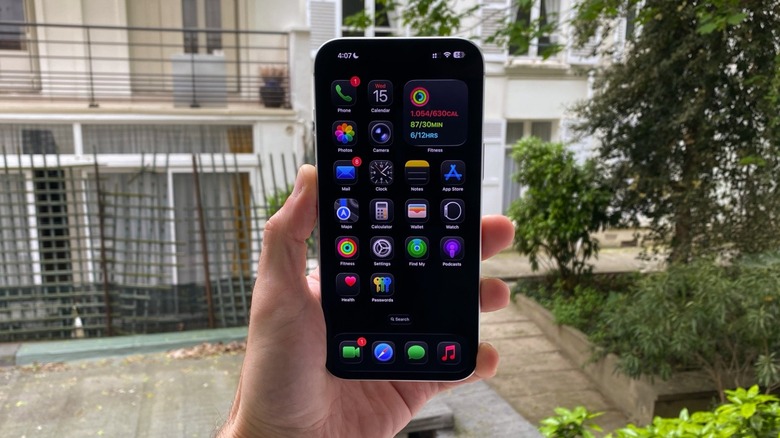
Apple's iPhone models are great smartphones if you want to prioritize battery life. With every generation of new iPhone and iOS, the tech giant adds new features to improve the battery life of its devices. One of the most significant changes Apple made for users was ditching LCD displays for OLED displays with the iPhone X, and ultimately bringing these new screens to all regular models with the iPhone 12. The premium screens even made their way to the newer iPhone 16e and 17e. An OLED display can individually turn off black pixels, which can help save battery life. If you really care about battery life, there's a way to enhance the Dark Mode on your iPhone by also changing the color of your apps and switching a few accessibility settings.
Dark Mode has been available on the iPhone since iOS 13, first released in late 2019. With it, you can use your iPhone in a darker color scheme all times (or only when it gets dark outside). While Apple makes sure all of its own apps take advantage of Dark Mode, some third-party developers don't or opt for darker colors instead of black, which still consumes battery. It's important to have a true all-black background to take advantage of these battery savings. Here's how you can take Dark Mode to the next level.
Ultra Dark mode is the best option for those looking for saving some battery
To turn on Dark Mode, you just need to access the Control Center on your iPhone by swiping down from the top-right corner. There, you'll find an icon with a black and white circle; tap it to switch to Dark Mode. If the icon is not already in the Control Center, you can enable Dark Mode by heading to Settings, then Display & Brightness.
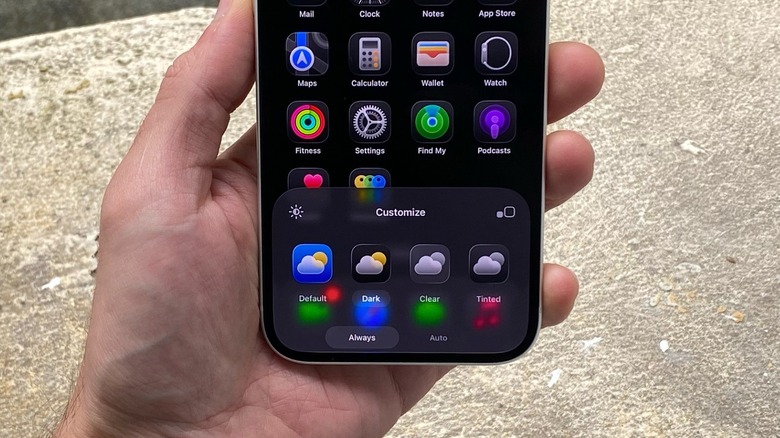
If you're using iOS 18 or later, Apple lets you customize your home screen — including the color of the app icons. To do that, tap and hold an empty part of your Home Screen. Tap the Plus button in the top-left corner and then edit the icons layout. Select the Dark option, which makes apps easier to see on dark backgrounds.
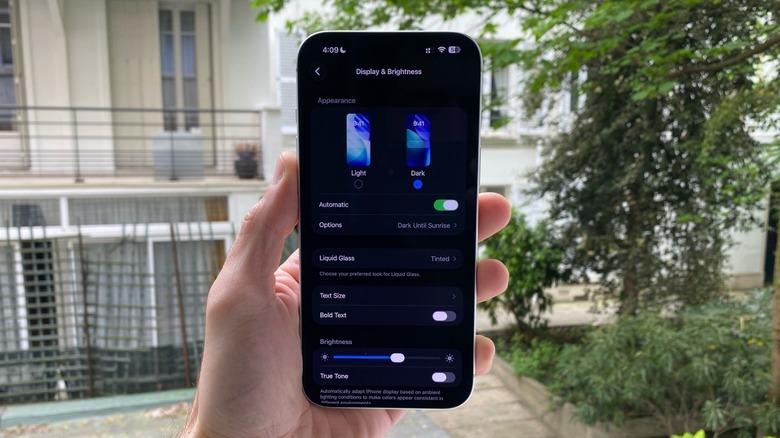
After that, you need to remove parts of the Liquid Glass UI introduced in iOS 26 by enabling a tinted look under Settings and Display & Brightness. Not only does it make the screen darker, but it also makes the iPhone more responsive by lessening some Liquid Glass effects. Finally, also in Settings, tap Accessibility, then Display & Text Size, and turn on Show Borders, Reduce Transparency, and Increase Contrast. These changes will make Dark Mode more effective and easy to use in low light.
Here's what you need to avoid to improve battery life
If you use Dark Mode specifically because you care about battery life, there are some extra things you can do to improve battery life. For example, using a completely black wallpaper will save your battery life even more. Apple offers a black wallpaper if you go to Wallpaper settings, select the Color tab of images, and choose the pure black option. Another big mistake you can make is using the Always On Display. If your iPhone has this feature switched on, go to the Settings app, Display & Brightness, and toggle Always On Display off. Another important setting on the same page is the Auto-Lock function, which should be set to the minimum period of 30 seconds. That way, you avoid leaving your display on when you're not actively using it.
We have several other tips and tricks to help you save battery life on your iPhone. But these are the most important things you need to be aware of when using Dark Mode to increase your battery life. You can enjoy the same experience with your iPhone while saving battery.