

How To Get Back To The Home Screen On Your Kindle
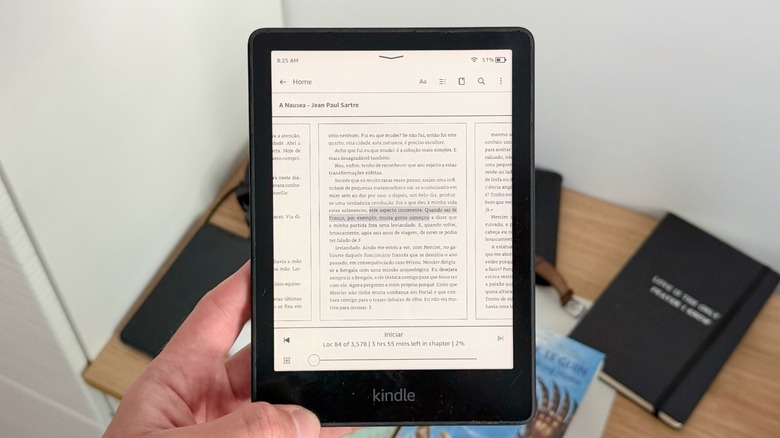
Amazon Kindle devices have been available for almost 20 years now. However, if you're planning to get one of Amazon's e-readers for the first time, or you just got a brand new one, you might be asking yourself how to get back to the Home Screen on your Kindle. Fortunately, you're not alone in this journey. When I first got my Kindle Paperwhite, it took me a few good minutes to figure out how to go back to the Home Screen after I started reading a book. To do that on an open-book page, tap near the clock in your Kindle, and then press "Home" on the upper left corner.
Unlike smartphones and tablets, which have more familiar interfaces, Kindles don't use a swipe up to go back to the Home Screen, nor do they feature a physical Home Button. While you could say that once you start reading a book, you won't leave it until you finish, it still feels weird that the most straightforward way to return to the Home Screen on a Kindle requires users to tap twice. Still, if you're browsing in the Kindle Store, then you could reach for the "X" button on the top right corner, which also leads you straight to the Home Screen, so you can browse titles from your library, Amazon's suggestions, and more.
Gestures and other tips and tricks to use your Kindle
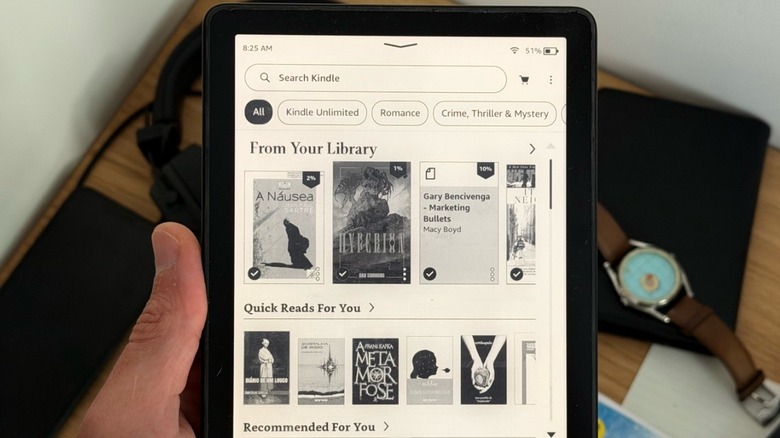
If finding the Home Screen can be tricky on a Kindle, there are a few other tips and tricks that can help you get the most out of this product. For example, the Kindle features a single button, located near the USB-C charging port at the bottom. To turn your Kindle completely off, press and hold it for a few seconds; the same applies if it's off and you want to turn it on. One single tap can wake up your Kindle or put it to sleep.
Usually, when you wake up your Kindle, it should return to the screen it was on before, so you can easily get back into your book. If you long-press a word in the book and slide your finger, you can highlight an important part, add a citation, or even Look Up that information online. If you tap the right top corner, you can add a bookmark to the page you're currently on, while if you press the top part or the left top corner, you get a menu with the ability to adjust the font size, move between sections, check your highlights and annotations, search inside the book, or go through more advanced settings in the three dots. Obviously, you can also go back to the Home Screen.