

4 Clever Uses For Your PC's Microphone (Outside Of Zoom Calls)

Not too many years ago, having a microphone plugged into your computer was either a simple novelty or a professional-only tool for making music or sound effects. These days, though, PC microphones are a dime a dozen, whether it's a budget or expensive gaming headset or a laptop with a mic built right in. Having either a built-in or standalone mic is naturally useful in today's interconnected world for things like Zoom calls, but that's far from their only purpose. With a microphone, you can use all kinds of interesting features, from dictating and transcribing text to browsing the 'net without ever touching your keyboard.
To better accommodate the modern functions and purposes of microphones, Windows 11 has numerous voice-powered features built in, which you can access with a quick setup and a bit of know-how. Not only that, but there are also third-party apps you can use with your voice, such as smart assistants for controlling gadgets around your home. If you've got a microphone on your PC and haven't done anything particularly interesting on it, there are all kinds of cool tricks you can pull if you just know how.
Dictate text documents

One of the baseline features of a microphone-equipped PC is voice recognition for dictation and transcription. In fact, this feature is even older than microphones for voice or video calls, with one of the most prominent examples, Dragon NaturallySpeaking, released in 1997. Of course, we're well past the point of needing a dedicated app for dictation and transcription; Windows can do it natively now.
Once your PC's microphone is set up and programmed to recognize your voice, you can use the Windows dictation shortcut to begin automatic speech-to-text. Just click on any text entry field and, assuming you don't have a dedicated microphone button on your keyboard, press the Windows key and the H key to activate dictation mode. Your PC will let you know it's listening, and you can begin speaking into the microphone to transcribe whatever you say. It's a convenient, hands-free way to take notes or write simple documents, especially if you're not the best at touch-typing. The only catch is that Windows will only have native support for whatever language is set for your current region, so if you want to speak a different language, you'll need to install it separately via the Language & region menu in your Windows settings. The good news is that there are numerous language packs you can install, including French, German, Japanese, and multiple forms of English and Chinese.
Remotely use your mouse and keyboard
Speaking of hands-free PC operation, dictation isn't the only way your PC's microphone can keep your hands off the keyboard. Using Windows speech recognition, you can actually interface with most aspects of your PC in the same way you would with your mouse and keyboard. Beyond being a convenient hands-free option, this feature is invaluable for those with impaired or diminished motor skills in their hands. This, for example, ensures you can still use your PC even if you've injured your hands somehow, all without having to touch your peripherals.
Using the Voice Access feature in Windows 11, you can dictate both individual keystrokes and mouse interactions. In the case of the former, simply activate dictation mode, and clearly speak the keys you want to speak. This can be used for entering text into entry fields on a web browser, for example, but you can also use commands like "select that" to select entered text, then dictate keyboard shortcuts like "control, C, control, V" to use copy-and-paste, though you could also just say "copy that" and "paste that."
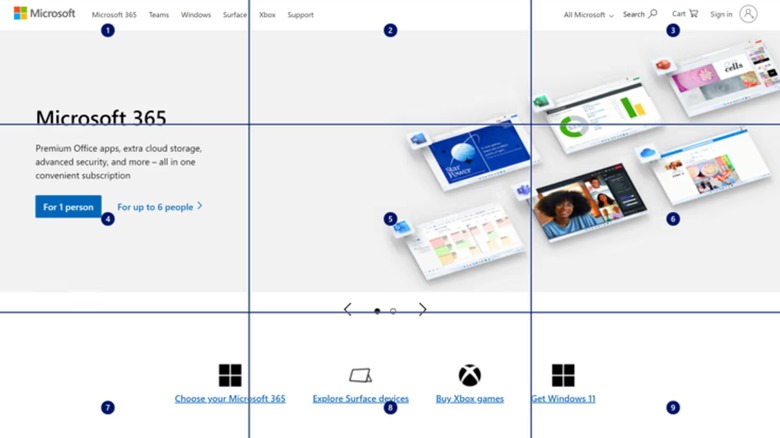
As for using the mouse, you can use voice commands to manually move the mouse pointer around your screen, then simply command "click" or "double-click" to click on objects and links. You can even drag and drop items on your desktop the same way you normally would. If the screen is a little too large to move around in this manner, you can speed things up with the "show grid" command, which creates a numbered grid across your screen. Just say one of the grid's numbers, and your pointer will automatically jump to that numbered segment.
Activate functions and shortcuts
Interfacing with your PC isn't just about typing and clicking. Experienced users use a multitude of functions and shortcuts to simplify processes. In the same way, while you can manually enter text and move the mouse around using Windows Voice Access, there are many scenarios where it would probably be easier to use a shorthand command, of which there are quite a few.
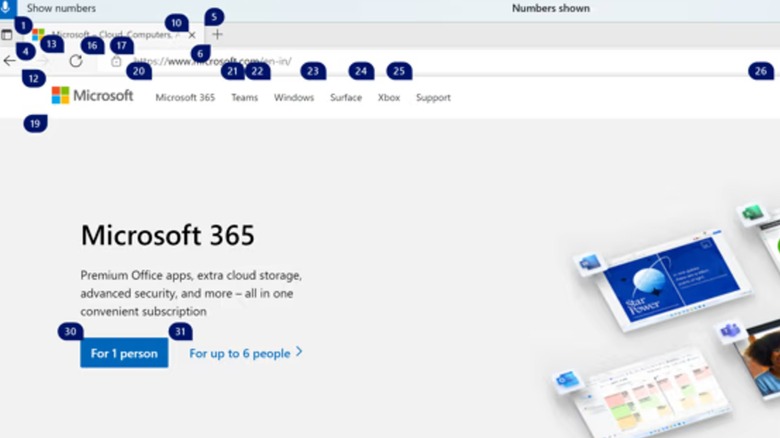
For example, if you wanted to open a particular app like Firefox or Slack, all you'd have to do is say "Open Firefox" or "Open Slack." Similarly, you can close apps by saying "close," followed by the app's name. Using commands, you can swap between active windows, minimize or maximize them, jump right to the desktop, and scroll up and down on larger pages. You can also interact with items on your display directly rather than commanding the mouse pointer over them. If you wanted to open the Recycle Bin on your desktop, for instance, you could just say "double-click Recycle Bin." If an item on your screen doesn't have a clear name to refer to it by, you can instead use the "show numbers" command to activate a numbered overlay, assigning numbers to every interactable item currently shown. When you see what you want to click on, just say "click" and the number it's been assigned.
Use a smart assistant
If taking Zoom calls is one of the primary reasons to have a microphone on your computer, the other is using smart assistants. Smart assistants have become a staple of many people's everyday lives, accessed via smart speakers to control various compatible devices around their homes. Microsoft used to have its own smart assistant, Cortana, though it was discontinued in 2023 and removed from all subsequent versions of Windows. While Cortana's off the table, though, there are still other smart assistants you can use through a PC, chief among them being Alexa.
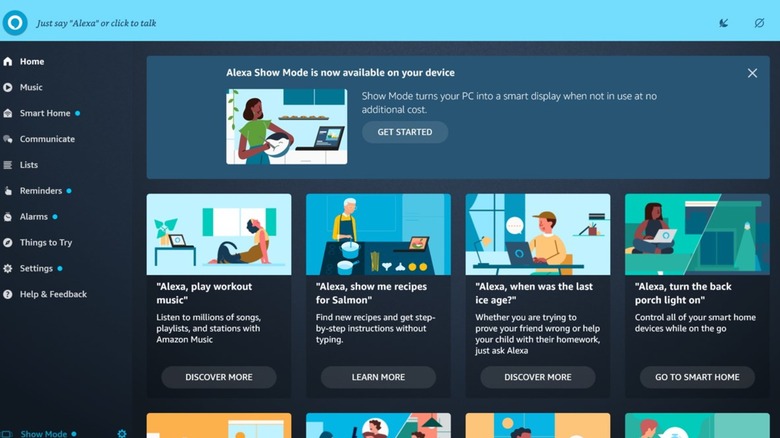
Amazon's Alexa smart assistant can be utilized through a Windows PC via the dedicated Alexa app in the Microsoft Store. As with using Alexa on a smartphone or through a smart speaker, you can use your PC's microphone to issue various handy commands, from checking the weather to answering innocuous questions. More than that, if you have an existing Alexa smart framework in your home that connects various smart devices, you can control all of them through the Windows Alexa app, using your voice to control lights or activate security systems, for example.