

5 Things Your MacBook's Touch ID Button Can Do (Besides Unlock It)
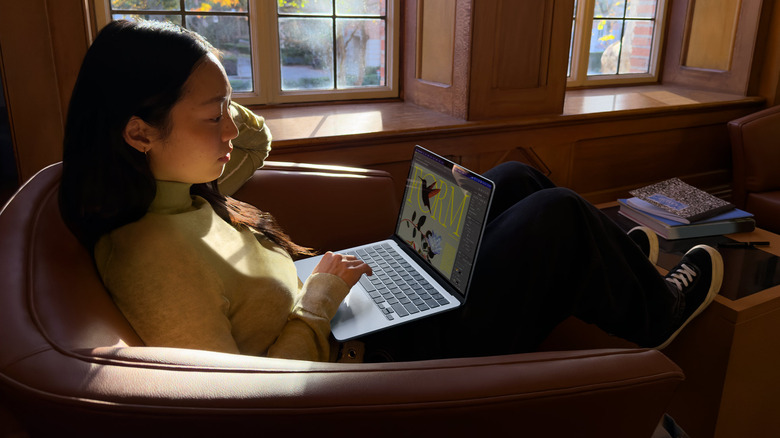
Apple introduced Touch ID in 2013 with the release of the iPhone 5S, a fingerprint recognition sensor that provides users with an easy way to secure their devices. The feature came to Apple's laptops starting with the 2016 MacBook Pro and has been included in the majority of MacBook models at every price point that Apple has released since then. One notable exception is the base-model MacBook Neo, but the fingerprint scanner is even part of the Magic Keyboard that comes with most iMacs. While the iPhone X ditched the physical home button and swapped fingerprints for facial recognition, Face ID hasn't replaced Touch ID on MacBooks yet.
Of course, your MacBook's Touch ID button — located in the upper right-hand corner of the keyboard — does more than just let you lock and unlock your laptop without having to type in your password every time. You've probably run across a few of its other functions, but there are more you may not know about. That includes some that don't involve Touch ID at all, such as rebooting your device or opening up one of your Mac's best accessibility features.
Enter passwords
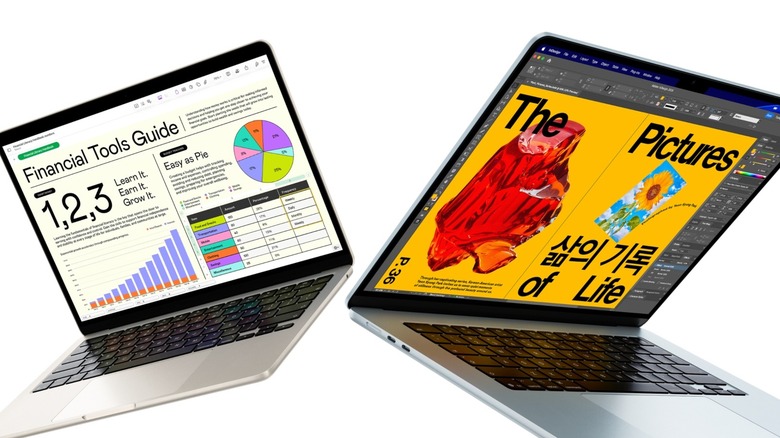
You've probably already used this one, but you can use the Touch ID button to AutoFill usernames and passwords in Safari. You'll need to have the information saved in iCloud Keychain, but you can choose to remember passwords for future Touch ID use. If this isn't working for you, go to System Settings, then Touch ID & Password, and make sure Use Touch ID for autofilling passwords is turned on. You'll also need to set up a password for your MacBook itself before you can use iCloud Keychain features.
Additionally, you can use Touch ID to access password-protected content on your laptop, like notes, documents, and the "Recently Deleted" and "Hidden" albums in the Photos app. This is helpful if you have things on your laptop you'd prefer to keep private, especially if you're using a shared device. Be aware that there are some notes you can't lock, including ones you've already shared and those containing videos, audio files, PDFs, or documents.
Make purchases
This is another feature you've most likely used already, but you can use Touch ID to make payments with Apple Pay or make purchases within iTunes, the App Store, and Apple Books. That, of course, requires you to have a card on file for Apple's digital storefronts or Apple Pay. If you have an iPhone, you've likely already done this, but you can set up Apple Pay by going to System Settings, then Wallet & Apple Pay. From there, you can choose to use a card on file (if you already have one) or add a new card either manually or with your computer's camera.
Touch ID isn't the only way to use Apple Pay on a MacBook, as you can also confirm purchases with your iPhone or Apple Watch, but it's the most convenient. Just make sure you have Touch ID enabled for Apple Pay and other purchases in System Preferences.
Switch profiles

When you set up Touch ID on your MacBook, you have the option to enable or disable certain features. A lesser-known one is fast user switching, which allows you to swap between different profiles on your device with just your fingerprint when multiple users are signed in. It's a feature you're more likely to need on desktops, but it's nice that it's an option for those who share a laptop.
To turn on fast user switching, go to the Touch ID & Password menu in System Preferences and enable Use Touch ID sensor for fast user switching. Note that you'll need to have device administrator privileges to set this up. To use it, press the Touch ID button until it clicks; that will open up your account, allowing you to quickly go about your business. Keep in mind that the user needs to have already used their password to sign in at some point recently, otherwise they'll be prompted to enter it.
Reboot or lock your device
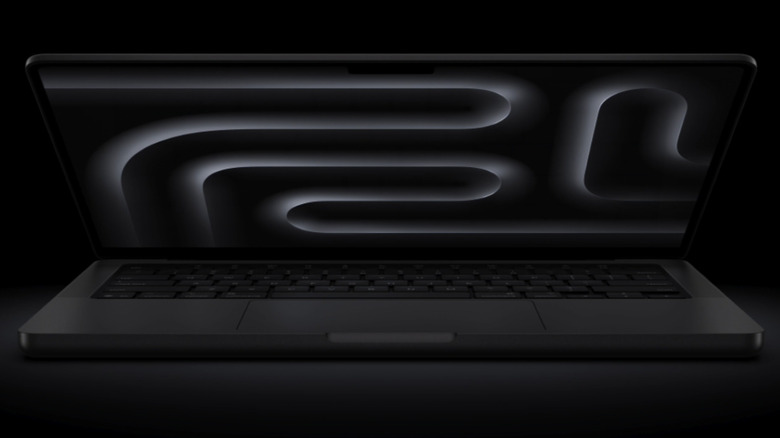
This feature doesn't have to do with Touch ID, but rather the button itself. The Touch ID button replaces the old power button on newer models, something that some Reddit users have admitted they didn't notice even after using their MacBooks for quite some time. This is what you'll use to put your laptop to sleep and, when necessary, force it to shut down. To access the shutdown functionality, just press down on the button harder than you would to use the fingerprint reader. If your computer is unresponsive, keep holding the button down until it shuts down. You'll lose any unsaved changes, but a restart will hopefully resolve your problem.
You can also use the Touch ID button to lock your MacBook's screen by quickly pressing it, giving you a way to instantaneously secure your device. There are other ways to do this, like setting up hot corners and making one a lock screen shortcut, but the Touch ID button is just as simple in a pinch.
Turn VoiceOver on and off
Finally, the Touch ID button is a convenient way to turn on one of the MacBook's best accessibility features: VoiceOver. This is a built-in screen reader for those with blindness or low vision that's been designed to read text, navigate the screen, and set up braille devices. There are several ways to turn VoiceOver on, but one of the easiest is holding down the Command key and quickly pressing the Touch ID button three times.
With VoiceOver enabled, you can navigate your MacBook using various methods like keyboard commands, trackpad gestures, or an external braille display. You can also use Keyboard Help to read out which keys you've pressed and any commands you've entered. There are some standard commands and trackpad gestures, such as muting and unmuting VoiceOver with a three-finger double tap. You can also set up custom gestures and key commands, with the option to swap between Built-in and User commands.