

4 Audible Settings You Should Change ASAP For A Better Experience
With over one million titles to choose from and a couple of different ways to enjoy its library of audiobooks, Amazon's Audible service remains one of the best ways to listen to your favorite audiobooks on the go, though there are certainly some cheaper alternatives out there. Plus, because of the app's support for Amazon's Read & Listen feature, many audiobooks on Audible now allow you to seamlessly switch between listening and reading on your devices, so long as you own both the Kindle and audio versions of a book.
If you are using Audible to listen to audiobooks, then there are several ways you can customize your experience. We highly recommend messing around with some of the different settings offered in the app. Not only will these changes help improve your focus when listening, but they'll also make navigating your audiobooks much easier, and can even help ensure you always have your next listen ready to go.
Disable notifications
Notifications can be a great way to keep up with what's going on across all your apps. And with Audible, it can be good for seeing when new releases are coming out. However, it's also a prime opportunity for distractions. If you really want to raise immersion when listening to audiobooks, you can easily disable notifications in the Audible app by navigating to Profile in the bottom right-hand corner, then selecting the gear icon at the top of the app. From here, select Push notifications and then customize the ones you want to leave on or turn off.
If you want to take things a step further, you can also turn on Do Not Disturb mode or set up a Focus mode just for listening to your audiobooks. This will stop incoming notifications from other apps, which will cut down on interruptions when listening. This isn't actually an Audible setting itself, but it can work in tandem with the above notification changes.
Turn on automatic downloads
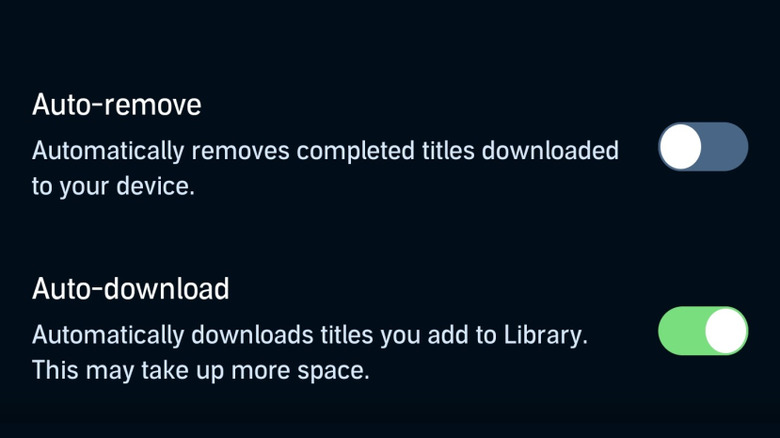
Another really useful setting that you should definitely take advantage of is the automatic downloads option on Audible. This feature makes sure your audiobooks are always downloaded to your devices, allowing you to seamlessly listen at any point. While some titles do support streaming, downloading your files will help make sure you can always listen, even if you don't have any cellular service. That means less time waiting for books to download while you're already on the move, as well as less chance of any hiccups due to slow mobile data.
To enable automatic downloads in Audible, navigate to your Profile and then select the settings gear icon at the top of the page. Next, choose Data & Storage, then turn on Auto-download by toggling it at the bottom of the list. From now on, any new purchases you make will automatically download onto your device. You can also change the audio quality settings on this page, and we recommend using High quality for downloads. This will ensure crisper audio quality, but you may need to manage your phone's storage space, depending on how much space you have.
Change the playback speed
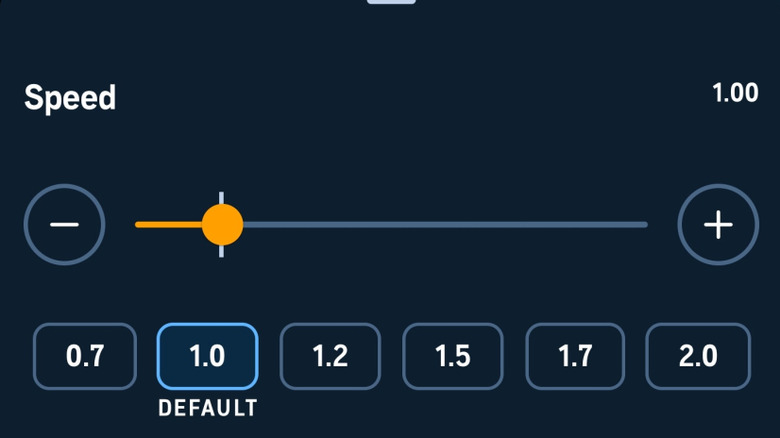
One of the benefits of audiobooks is being able to listen while you do something else. However, depending on the voice actor, some of the speech or narrative might be a bit too slow for your own personal tastes. Or maybe you're trying to reach a goal of reading a certain number of books in a month. If you want to change the playback speed of an audiobook, you can do so at any point while listening in the Audible app.
While in the Now Playing screen, find the Speed option in the bottom left-hand corner of the screen. Tap it once to bring up a menu with a slider and several speed options. Pressing the + or the – icons on the ends of the slider will change the speed by .5, so you can easily move up to 1.5 or even down to .5 if you want to.
Any changes you make to the speed will only apply to the current book. If you want to change the default speed, navigate to the settings menu by pressing the three dots in the top right corner, select Player, scroll down to Narration Speed, and choose your preferred option. Going forward, all of your books will play at the new default speed.
Change Skip interval
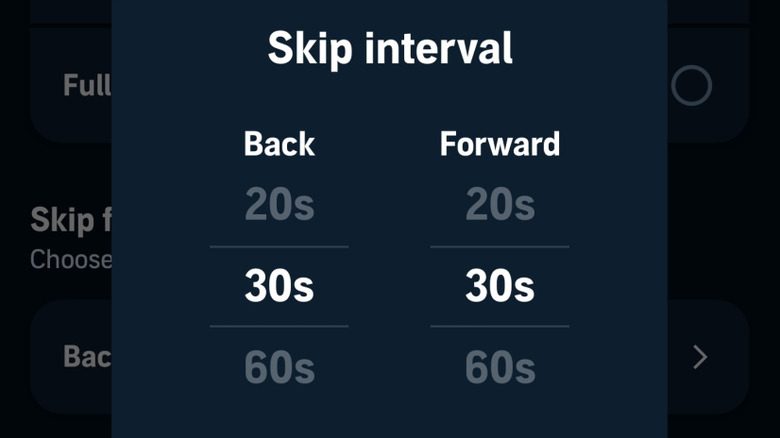
Another useful player setting you can change in Audible is the skip interval. This feature can be found in the audio player and gives you the ability to skip forward or backward in the audio a set duration of time. This makes it easy to jump back to important parts of a book you want to hear again or to skip ahead past certain sections. By default, this is set to 30 seconds, but you can customize the skip interval in the app's settings.
To customize the skip interval, open the audio player and tap the three dots at the top of the screen. Select Player settings and then find the section labeled Skip forward and back. Tapping on the option here will bring up a window that lets you customize both the rewind and fast-forward intervals. You can set it as low as 10 seconds or as high as 90 seconds. Once you've set both, just tap the Set button to lock it into place.