

What Does The Blue Light Mean On A PlayStation 5 Controller?
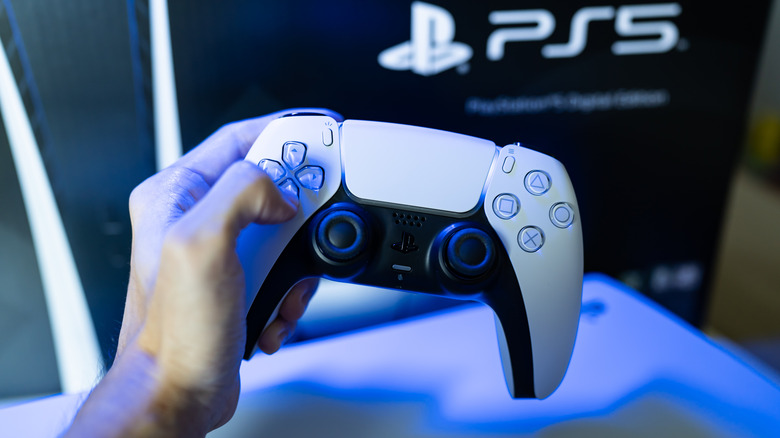
Most modern controllers feature flashing lights of some variety, often to show that it's on and connected. However, the DualSense controller for the PlayStation 5 (arguably the best gaming controller out there) has multiple lights, some of which display multiple colors. If the light around the center touchpad flashes blue, you're either playing "God of War" or, more likely, your controller can't communicate with the console.
A flash of blue when you turn on the controller is a catch-all indicator that your DualSense controller is suffering from a connection error. Usually the Bluetooth is to blame, but if you are using a wired USB-C connection, the light will flash blue to tell you that the controller still can't communicate. In fact, if you plug it in your DualSense and the controller emits a blue pulse of light, either the cable or port is so dirty that a proper connection can't be made. In worst-case scenarios, connection issues are also caused by interrupted firmware updates and circuit failures.
How to fix the fault
Now that you know a flashing blue light means the DualSense can't seem to communicate with the PlayStation 5, all you have to do is reestablish connection. Since the blue light doesn't tell you the cause of the communication issue, you have to try one potential solution at a time.
Always begin by restarting the console: Push the power button until the PS5 beeps, and then press it again after the console turns off. If that doesn't work, turn off nearby devices known to interfere with Bluetooth connections, and if that still doesn't correct the problem, connect the DualSense to the PS5 via a USB cable and leave it plugged in. If the device flashes blue while it's plugged in, a quick blast of compressed air into the cable ports and slots should clear up all connection disruptions, and if not, try using a different USB cable.
If none of the above solutions work, you are left with limited options. The easiest is to reset your DualSense by inserting something long and thin (like a paperclip) into the hole on the back of the controller and hold the reset button down for five seconds. Afterward, reconnect the DualSense controller to the PS5 via a USB and press the PS button to pair it with the console. And, after all this, you're still having connection issues, you can either contact Sony tech support for repairs or buy a cheap replacement if the controller is beyond saving.