

4 Audio Settings You Should Try On Your PlayStation 5
Optimizing your PlayStation 5's audio settings can make for an even more immersive gaming experience. Fortunately, Sony's console offers a litany of audio features, adjustable settings, and formats to help you tweak your PS5's audio to suit your individual setup and needs — regardless of whether you're using a soundbar, gaming headset, or surround sound system.
For those who want to be absorbed into their game world, the PS5's 3D audio tech can create a virtual soundscape that lets you hear sounds as you would in real life, with distant sounds like raindrops sounding further away and nearby car engines rumbling louder in your ear. The audio focus feature can emphasize quieter sounds, making it a blessing when playing first-person shooters where hearing enemy footsteps is vital. Elsewhere, adjustments to your audio format or AV amplifier settings can ensure you get the most out of your audio setup.
Ultimately, the best PS5 audio settings depend on your personal preference, setup, and the games you like to play. So, below, we've broken down four audio settings and features that you should definitely try out.
Enable 3D audio
The PS5 features 3D audio support for built-in TV speakers and headphones through its Tempest 3D AudioTech, Sony's spatial audio technology that uses the Tempest engine to create a 360-degree soundscape by simulating hundreds of individual sound sources in a 3D space. This delivers a more immersive audio experience when playing supported PS5 games, as it'll actually sound like noises coming from behind you are really behind you, or far away in-game sounds will sound fainter than those closer to you.
To enable this feature for TVs with built-in speakers, navigate to your PS5's Settings, then Sound, and then select 3D Audio (TV). Next, follow the on-screen instructions to measure the acoustics of the room your PS5 is located in — this requires using a DualSense PS5 controller with the microphone turned on. Once the measurement is complete, you can compare your PS5's original, stereo sound output to the new 3D audio output, and select the option that you prefer.
3D audio can also be enabled for PS5-compatible gaming headphones or headsets. To do this, go to Settings, then select Sound and choose 3D Audio (Headphones). Next, select Create Personalized 3D Audio Profile and follow the on-screen instructions, listening to sounds and answering questions to determine the best audio setup for you. This creates a personalized 3D audio profile that will activate (while enabled) whenever you play supported PS5 games with a headset, providing an even more immersive, custom experience than the one delivered through TV speakers.
Enable audio focus
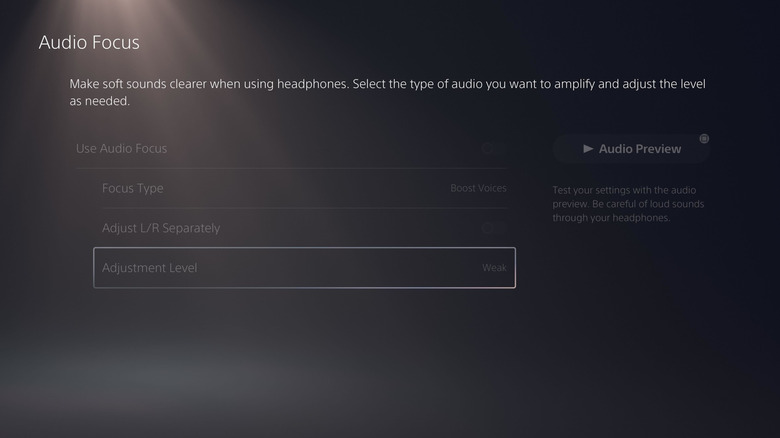
Introduced in 2025, the PS5's audio focus feature makes quiet sounds clearer when playing with headphones or a headset by allowing you to adjust your audio output to emphasize faint sounds in certain frequencies. While it's a welcome accessibility feature, it's also a setting that is particularly useful for first-person shooters, like "Call of Duty," as it can make it easier to hear encroaching enemy footsteps — which can be critical to survival. And, unlike 3D audio, this feature works with all PS5 games, voice chats, and media apps.
To enable this feature, go to your PS5 Settings, then Sound, and select Volume. Select Audio Focus from the menu and toggle it on. Next, select Focus Type, which brings up four options: Boost low pitch (amplifies low-frequency sounds, like bass), Boost voices (amplifies middle-frequency sounds, like voice chat and dialogue), Boost high pitch (amplifies high-frequency sounds, like footsteps), and Boost quiet sounds (which can amplify low-volume sounds from a wide range of frequencies). You can also choose to adjust your left and right volumes individually if you wish.
Finally, you need to choose your adjustment level: Weak, Medium, or Strong. We advise against using Strong to start, as it can make the volume seem a bit too loud, so it's best to stick with Medium or Weak — but play around with it and see what suits you best.
Adjust AV amplifier settings
If you're using a multi-speaker setup or a high-end surround soundbar, adjusting AV amplifier settings could improve your audio experience. First, ensure your HDMI device input is set to an AV amplifier. To do this, navigate to Settings and then Sound on your PS5, then select Audio Output. Look at the HDMI Device Type option, and if it says "TV" beside it, select the option and change it to "AV Amplifier."
Next, you need to select the number of channels to use, either 2, 5.1, or 7.1. This needs to match your speaker setup as closely as possible for the best results. If you're using a single soundbar, it's best to use 2, while 5.1 is best for systems with three front speakers, a subwoofer, and two rear speakers. 7.1, on the other hand, is best for those using seven speakers plus a subwoofer, or if you have ceiling speakers.
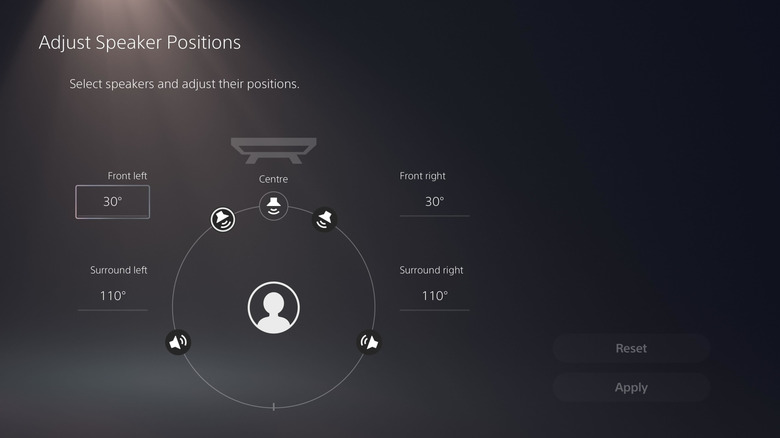
Now, you need to select Adjust Speaker Positions. This brings up a diagram that allows you to manually adjust the position of each of the speakers in your setup in relation to where you sit to play games. Tailoring the diagram to reflect your own setup helps the PS5 deliver directional sound more accurately. Just make sure that if you're connected using HDMI ARC (audio return channel), that you enable eARC (enhanced audio return channel) functionality in your TV's audio input settings — if it is supported — for richer, more vivid sound.
Change audio format
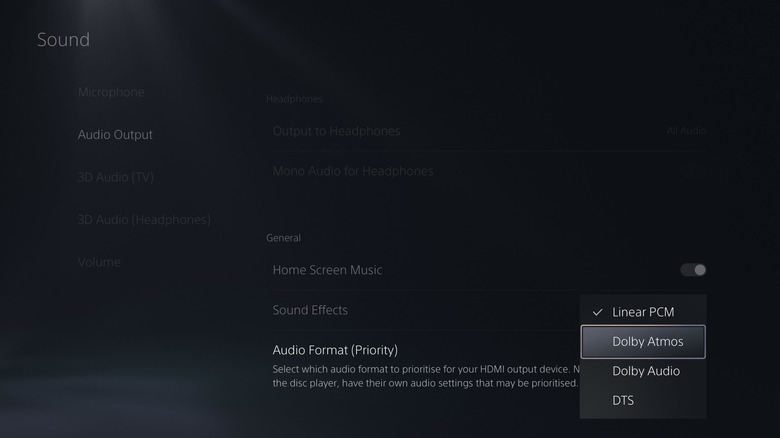
A common mistake PS5 users make is using the wrong audio format. Sony's console offers four options: Linear PCM, Dolby Atmos, Dolby Audio, and DTS. You need to choose a format that suits your specific setup, ensuring low latency while maintaining the highest possible quality. To change audio format, go to Settings, then Sound, then select Audio Output and choose Audio Format.
It's likely your PS5 is set to Linear PCM (pulse code modulation) by default, which is an uncompressed, lossless digital audio format that supports up to 7.1 surround sound and is the preferred format for video game production. It's best for the following setups:
-
A soundbar or AV receiver directly connected to your PS5
-
An AV receiver connected to a TV via eARC
-
2.1-channel setups using ARC or eARC
-
Internal TV speakers
If your setup is different than the above, one of the other three options will likely provide better results. Here are some examples of when to use them:
-
A soundbar or AV receiver connected to your TV via ARC (more than two channels)
-
A speaker setup with height channels
Your choice will likely depend on the audio format your setup supports, so try out each compatible format and see which sounds best. However, if you have ceiling speakers, use Dolby Atmos, as it's an object-based spatial audio format that utilizes height channels for more immersive sound. Whichever you choose, make sure to change your TV and Blu-ray HDMI audio input settings to bitstream or PCM/Linear PCM.