

iOS 27 Finally Brings The Liquid Glass Fix That iOS 26 Always Needed
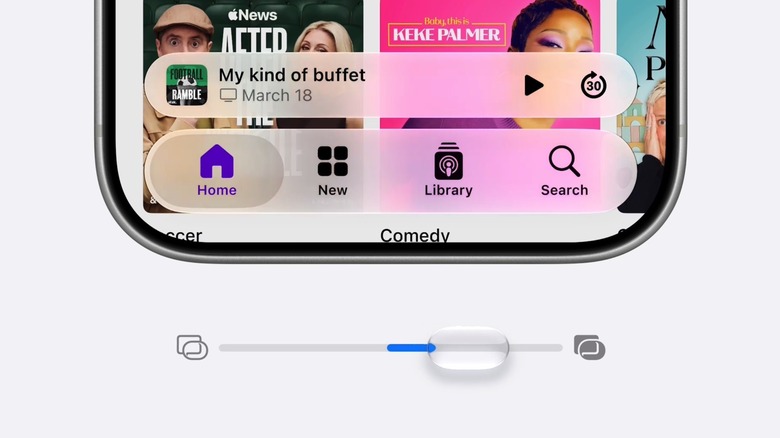
One of the main features of iOS 26 was the new Liquid Glass design, the first major redesign since iOS 7. Apple made all user interface elements transparent, including tabs, buttons, and menus. Liquid Glass also featured lighting effects, with light reflecting and refracting from digital surfaces. But the Liquid Glass design caused plenty of criticism from users starting with the first iOS 26 beta release. Transparent menus were hard to read in some apps, like Music and the Control Center, so Apple tried to fix the problem. The following iOS 26 beta releases increased the opacity, drawing criticism from Liquid Glass fans who didn't like the opaque UI. Apple found a middle ground, and by October 2025, it introduced a Liquid Glass customization option, giving users a choice between Clear and Tinted looks in iOS 26.1. But it's iOS 27 that finally brings the Liquid Glass fix iOS 26 needed from the start, a translucency slider that allows the user to choose their preferred level of transparency.
Seen in the images above and below, the slider is already available in the first iOS 27 developer beta, and it's similar to the transparency slider Apple added to the Lock Screen clock in iOS 26.2. Apple said during the WWDC 2026 keynote that it took feedback from users and developers into account when refining the Liquid Glass design for iOS 27. The company explained that it "tuned Liquid Glass so it diffuses complex content behind it much more effectively, while also creating more depth and separation" to improve readability. These tweaks should improve the default Liquid Glass experience for most people, Apple said, but the company still added a slider that allows users to adjust the Liquid Glass transparency.
How to customize the Liquid Glass transparency in iOS 27
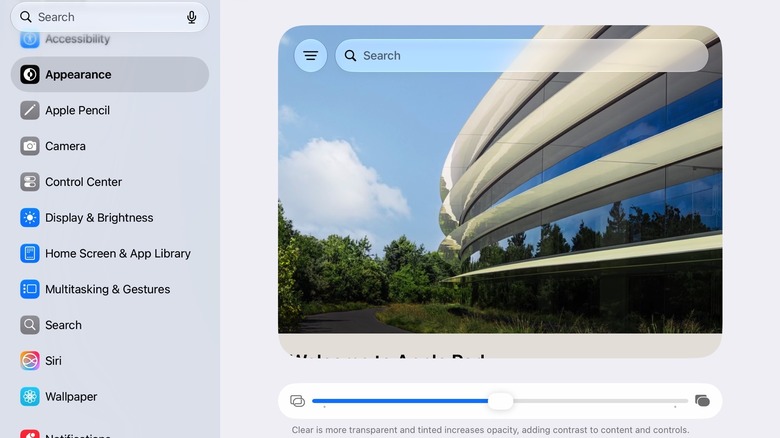
The Liquid Glass slider will appear in two places after installing the first iOS 27 beta: The iPhone setup screen and the Settings app. This behavior makes sense, as Apple gives users the chance to configure Liquid Glass during device setup. But users can always return to the Liquid Glass customization slider later by going to the Settings app. You'll have to tap the Appearance menu and then go to Liquid Glass to adjust the user interface's translucency level.
The iPad and Mac Liquid Glass customization will be similar. Seen above in a screenshot taken on an iPad running iPadOS 27 beta, the Liquid Glass customization screen also includes a scrollable preview image that will let users see how a specific setting will impact legibility. They can choose ultra clear and fully tinted options, and anywhere in between, to decide which look makes the most sense for their experience.
In addition to offering a customization option for Liquid Glass, Apple has also addressed another criticism with the original Liquid Glass implementation: the appearance of the default Apple app icons. With iOS 26, some icons looked blurry after the Liquid Glass redesign. iOS 27 fixes that by adding separate Liquid Glass layers to app icons. According to Apple, these changes make the icons look "sharper and more defined," whether you use the color or the all-clear option. Users can't customize the transparency of app icons, but they can choose a Clear app icon look. Long-press the Home Screen wallpaper and tap Edit when the icons start to jiggle. A Customize option will let you change the appearance of app icons, including Clear and Tinted looks.