

What Does The Blue Arrow Mean On Your iPhone?
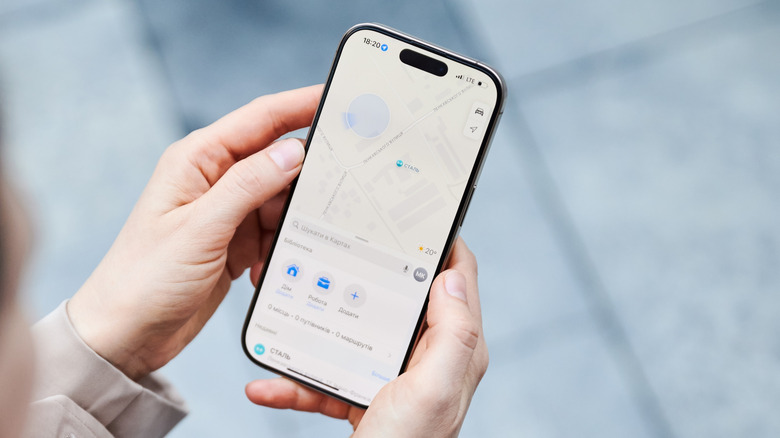
Have you ever noticed a blue arrow (or a grey one) at the top of your iPhone's screen or within the Dynamic Island? It's an indication that your device is either providing directions or that an app, background service, or website is actively using Location Services. Unlike other indicators, say Wi-Fi or Bluetooth, the arrow only shows up when location services are in use. This way, you always know when an app is accessing or sharing your iPhone's location. And in a few taps, you can find out which app it is.
To do that, simply pull down from the top right of your screen to access the Control Center, and it will show which app is accessing your iPhone's Location Services. Apps that typically rely on this include Apple Maps and Google Maps for directions, food and other delivery apps to identify your precise location, and even WhatsApp and other similar communication apps when you share your location with someone.
Remember, the blue arrow serves as a visual indicator. Whenever it shows up, you know your phone is sharing its location with an app or service. This becomes all the more important when an untrusted app has access to your iPhone's location. And as soon as you find out Location Services is being used, you should take a minute to figure out which app is in play and decide whether you trust it, or whether you want to revoke access to location data. Keep in mind that misconfigured permissions are one of the major reasons iPhone apps can spy on you.
Getting rid of the blue arrow on an iPhone
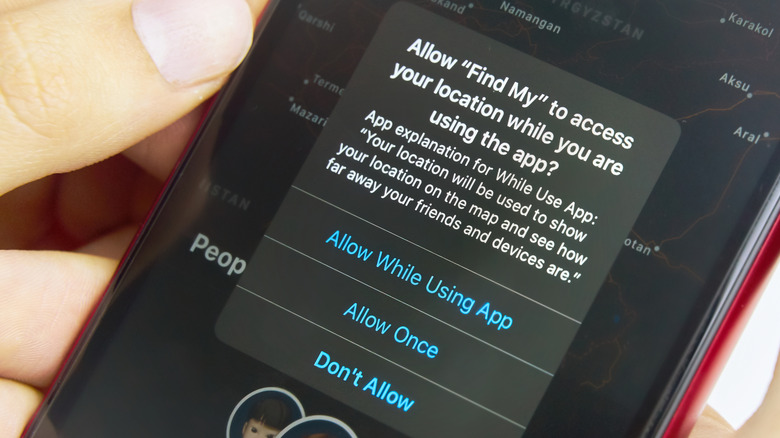
The only way to get rid of the blue arrow across the board is to turn off Location Services (Settings > Privacy & Security > Location Services), but this has a ton of downsides. When you disable Location Services, apps — including critical ones — won't be able to access your location, and any that actively rely on it won't work properly. For instance, the built-in Apple Maps won't be able to fetch your location. Similarly, you won't be able to share your location with others on apps like WhatsApp. Luckily, there's a smarter option.
Instead of turning off Location Services, you can identify the apps using your location data, then revoke access from those that you don't want to use your location information (choose Never next to the app you want to change in Location Services). This practice not only prevents those apps from generating the blue arrow icon but also improves your security profile, as not reviewing app permissions is a common mistake users make on iPhones. Sometimes, the offending services will be part of the important group of system services, but you can still prevent the arrow icon from showing up when any of these access your location. To do that, go to Settings > Privacy & Security > Location Services > System Services and disable Status Bar Icon. This won't affect a service's ability to request or access location, but it will instantly stop the arrow icon from showing up.
With all that said, it's important to realize that the blue arrow is an important visual indicator. It lets you know when an app is constantly accessing or sharing your iPhone's location. So disabling it entirely may not be the best idea after all.