

Google Chrome Has A PDF Tool That Saves You From Switching Between Apps
It's common knowledge you can open most PDF documents in a browser at this point, whether you're using Google's Chrome, a Chromium-based browser, Firefox, or Apple's Safari. You can also use dedicated PDF apps, as well, but for quite some time, browsers only really allowed you to view those documents. If you want to do any editing — like adding a signature or annotations — you'll need a separate app. You can always edit a PDF in Adobe Acrobat for free, but that still requires you to juggle multiple applications. At least, that was the case until Google baked a PDF manager into Chrome and, more recently, improved its editing functions.
Basic support was added all the way back in 2010, but it wasn't until 2020 that Chrome added support for filling out those forms and saving tagged documents. In February 2026, Google announced it added native PDF annotation tools, which allow you to markup and personalize those documents, alongside adding a handy "Save to Google Drive" function. Basically, now you can do all your PDF-related tasks right from within Chrome, as long as you have the latest version. You can also send those documents to your Google Drive without downloading and reuploading, so managing your PDF files across platforms is more convenient than ever.
With annotations, you can draw or highlight text anywhere on a document, erase previous annotations you've made, and even draw a signature. You can do this on both PC (desktop), and mobile (Android). And on Android, you don't need to download the PDF documents first, you can open them right in a browser from the website serving them.
How to you use these new PDF features in Chrome
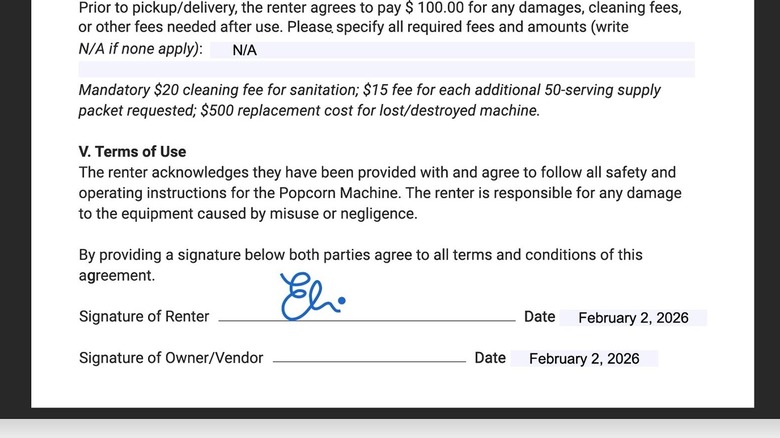
There may be times where you want to reference things on a particularly large document, if only for your own peace of mind. Maybe you're looking over a big contract before signing, or perhaps you need to review business legalese with lawyers or an advisory team. Whatever the case, you can now highlight, note, and jot down reminders in a PDF document, all from within your Chrome browser. Even if you're not using these feature professionally, PDF documents are a popular format for a variety of materials from ebooks to instructions and user manuals. These features allow you to visually address critical sections of a document, which can make future skims faster or may even help you remember or identify important text. You could draw a circle on your current stage in a step-by-step user manual, or highlight phrases to look up in a dictionary from your current book.
Moreover, since Claude can create PDF, Word, and Excel files for you now as well as populate them, you may end up working with these types of documents more than you'd expect, especially if you're sharing them with co-workers or peers. Adobe is also releasing AI support for PDFs that many will find helpful. But PDF documents have long been the go-to file format for official and legal documentation and business contracts because they're easy to share, are cross-platform friendly, and the built-in security can prevent tampering and unauthorized edits in contracts and legal filings.
As a helpful tip, you can create PDFs easily within Google Docs, simply by converting a regular word document. After creating and editing, in the top left menu click File > Download > and choose PDF document (.pdf) for the format.