

These Google Apps Need To Be Manually Updated On Your Samsung Phone
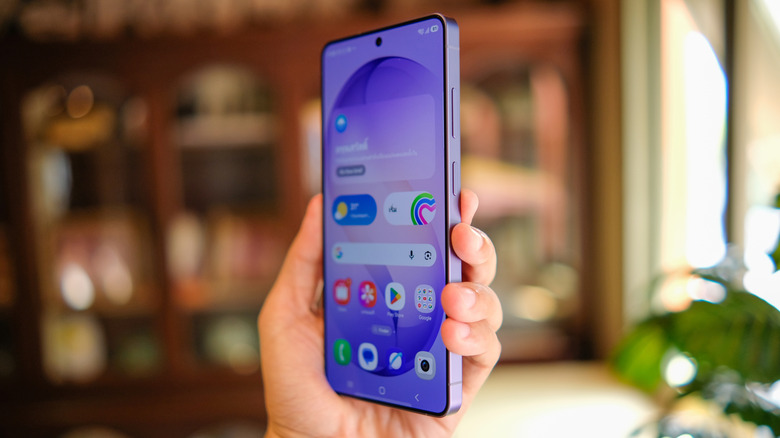
An X user known as Galaxy Alerts, who provides the latest Samsung mobile updates, posted that Google has released updates for three of its system apps on Samsung Galaxy phones: Android System SafetyCore (version 0.925574157), Android System WebView (version 149.0.7827.91), and Google Play Services (version 26.22.33). These apps are being mentioned specifically because they don't show up when you navigate to the "Available updates" screen in the Play Store. You can get there by tapping your profile picture in the top-right corner and going to Manage apps & devices > Updates available.
As it turns out, these three apps might need a manual update, and they're pretty important. Android System SafetyCore is the underlying technology that apps use to provide users with the ability to protect themselves from potentially unwanted content. Android System WebView enables apps to display web content. Google Play Services are responsible for a wide range of important functions on your Android device, including updating apps, synchronizing contacts, accessing user privacy settings, and making maps more detailed. You can uninstall Google Play Services updates, but it's not recommended since some functions might break.
To update these apps on your Samsung Galaxy phone, head to Settings > Apps, select the app in the list, and then tap "App details in store." Once the Play Store opens, tap "Update." If you see "Remove updates," it means the app is already updated. At which point, you should check if it's one of these latest version numbers.
What to do if other apps aren't updating on your Samsung phone
If you check the "Available updates" screen in the Play Store and see that several apps are awaiting updates, tap "Update all." If the update icon is spinning with no action, then some might be preventing the apps from updating. The first thing you should check is that you have a stable internet connection, whether you're on Wi-Fi or a cellular network. If that doesn't work, try restarting the phone and updating the apps again in case it was a temporary glitch.
It could also be that your Android phone's storage is full. In that case, you should clear it by deleting old videos, photos, and documents you don't need, especially if they're large. You should also uninstall any old apps you don't need. Sometimes, if your Android version is outdated, it can be incompatible with some app updates. Update your Samsung phone by going to Settings > Software update > Download and install and tapping "Download now" if the update doesn't start immediately.
You can also try clearing the cache of the Android app that is not updating. You might also need to clear the cache of the Play Store and Google Play Services. You should also check the system date of your Samsung phone, because an incorrect date might interfere with the app's servers. To fix that, go to Settings > General management > Date and time and toggle on "Automatic date and time."