

Why Old iPads Don't Let You Check Battery Health (And How You Can Anyway)
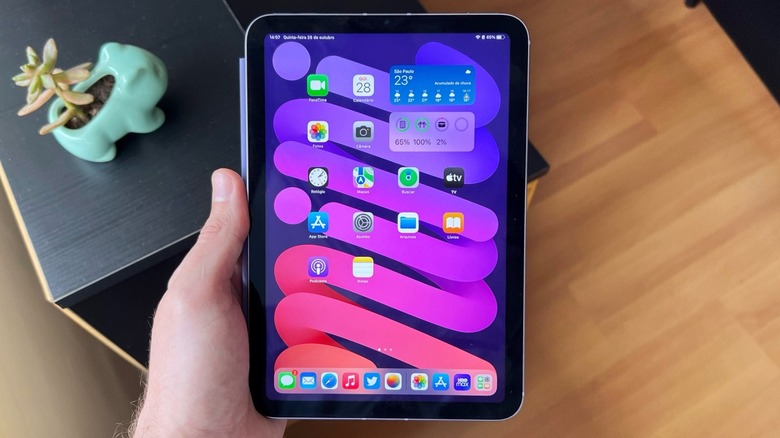
Unlike iPhones, iPads took a little longer to offer users the ability to check their battery health. While the company never explained the reason behind it, it's possible that, since the iPad is not used as much as the iPhone, most people didn't care or just weren't aware of their tablet's battery degradation. In addition, the iPad features a larger battery than the iPhone, which means the iPad can, theoretically, last longer on a single charge than the company's smartphones. While Apple allowed users to check Battery Health in later iPad releases, those with older models still have two possible ways to check battery life: through a third-party app or calling Apple Support.
For owners of the iPad Pro M4, iPad Air M2, iPad mini (A17 Pro), iPad (A16), or newer, Apple offers a pretty consistent and straightforward way to check battery health and history. In iPad Settings, go to Battery to see when it was last charged, your current battery life and your daily usage. You can even tap Battery Health to access key information, such as whether the battery is working as expected, its maximum capacity, the cycle count, whether you want to set an 80 percent charging limit, and when the battery was manufactured and first used.
Checking iPad's battery health of your old iPad model

If you have an iPad model older than the versions listed above, you have two options: download a third-party app like coconutBattery for macOS, or call Apple Support. According to Apple community members, the best way to do that without additional software is to contact Apple Support, explain the issue with your iPad's battery (such as it not holding charge, taking forever to charge or something else) and request a remote battery diagnostic. This will show you your iPad's battery details and help you decide whether it's time to get a battery replacement or, sometimes, even upgrade to a newer tablet.
If that isn't ideal, you could download third-party software like coconutBattery. With this app, you can check your current battery health not only on your iPad but also on your Mac and iPhone. After downloading the software and connecting the iPad via a USB-C port, you can see details about the battery charge, current battery health, how much it can actually charge to, the number of cycles it's been through, and even the current battery temperature.
With Plus or lifetime purchases, users can also get in-depth information about iPhone/iPad battery details in the Mac menu bar, Wi-Fi support, battery lifetime analysis, an advanced viewer for SSD stats and other components, custom printing templates, and in-app notifications.
Tips and tricks to improve the iPad's battery health
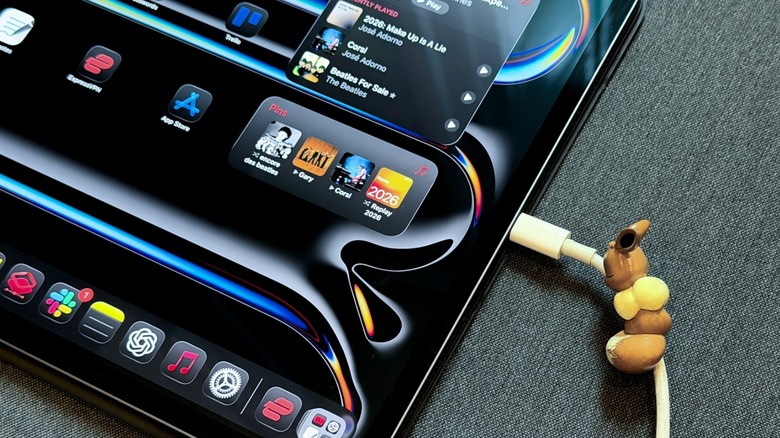
I'm in favor of using tech products the way you want. There are several tips from people saying you should limit charging to 80% and keep the iPad within a specific range. However, I believe that if you bought something as expensive as an Apple tablet, you want to use it, and it should have a battery so you can take advantage of its features whenever you feel like it. That being said, the things you could actually do to improve your tablet's battery health are pretty simple.
For example, using original or trusted cables and power bricks, like Apple's or Beats' new options, avoiding direct sunlight or extreme weather, and keeping the tablet updated are among the best ways to ensure it lasts longer.
Other little features that can help include avoiding leaving the iPad with the display on when it's not in use, using a stable Wi-Fi connection when the iPad has cellular capabilities, and, if connectivity is poor in the area you're in, just turning on Airplane Mode. Prioritize Apple accessories, like the Magic Keyboard or the Apple Pencil Pro, and use wireless earbuds instead of wired ones, as the USB-C port draws more power than AirPods. That said, following those simple tips and tricks, you'll have a better experience with your tablet while actually using it.