

5 Rules Every iPad User Should Follow
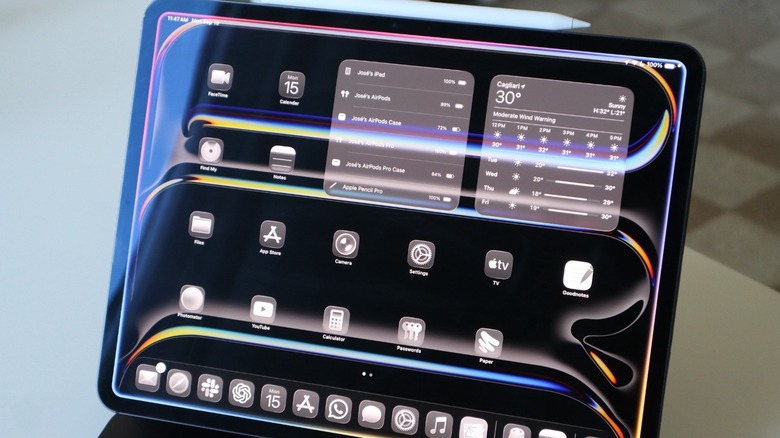
If you recently bought a new iPad, whether it's the base model or the very expensive iPad Pro, you definitely want it to last for as long as possible. After all, not only is this a costly piece of tech, but we do like when our devices stay beautifully preserved even after years of usage.
To ensure your iPad stays as good as new, there are a few rulers iPad users should follow, and you'll realize that they don't require much from you to keep your tablet up and running. For example, using original or tested accessories, protecting its display, and keeping it updated to the latest software are some of the very simple things you can do to make your tablet last longer.
Unlike a MacBook, where you can just close its lid, or an iPhone, which is prone to get millions of abrasions and scratches, the iPad is a device that we usually take advantage of at home, at coffee shops, or during long trips by bus, car, or airplane; if we can make sure it stays protected and used properly, we can keep this device for years to come. These are some rules that not only does Apple recommend, but myself and other long-time iPad users endorse.
Don't use your iPad in extreme temperatures
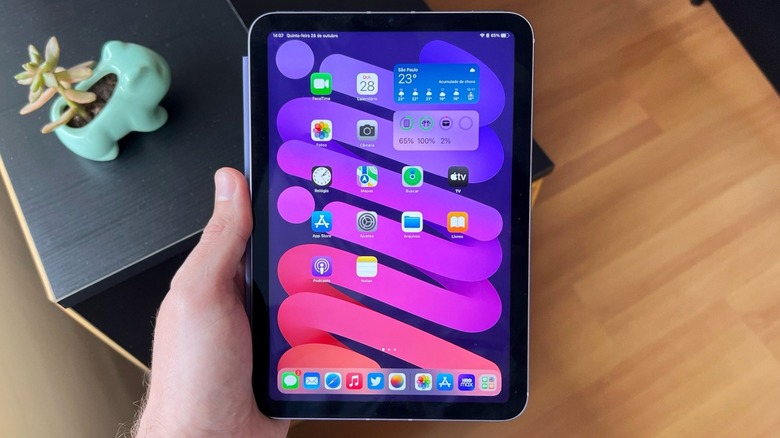
Apple says the iPad is made to work in temperatures between 32 and 95 degrees Fahrenheit (0 and 35 degrees Celsius), and it can be stored in temperatures between -4 degrees Fahrenheit to 113 degrees Fahrenheit (or -20 and 45 degrees Celsius). That said, if you're using your iPad on the outside on a really cold winter day, or a very hot summer afternoon, then your iPad might show a pop up notification saying it can't operate properly, it might stop charging, the screen might dim, or apps might close. Even if these things don't happen, Apple says that these conditions can really damage and shorten the battery life of your tablet.
Other things users should take into consideration are dramatic changes of temperature or humidity. Apple gives some examples like using the tablet in a hot car or in direct sunlight. Another important advice is not letting your iPad charge under a pillow, books, or blankets, or in direct sunlight, as these scenarios could also stress the battery.
While there's a rumor that the next iPad Pro could get an innovative vapor chamber cooling system like the iPhone 17 Pro models, it's unclear when this next tablet could land. Meaning that if it doesn't have a way to cool down, then the best advice is not to push the iPad to its limits by avoiding extreme heat or extreme cold environments.
Don't force cables and buttons
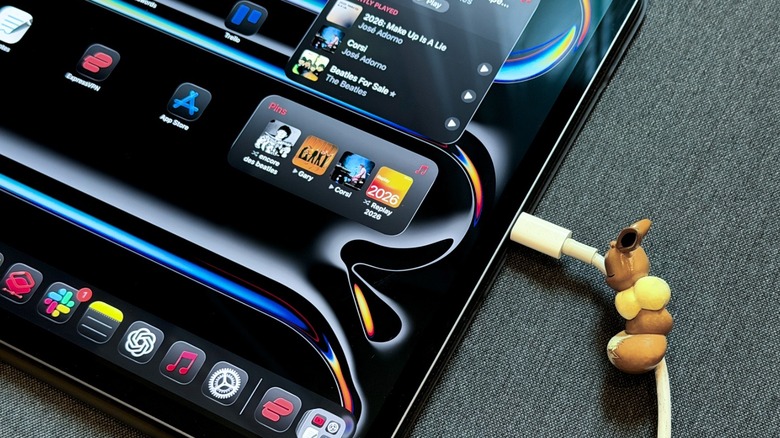
If it doesn't fit, don't force it. This isn't me, but Apple speaking. The company states that users shouldn't "force a connector into a port or apply excessive pressure to a button." After all, if something breaks, Apple says this damage is not covered under the warranty. Whether you have an iPad with a Lightning connector or a USB-C port, both cables should attach very easily. If they don't, it's likely that you're using a Lightning cable on a USB-C port, or a USB-C cable into a Lightning connector. Double check before forcing the cable.
For the iPad buttons, you should check if your case isn't forcing or preventing you from properly pressing the Side and Volume buttons. My recommendation is to use Apple's original cases, like the Smart Folio or Magic Keyboard options, or a case that doesn't cover these buttons. These damages are also not covered by the warranty, and you don't want to have a tablet with faulty physical buttons.
Also regarding the cables, Apple says that discoloration due to dirt, debris, or exposure to moisture can happen, and it's normal. You can clean the connector with a dry lint-free cloth, and liquids or cleaning products are a no-go for that part. Users should also pay attention to if the cable might be bending, as the best way to connect the USB cable to the iPad port is avoiding awkward angles.
Use original accessories

This rule is kind of a follow up to the previous tip. Apple provides a 20W power brick and USB-C or Lightning cables for your iPad in the box. With that in mind, you don't need to use third-party accessories to charge your tablet, as the company offers everything you might need.
However, if you want a bigger cable or a more powerful charger, make sure to get these accessories from trusted brands, or even from Apple or Beats — the latter recently released a new collection of 3m cables, making them ideal for anyone who has a distant power plug and still wants to charge their tablet with ease. For iPad Pro users, they can also take advantage of the MacBook charger, as these latest models support fast-charging capabilities, requiring a power brick with up to 60W of power.
If you're planning to get a stylus, a case, or a screen protector, also follow the same advice: Opt for first-party options or trusted brands. After all, a faulty stylus could make you put more force than required on the display, a poor quality screen protector could decrease the viewing experience of the iPad, and a not properly tested case could make the buttons malfunction in the long term. Following those rules, your iPad will have a longer life span, and you'll be able to enjoy it longer.
Protect and take care of the iPad display
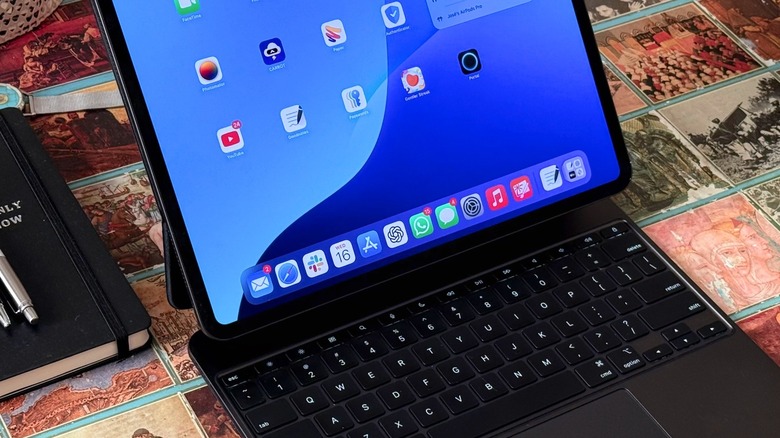
Still talking about the iPad's display, protecting and taking care of it is also not hard. All iPad models have a fingerprint-resistant oleophobic coating. This is why when you first start using the iPad, it barely gets finger marks. However, over time, it'll wear out. Apple says this is normal, but if you use cleaning products or abrasive materials, they'll make the coating deteriorate sooner, and you might even scratch the glass.
This is why one of the rules for cleaning your iPad, according to Apple, is to use a "soft, slightly damp, lint-free cloth," like its own polishing cloth, or a lens cloth. Even if users spill ink, makeup, soap, detergent, lotions, or expose the device to sand, the company suggests that customers should disconnect the tablet from all cables, turn it off, and then clean it gently. Apple also says that users should avoid moisture near the iPad's openings and never use cleaning products or compressed air.
While I'm not a big fan of screen protectors for the iPad, users can increase protection and also get a layer of a more texturized display by adding a proper screen protector. There are a number of vendors offering this extra layer, which can be perfect for artists drawing, helping to avoid eye fatigue after long periods of usage, and, most importantly, ensuring that the iPad's original display isn't scratched for no reason.
Keep it updated
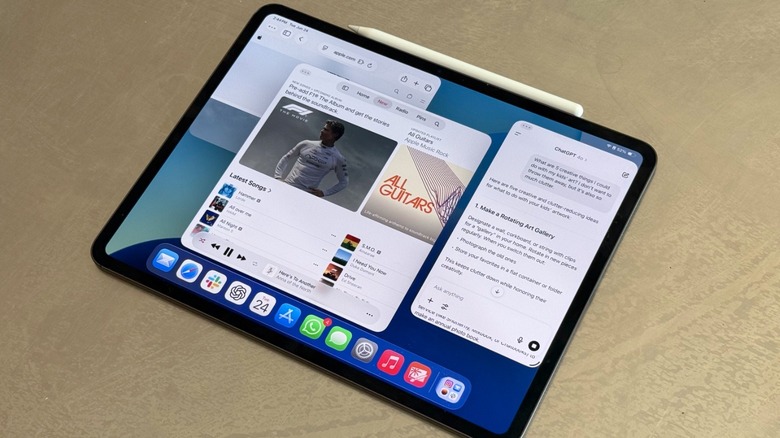
Now that you know what rules to follow to keep your iPad safe from the outside, don't forget that the inside is also very important, and the golden rule is to keep the tablet, like your phone, always updated. Software updates don't make the iPad slower. What makes the tablet lose performance over years is that software (not only the operating system, but apps) gets more demanding, and other things like battery degradation, can help make the tablet stop feeling as snappy as when you first purchased it.
However, keeping the operation system up-to-date is important to get the latest features, bug fixes, and security patches. When you don't update your software regularly, you're more prone to hacker attacks, losing compatibility with certain apps, and even missing out on new features. For example, if you never update to iPadOS 26.4, you won't just be missing a few new emojis, like the very popular distorted face figure. You would also be losing improvements in multitasking, Window Tiling, Split View, and Stage Manager.
With every update, Apple makes the iPad a better multitasking device, while developers keep taking advantage of the bigger display to create better games, improved entertainment experiences, and more engaging ways to help you connect with others. So don't forget to check the iPad's Settings and then go to Software Update to ensure it has the latest version downloaded. The same is worth it for your apps on the App Store.