

Here's Why Google Maps Keeps Giving The Wrong Location On PC
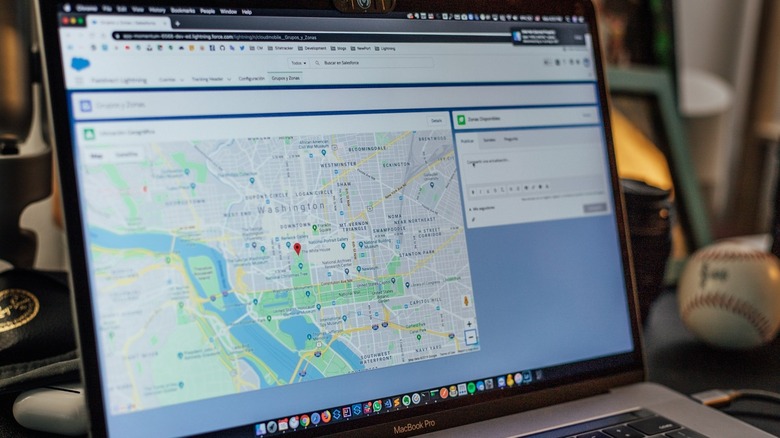
When you use a mobile device to connect to Google Maps, it generally takes advantage of the onboard GPS to gather precise location details. If you use a device that doesn't have GPS functionality, like, say, a desktop PC or a laptop, your location is much less precise because the systems behind the scenes rely on a myriad of data to find out where you are, including your IP address. Sometimes that data can be wrong or inaccurate, though, and it's actually why Google Maps may be displaying the wrong location on a PC.
When you connect to the internet through an internet service provider, you are given a dedicated IP address, which can be used to find your location, but it's also just an approximate location. That's because IP data comes from third-party databases, which are rife with inaccuracies — but it's also how Google knows where you are even with GPS off. IP address geolocation isn't nearly as accurate as GPS to begin with and often stops at the city or ZIP code level.
Because of this, to provide a more accurate determination, browsers and services behind the scenes use multiple data points, like Windows telemetry data, which uses a combination of Wi-Fi, GPS – if available — and other diagnostics. If you want to, you can input more precise data manually to use in Google's Chrome browser, for example. But it may not be a bad thing that the data tracking tools cannot discern your exact location.
Why wouldn't you want exact location details?
Digital fingerprinting is used to build an accurate profile of users and to understand critical data points like who you are, where you live, what you shop for, and also to help strengthen advertising and marketing solutions. One of the major data points used across devices is your location, including where you live, where you visit frequently, where you go on trips, and so on. If you want to limit that tracking as much as possible, it's usually beneficial not to have your exact movement and GPS locations tracked.
Conversely, in situations where you need to navigate an area foreign to you, or when you need to find restaurants, businesses, and other places to visit, having the precise location is much more important. That also allows you to pull up direct navigation instructions to whatever destination you want, whether you're driving or walking. On a PC, you might want that location data accurate so you can plan your trips ahead of time, possibly print out those directions, or even plan a much larger trip.
This is also a situation where a handheld GPS may still be worth using over a phone, especially if you're exploring the wilderness away from urban or suburban centers. It's worth noting that GPS accuracy can fluctuate, as well, usually due to signal strength, even causing the location range or blue dot on Google Maps to change sizes. That's why it might be beneficial to change this information manually on desktop.
Enable location tracking or set a custom destination in Chrome
In Windows, you can head to Settings > Privacy & Location > Location and make sure location services are turned on. That allows Windows applications to access and use location data collected through Windows telemetry. Individual apps may also request access to this data when the setting is enabled, allowing you to control what can see your location. You can also manage this on Mac and iOS.
If you're using Chrome, you can manually input your current location for use in web apps and on websites (this also works in Chrome OS for Chromebooks and Mac). On Windows or Chrome OS, press the Control+Shift+I keys, or use Option+Command+J on Mac, to open the developer console. Press the three-dot button in the bottom left of the window that appears and select Sensors. In the Geolocation area, choose custom location. Here, you can enter your exact location using latitude and longitude coordinates.
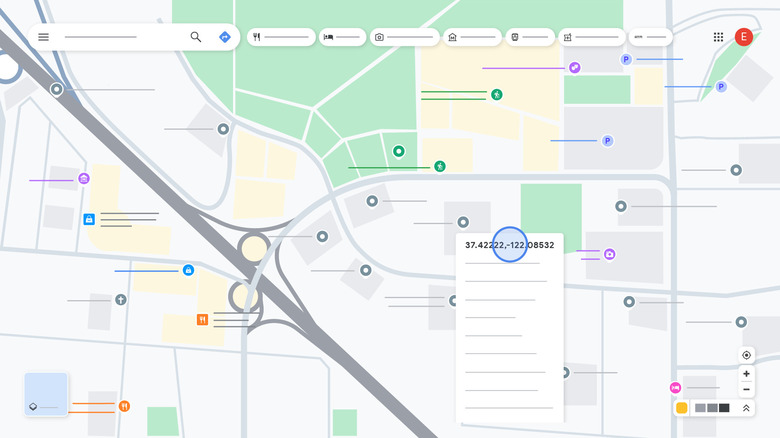
To get those coordinates, first find your current whereabouts in Google Maps. Right-click on the area and in the pop-up window you'll see the latitude and longitude displayed; simply click on them to copy the values to your digital clipboard. Add those coordinates to Chrome and your location will be updated. If you're using Firefox, you can also set your location using developer tools. This method is great to set up a custom or fake location, or to set a location if you have a VPN active reporting a remote address.