

What Does The Yellow Light On A Verizon Router Mean?
We may receive a commission on purchases made from links.
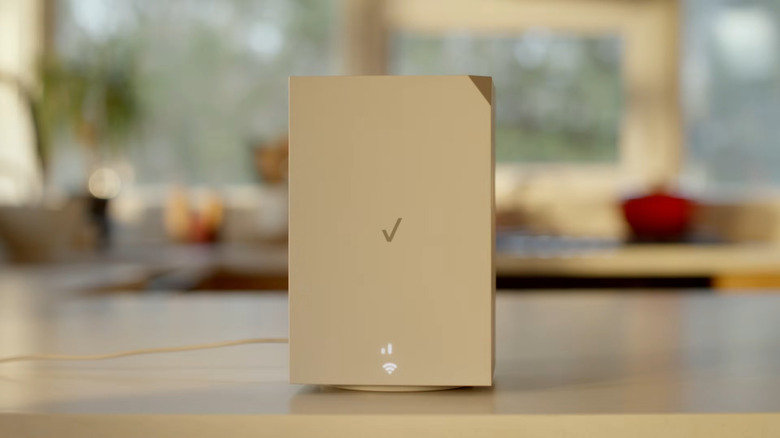
The internet seems to have a knack for falling apart right when you need to take that important call or meet a work deadline from home, or just as the plot twist hits on whatever you're streaming. As inconvenient as it is, there's a good chance that one of your router's many blinking lights might tell you exactly why your internet's down. Verizon routers are no different from any other routers in this regard, thanks to the panel of LED status indicators you can find on the front. Each color has its own meaning, making it easy for you to sleuth out exactly why your internet's down and what you can do about it.
If your Verizon router displays a solid yellow light, it's telling you that there is no internet connection available, as you've probably already guessed if you're looking at your router. The router might also display a blinking yellow light at times, but this simply indicates that activity is occurring on your network. Either way, a yellow light doesn't indicate a hardware or system failure, as those conditions would cause a red light to appear instead.
Since the light is most likely showing a simple lack of connection, you might want to try a few troubleshooting steps before calling Verizon. For example, you could try unplugging your router, waiting a few minutes, and plugging it back in to see if your connection re-stabilizes. Alternatively, you could also try rebooting the router by holding down the reset button for five seconds (you'll find it by the router information and ports on the back). If you still don't have any luck, then it could be time to check the network status in your local area, try the official online support troubleshooter, or contact Verizon support directly.
What do the other lights mean on a Verizon router?
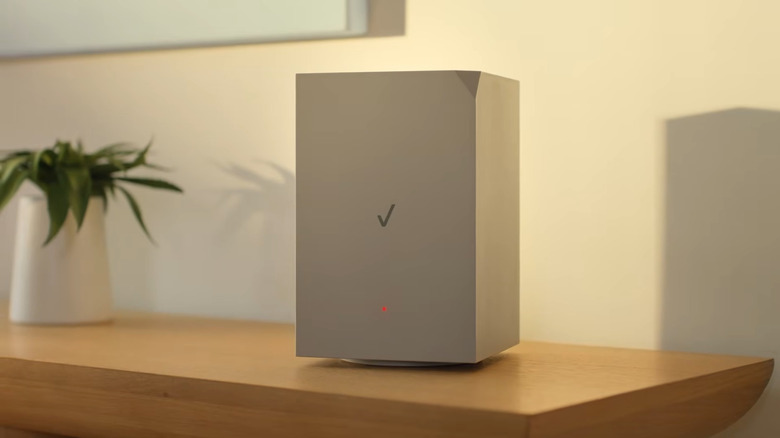
You might've noticed that yellow isn't the only color your Verizon router glows. The router's LED status indicators can actually give you insight into an assortment of other connection woes, alongside a few regular functions. Besides yellow, your router's light panel might also appear white, blue, green, or red, and it can either present a solid color or blink rapidly.
Yellow, red, and green are the only colors that are cause for concern. If your router blinks red, a slow blink means a hardware or system failure, while a fast blink indicates overheating, a Wi-Fi Protected Setup (WPS) pairing failure, or a system update error. Meanwhile, if your router's light is green, that means the Wi-Fi has been disabled by you or another user.
Whenever your router is on, you'll see one of these lights — but if you're sick of how bright it is, you'll be happy to know that you can dim it via the router's user interface:
-
Open up the Utilities menu and select LED Brightness from the sidebar.
-
Adjust the brightness using the sliding scale.
-
Click Apply Changes.
There isn't much to worry about if your router shines white or blue, but it is good to know what it means. Your router displaying a solid white light means that it should be operating as usual. On the other hand, a blue light indicates that your Wi-Fi is in pairing mode. A slow blink shows that pairing mode is enabled, while a fast blue blink is a sign that the router has paired successfully. You probably won't see your router turn blue often, though, unless you're making regular use of your router's WPS button.