

This Hidden Google Maps Setting Is Eating Up Storage - Here's How To Fix It

Google Maps is a key application to install on iPhone and Android devices, regardless of whether you need directions while driving, walking, or cycling. It's also a convenient way to navigate a new city and discover local points of interest. Google routinely updates the app, releasing new Google Maps features that are usually available on both mobile platforms. While the app may grow in size and occupy more local storage, it should not cause excessive storage use. Sporadic reports from some users in the past few years have shown that Google Maps storage can reach tens of gigabytes, which can be a significant amount on devices that feature only 64 GB or 128 GB of storage. In most cases, that's not normal behavior, and a data caching issue may be causing problems. There are ways to solve storage issues, including a hidden setting that lets you eliminate the extra data by clearing out the cache.
But it's not only a software bug that can lead to Google Maps storage increases. There are legitimate features that may consume more data. For example, users who prefer to download offline maps to reduce costs related to cellular data usage during navigation will use more of the phone's storage when they download maps. On top of that, users who want to keep the Google Maps location history active (the Timeline feature) will also use local storage, as Google moved the location history data from the cloud to the phone in late 2023. In what follows, we'll look at solutions that address all these separate issues.
Offline maps and the Timeline feature
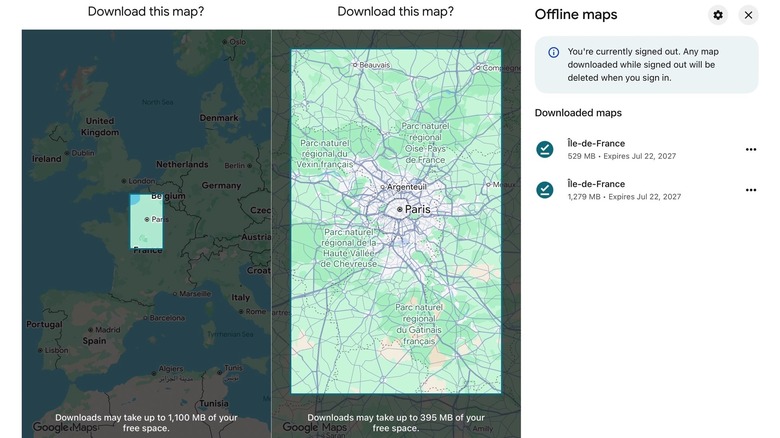
Launched in late 2015, the offline maps feature is available on both iPhone and Android devices. Downloading maps for offline use increases storage consumption, with each additional map using more space. The maps will include map and place data, as well as routing information used for offline navigation. Settings in Google Maps allow the app to automatically update offline maps before they expire. Some offline maps can use several gigabytes of storage, as shown in the Google Maps screenshots above.
To manage offline maps, open Google Maps, tap your profile image in the top right corner, and look for the Offline Maps menu. This menu shows how many maps you have downloaded and the storage space they occupy. You can delete the maps you don't need from here. The Offline Maps menu also has a settings icon in the top right corner. You may want to disable two features in this menu to prevent Google Maps from downloading extra map data. These are "Auto-update offline maps" and "Auto-download recommended maps."
The Timeline feature uses storage independently. To view, open Google Maps, go to your profile, and select Your Timeline. The storage used by the Timeline feature will vary by user. A Reddit user said their Timeline data over 9 years used 82 MB of compressed storage space and 1.3 GB of uncompressed storage. Users can and should back up Timeline data when troubleshooting Google Maps storage issues. This will allow you to save your Timeline data before having to delete Google Maps from the handset and also allows you to measure how much data the Timeline information uses.
How to clear Google Maps cache data
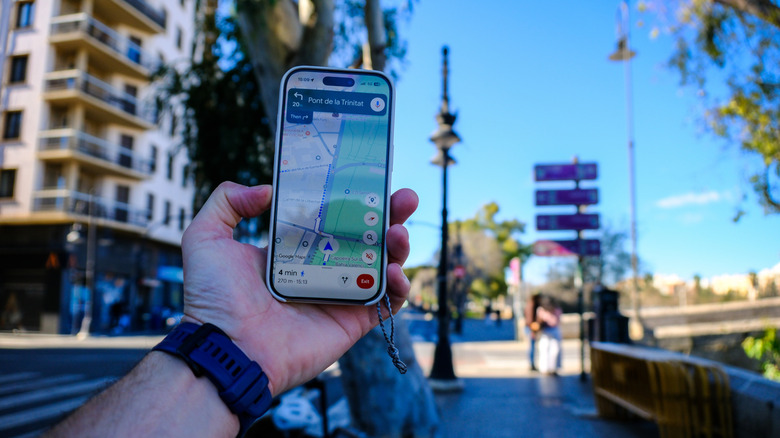
Once you've determined that offline maps and Timeline data aren't responsible for significant storage use on your iPhone or Android device, you may be looking at a caching issue. Google explains in a support document that the app uses storage for various information, including shared and saved locations and map tiles. According to Google, the cache can also include your searches for suggestions and navigation directions, and page content.
Deleting and reinstalling the app may fix the problem, but before you take such drastic measures, you should try clearing the Google Maps cache data from the phone using a hidden feature in the app that you might not be familiar with. On iPhone, open Google Maps, tap your profile icon, and then tap Settings. Go to About & Terms and tap the Clear Application Data menu item. This button will clear cache data and offline maps. It'll also reset cookies for the app. On Android, go to the phone's Settings app, open Google Maps, tap Storage, and tap Clear Cache. A Clear Data button is also available in this menu. In both cases, clearing the cache may fix your storage problem.
After trying the fixes above, consider restarting the iPhone or Android device and then checking how much storage Google Maps uses. If it's still a significant amount, you may have to delete the app and reinstall it. To keep things in perspective, the bare-bones Google Maps app for the iPhone measures 475 MB at the time of writing. The Android version will also use a few hundred megabytes of storage, though the Google Play Store listing doesn't specify the actual size.