

How To Get The Best Night Sight Photos On Your Google Pixel
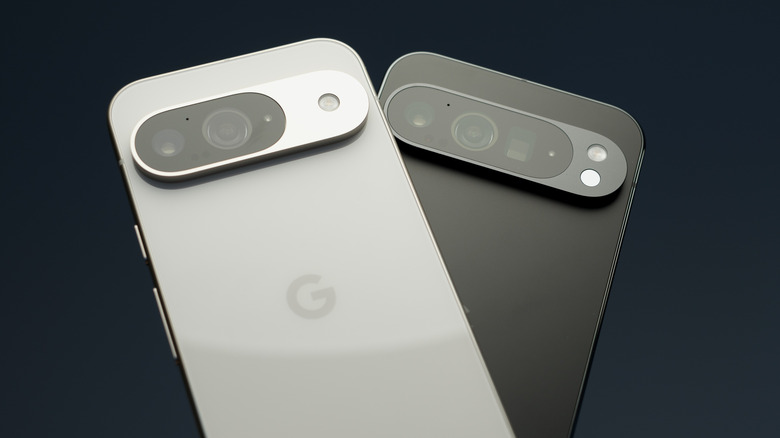
Google does a remarkable job when it comes to its Pixel phone lineup, as they have a pretty tight integration between hardware and software. Since the first Pixel, Google has been praised for the quality of its photos, which means that even when you're capturing Night Sight photos, you can take beautiful shots. However, since phone cameras can be limited, there are a few tips and tricks to get the most out of them, such as mastering stability, playing with ambient light and framing, or even going as specific as triggering Astrophotography Mode when you want to take that beautiful picture of the night sky.
Google has several hidden features in the Pixel that even pro photographers can benefit from. This includes features that you can use before, during, and after you take a shot. And if you have one of the latest Pixel phones, such as a model from the Pixel 10 lineup, you can get a lot more from Gemini with Photo Coach. This feature analyzes the scene in real time and gives you insights to take the best shot no matter where you are. That said, here's how to use Night Sight and how to make the most of the great cameras available on your phone.
How to take night photos with Google Pixel
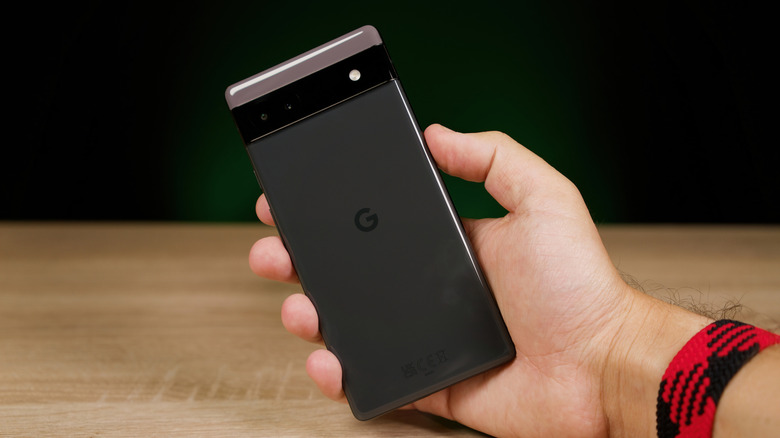
There are three ways to take night photos with the Google Pixel. For example, if you want to force Night Sight, you can open the Camera app, swipe left on the bottom carousel to select Night Sight, frame your shot, and then tap the shutter button. If you prefer the phone to handle that, Google can automatically turn Night Sight on in dim environments. In that case, you'll see a small crescent moon icon appear directly inside or near the main shutter button. That said, you can disable auto-Night Sight by tapping the moon icon or opening the quick settings menu and setting More Light / Night Sight to Off.
Last but not least, when you want to shoot the stars or you're in an ultra-dark night landscape, you can select the Night Sight option, set your Pixel on a tripod, rock, or any stable surface pointing at the sky, and then the phone's shutter button icon will change from a moon to stars. Once you press the shutter, the Pixel phone will run a two to four-minute multi-exposure sequence to take an outstanding photo of your environment.
Still, this is just the tip of the iceberg. Now that you know how to actually take night photos with a Google Pixel, you need a few tips and tricks to get the most out of it. After all, it's common for Night Sight shots to look blurred because your hands were shaking or people were moving, giving the photo a weird look.
Tips and tricks to get the most out of Google Pixel's Night Sight shots
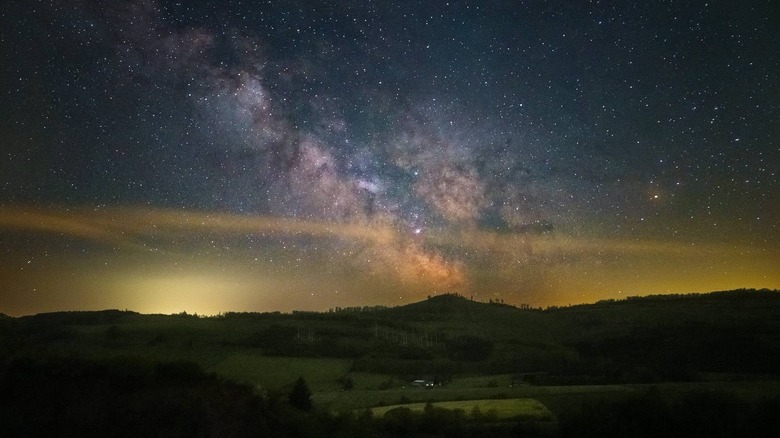
First and foremost, to take a good Night Sight picture, you need stability. After all, the Google Pixel camera will be capturing several shots over a few seconds. If you can't keep your hand firm, you should place the phone on a tripod or another surface to make it still. A good tip to ensure your photo doesn't come out blurry is to set a three-second timer before the shot is captured. This way, the phone will be completely stable before it starts capturing multiple shots that will eventually become your single Night-Sight image.
To make photos look more natural, you can also play with adjusting exposure and focus. For example, you should always tap your subject before shooting the photo. By long-pressing, you can lock focus and adjust the exposure for the precise shot. By also using the dual-exposure sliders on the right or bottom of the viewfinder, you can pull down the brightness to preserve deep blacks, keeping the scene looking like night.
Still, to make the most out of Night Sight photos, you don't necessarily need fancy software or extreme edits. Try simply playing with the light you have available; frame your shot around streetlamps, neon signage, shop windows, and other sources that make the photos a lot more interesting. Last but not least, making sure your Google Pixel lenses are clean is the best way to ensure you have the sharpest images possible.