

Here's How To Enable Parental Controls On An Android Device
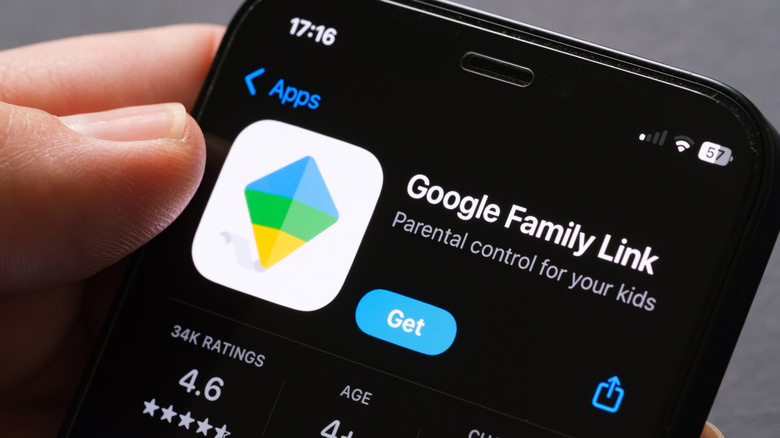
Handing your child an Android device with total freedom could lead to them stumbling across less desirable content or experiences sooner or later. Limiting or locking down access to certain apps, like the browser, makes sense, and on most devices you'd use parental controls to do that. Google approaches this differently with Android. There's an entire app dedicated to managing and monitoring your children's devices called Family Link. It provides a breadth of features for achieving that, like the option to set screen time limits, manage and restrict access, apply content filters, and even keep an eye on their location. If you're wondering how to set it all up, it's fairly straightforward, but there are things to know first.
To use Family Link, all devices must have the app installed, including your main device, which you'll use to monitor. If your child has multiple devices, you'll want Family Link on every one. In addition, while you probably already have your own Google account, your child will need one set up as a family member under yours. Brand new Android devices give you the option to set up Family Link and a child's account during the initial process, but if you have an older device or a hand me down you may need to install the app manually.
Once Family Link is ready and the Google Accounts are linked, you'll need to configure the controls from the child's device. Go to the main Android Settings > Digital Wellbeing and parental controls > Parental controls and tap Set up parental controls. Choose Get Started and follow the prompts. Eventually, you'll need to enter your child's Google account info, and after that, you'll be able to manage everything remotely from your own device through Family Link.
What can you manage with Family Link?

There's a lot you can do to keep your child or children safe from within Family Link, but there are also some things you can't do. For example, you cannot see what's on your child's screen or view their web search and browsing history. It seems the idea is to keep them safe without completely infringing on their privacy.
However, you can manage which devices your child signs into with their account, what apps they can install — with a full approval process before anything is downloaded — limit screen time, and remotely lock devices. You can also set content restrictions for Google's SafeSearch, Google services and apps, and YouTube — in other words, you can limit what content they have access to, such as mature offerings. Moreover, you can control app permissions and check the device's location at any time, so if it's with the child, you'll know their location, too. The location services utilize real-time sharing through Google's Find Hub platform, one of a handful of useful features added to Android for free back in 2025.
Family Link will also give you a quick summary at the top of the app for each child, telling you how long they've used their devices recently (screen time) and other relevant information. Still, you'll have to manage all the app, content, and access restrictions and check back regularly. If you're looking for a device that's better suited to kids out of the box, the Amazon Fire Kids tablet might be safer than other Android options for that reason.
Why would parents choose Android over iOS?

Pound for pound, teens seem to overwhelmingly want an iPhone over Android — but there are a few standout reasons why parents might choose Android instead, specifically pertaining to the overall experience. For starters, Android devices are incredibly varied in cost and performance, which means parents have a lot more options when shopping for budget devices for younger kids. It doesn't necessarily make sense to hand a younger child a brand new iPhone for their first-ever device, or an expensive flagship Android, for that matter. Budget phones are a solid option, though.
Besides accessibility, both iOS and Android offer parental controls, but Android's options are generally more robust. This could be because the system is better suited to the types of parental monitoring solutions needed. Plus, there are other options besides Family Link if you want to explore, such as Bark, Qustodio, and Verizon's Family app. iOS devices use Screen Time for parental controls, and it has been reported as buggy. Though, there are alternatives, many the same as Android, available on Apple's App Store.
Parental control platforms, with the protected design baked in from the start, tend to favor Android, as well. Bark is one of the best examples with its modern smartphone for kids. But also, devices like the Amazon Fire for Kids, Gabb phone for kids, and HMD phones for kids are all built on top of Android. It's not that one is better than the other, but really that Android offers so many options and opportunities that it typically makes more sense.