

3 Android Auto Problems That Are Almost Always The Cable's Fault
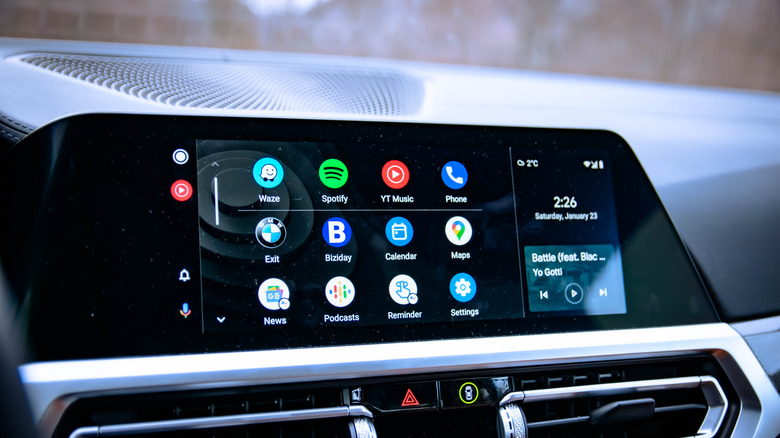
Android Auto (AA) has had problems with USB cords for years, but it's often not Google's fault, or even your car manufacturer's — many times, it comes down to the cable you're using. That's not to say AA doesn't suffer its own connection issues, as we recently saw with the release of version 17.4, a patch for the previous patch that failed to fix reported connection irregularities. But rather than leave users guessing if their cable or Google's programming is the culprit, Android Auto includes a new feature that runs a diagnostic on your plugged-in cable. It's known as "USB Startup Diagnostics," found in the app's settings under "Connection help," designed to alert you to any cable issues.
Beyond Google's new diagnostic tool, the company recommends you use the cable that came with your phone. Short cables are also recommended, cutting down on the space where the wires within can degrade the signal. You may also be using the wrong port in the car, or using a cable with a loose fit that drops its connection when things get bumpy on the road. In other words, there are plenty of reasons why a particular USB cable may be causing most of your problems with Android Auto. If you've ever asked yourself why Android Auto isn't working with your cable, today's roundup of the most frequent USB cable issues may help you finally find a setup that works reliably.
For anyone who has experienced data issues, connection irregularities, or signal degradation with sound and GPS that continually cuts out when using Android Auto, the first place to look is the cable you're using. The specific problems we'll discuss below are often the cable's fault.
Android Auto won't connect at all
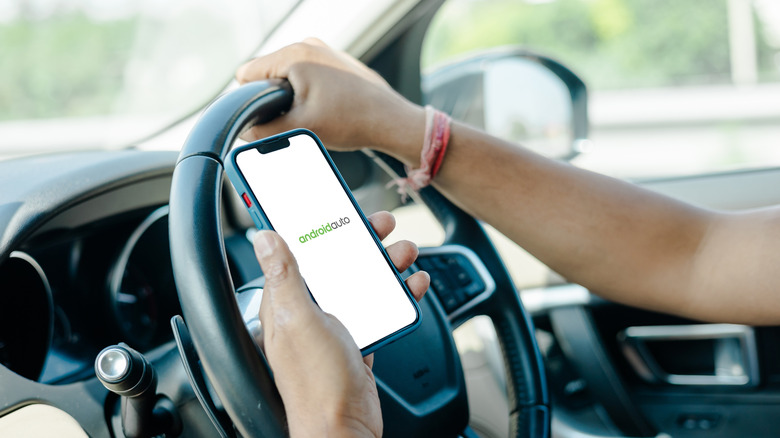
One of the most infuriating problems users run into is a complete lack of data connectivity. Plugging in a USB cord, to then watch as nothing happens — not even a courtesy error message tossed your way — leaves users with way too many questions. Is the phone not supported? Is there a glitch in the system? Is the Android Auto app out of date? Is your car's software the issue?
The good news is, it's almost always the USB cable that is the issue when you can't get your phone to connect at all. Even if the cable isn't faulty, it might not support data — only charging (yes, this is very much a thing). This is why Google recommends using the cable that came with your phone, as it supports data connections. Sadly, not every USB cable is equal, even OEM cables, and if yours offers two USB-C ends but your car only accepts USB-A, well, you're going to need an adapter or a new cable. Thankfully, if you have to purchase a cable, it's easy to buy one that specifically supports data transfers.
As mentioned, Google also recommends keeping that cable as short as possible while avoiding unnecessary complications like hubs. By keeping your connection simple, you should find your phone easily connects to your infotainment system to run Android Auto. Ultimately, connection issues like this are why Google recently added a USB diagnostic tool in Android Auto: to finally serve up clear warnings if a cable does not meet Android Auto's operational standards. So if Android Auto currently isn't connecting for you, the good news is that this is one of the most common Android Auto problems, and it's easily solved with a new supported cable.
The connection cuts out intermittently
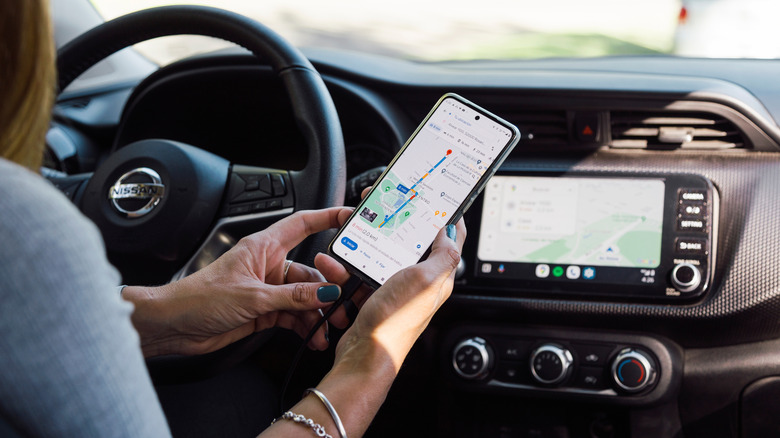
If you're facing intermittent connection issues with your phone connected to Android Auto over USB, the problem is likely your cable. If you can secure a connection, but it drops while driving — say, when dealing with bumpy roads — a loose plug may be causing your problem. If a USB cable can't maintain contact with its port, it will lose its connection, instantly killing the app as data stops flowing. Sudden and frequent drops indicate you should switch to a cable that better fits your car's USB port.
The trouble here is, you need a consistent connection, as Android Auto continually accesses data to serve your directions and alerts, such as traffic reporting. Even if you use apps like Google Maps that can work offline — one of many Android Auto features that can make long drives easier — you still need a reliable USB connection to send that data to your infotainment system. A second of interruption breaks that handshake.
So if you're using an older cable, one that has been plugged and unplugged hundreds of times, the tiny metal tension pins that hold the cable in place may have stretched or loosened to the point that your car's port can no longer reliably hold a connection. After all, a vehicle is going to vibrate, not only from irregularities on the road like potholes, but also because there's a powerful engine running inside, which causes its own vibrations before you even set your tires on a road. If those pins are worn out, the cable will wobble and Android Auto will crash. So rather than fighting your cable, go ahead and try a few different options to find one that fits the port properly without any wobble, and your issue should be solved.
Audio stutters and maps freeze
Much like a loose cable can be an issue, if it is not shielded well or its wires are exposed, signal degradation can happen, causing data dropouts or even sound that cuts out. Just as you need a reliable connection at the port, you need a reliable cable that transfers data without interference, which is why USB cables are wrapped in a casing, shielding their wires from interference. In other words, data packets can drop if your cable isn't properly shielded, if it's too long, or if it contains other connections that interfere with its main data transfer to your car. It's like trying to force a torrent of water through a tiny hose; you're going to have issues.
Not only does this cable have to transfer power to keep your phone charged, but it also has to constantly send map data to a 60 Hz screen, all the while broadcasting GPS data, as well as online data for real-time tracking and alerts. So your USB cable is doing some heavy lifting when used for an Android Auto connection, and you need to ensure that cable is short and well-maintained without any fraying or exposed wires.
If your current cord is unshielded or damaged, it can introduce digital noise that forces your phone and car to constantly retransmit lost packets, leading to audio stuttering and frozen maps. Electromagnetic interference from your car's alternator and infotainment electronics can corrupt the data stream, and even more confusingly, phone charging can still work flawlessly while data transfers fail. Still, the solution is simple: ditch the failing cord and swap it for a high-quality, heavily shielded data cable — or simply connect Android Auto via Bluetooth. Once you eliminate the bottleneck, your signal degradation should vanish entirely.