

Android Auto Features That Can Make Long Drives Easier
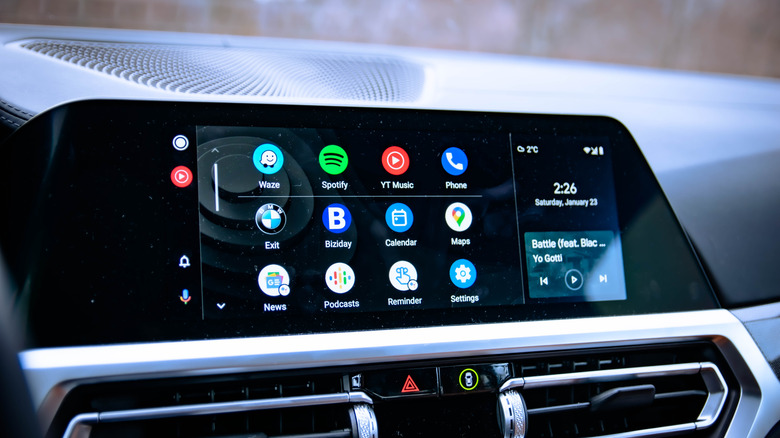
Cruising on the open road for long periods of time can be quite freeing, but a trip can sour quickly if you're not actually ready to go. Whether you're driving the distance for work or for pleasure, it still helps to be prepared, and something like Android Auto can be quite useful. With an easy-to-navigate interface, real-time navigation via GPS, and access to Google Assistant or Gemini, Google's driving UI can be rather useful for vehicles that support it.
Useful as it can be, there are ways to get even more from it if you know the right features, and this can be especially true for long drives. Navigating the settings of Android Auto can unveil a world of possibilities — including enabling a mode that may be easier on the eyes, silencing pesky messages, and even accessing certain content without an internet connection. Voice controls can also be a big help during a long drive, and you even have ways to expand its features thanks to third-party apps.
We'll take you through the steps while also giving a bit of insight into how these features can help during a drive. So here are some features to check out if you're planning to go the distance with Android Auto.
Night mode
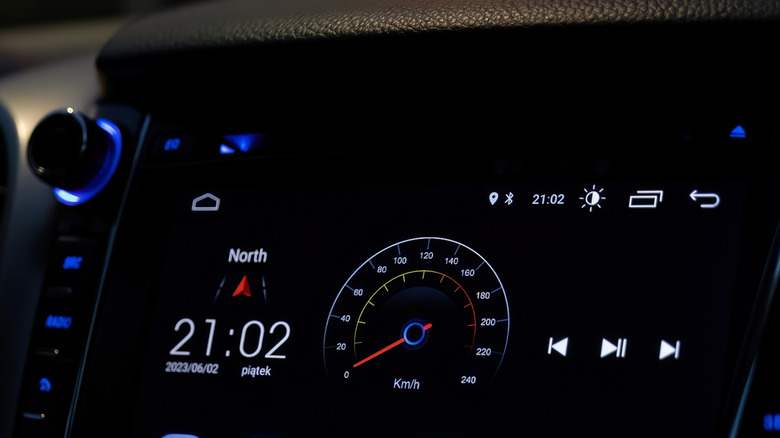
Long drives can often mean long hours, and having your infotainment system display information that's easier for your eyes to read can help keep your odometer spinning. With Android Auto, both day and night modes are available so that drivers can better see the information they're attempting to access while also providing a more uniform experience. Some may also just prefer the aesthetics that a dark/night mode can provide.
However, while newer vehicles may automatically switch between these modes, the same may not hold true for older models. This can be especially true for users relying on aftermarket Android Auto hardware, such as an external screen. Regardless, locating the setting keeps you in control, so it's good to know where it's located.
Here are the steps from a smartphone:
-
Open Settings.
-
Choose Connected devices.
-
You may need to select Connection preferences after Connected devices.
-
Select Android Auto.
-
Under Maps select Day/Night mode for Maps.
-
Select Night.
You may also find the Night mode setting under Settings > Day/Night mode for maps from the infotainment screen. Your options will be Day, Night, and Auto. Something else that's nice about the feature is that Google Maps will automatically adjust to whichever one you choose, so no need to worry about locating additional settings. Certain third-party apps may also have their own Night mode for Android Auto.
Offline maps and media
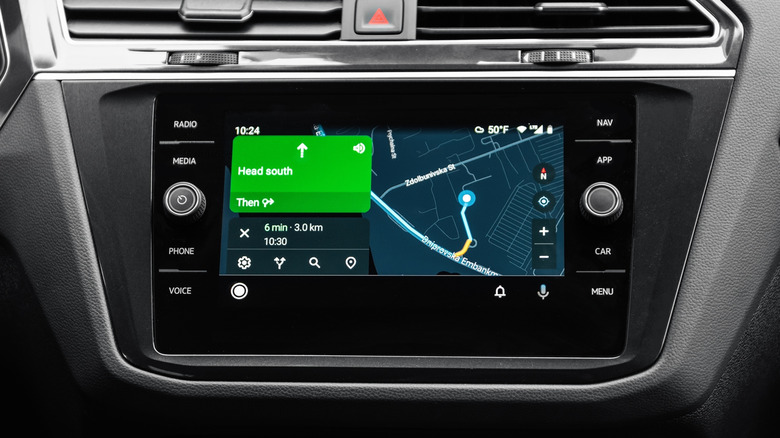
If you're traveling through an obscure location, you may want to download any maps you could need for offline use. Should you lose your signal, offline maps will continue to provide turn-by-turn directions, but you won't get access to some features such as dynamic rerouting, traffic updates, and incident reports in real time. Nonetheless, an offline map may get you back to civilization and a network connection.
Here are the steps to download offline maps:
-
Open Google Maps on your Android phone.
-
Search for a destination.
-
Swipe right on the options and tap More.
-
Select Download offline map.
-
Choose Download.
For what it's worth, you can also delete maps you no longer use. Open the app, select your profile icon or initials, then choose Offline maps. Choose a map and select Delete. Note that you can also update maps through this method by selecting Update.
Note that other apps may also offer offline options that may be beneficial during an extended drive. As a quick example, Spotify premium users can download playlists, podcasts, and albums (free users can download podcasts). Just be sure to hit the download button (down arrow) from a Spotify page to get going. If you are planning on taking advantage of offline content, remember to do so before leaving for your trip.
Message notification control
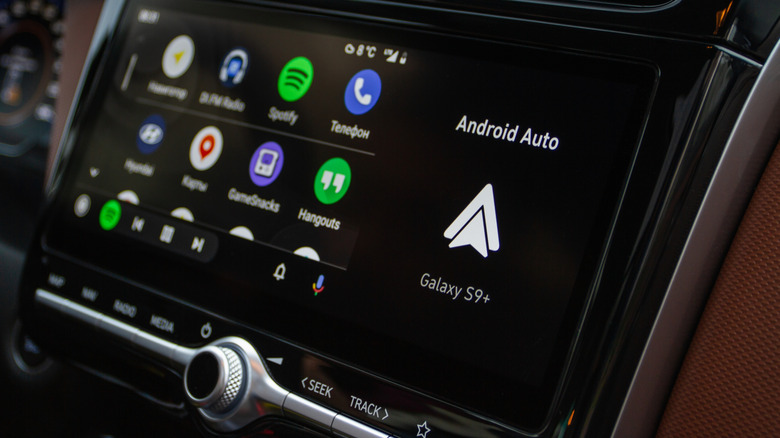
Similar to notifications on a smartphone, you may find that the notifications you receive while using Android Auto are overwhelming. Worrying about messages as you drive can already be a hazard, but during a long trip, it's definitely best to keep your eyes on the road. Fortunately, there are a couple of options Android Auto offers to reel in messages. Additionally, using call screening with Android Auto can also be beneficial during a long trip to avoid distractions.
If your version of Android Auto works with a voice assistant, you can always say "Hey Google, read my messages" for a hands-free experience, but it may also be in your best interest to disable message notifications entirely. Fortunately, Android Auto provides this option and then some.
Here are the steps:
-
From your phone, go to Settings.
-
Select Connected devices.
-
Choose connection preferences.
-
Select Android Auto.
-
Scroll to Messaging.
From here, there will actually be a number of options available, including Show message notifications — which you can enable or disable for notifications. Users also have options for summaries, chimes, disabling group notifications, and displaying the first line of a message on the infotainment screen. Be sure to adjust these to suit your tastes, and remember you can always go back and make changes as necessary.
Voice commands
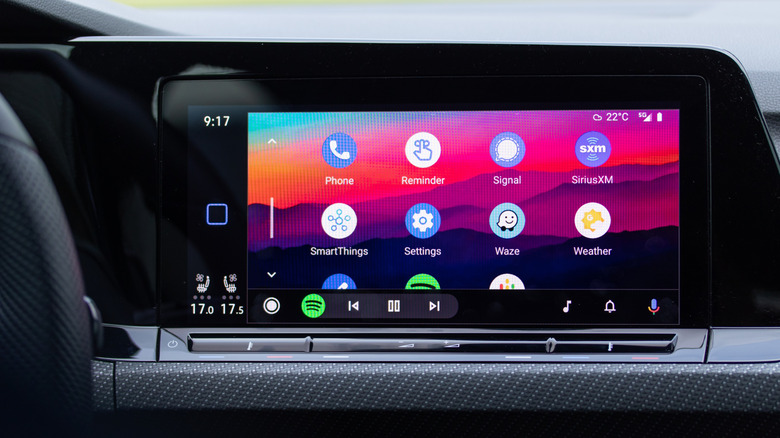
Voice controls can be a useful feature to minimize distractions and keep you focused on the road ahead. You'll need to ensure that your vehicle or infotainment system supports this feature, but once it is enabled, you'll be able to access a variety of voice controls simply by saying "Hey Google." You can also tap the Microphone icon on screen or press and hold the voice command button on your steering wheel (if applicable) to engage the assistant.
Here are the steps:
-
From your phone, open Settings.
-
Choose Connected devices.
-
You may need to select Connection preferences after Connected devices.
-
Select Android Auto.
-
Select 'Hey Google' detection. It will either walk you through the setup process or check to ensure it is enabled.
Once the voice assistant is enabled, you can begin giving commands. This can include making phone calls ("Hey Google, call [person]"), sending messages ("Hey Google, text [person] [message]"), or even getting directions ("Hey Google, drive to [address]"). If you've been using your touchscreen for most tasks, voice commands will definitely feel far less tedious.
If you're running a version of Android with Gemini support, you can get additional information from the assistant. For example, you can say, "I'm driving to [location] for [event]. Can you be my tour guide and share some fun facts about it?" If you're bored with your latest podcast, having a quick chat with your assistant can be good for passing the time.
More with the Google Play Store
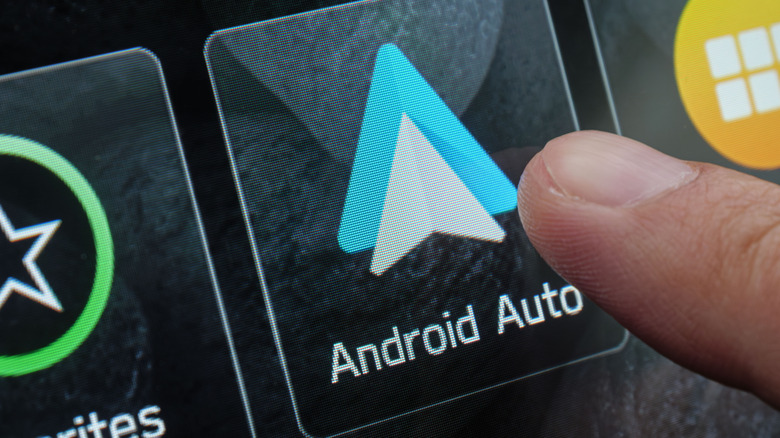
Something worth remembering about Android Auto is that it offers a fair amount of third-party software support. Naturally, most people install the essential Android Auto apps, including media and navigation tools such as Spotify and Google Maps. However, having access to the Play Store also means that you can try some alternative options. For example, Waze is often a popular choice for its community-driven information, while users also look to the Audible app to get access to audiobooks in a way that's not overly distracting while you drive. Users can also look into something like Scanner Radio to access local dispatches and get specific emergency information.
The above examples can be particularly useful during a road trip — with the scanner perhaps being particularly useful if you're in unfamiliar territory. While we've given a few suggestions, it can be a good idea to do some additional research, especially before setting sail for the open road. Just like the Google Play Store can expand the capabilities of your smartphone, it can work wonders for your Android Auto experience, as well.