

This Hidden Feature Lets You Control Your iPhone With Your Voice – And It's Not Siri

When you think about controlling your iPhone by voice, your mind likely gravitates to Siri, especially considering all the Siri improvements coming with iOS 27. But there's another way you can control the smartphone using your voice, and not to just look up information or control basic touch functions. It's designed for those who require the assistance for accessibility reasons, but there are certain situations where anyone might find it useful. Simply called Voice Control, this is one of those hidden iPhone features even power users may be unaware of.
Available for models with iOS 13 and later, it allows you to control the phone in a multitude of ways using only voice commands. This means interacting with whatever is on the screen, guiding the phone to recognize gestures and button presses without using touch, and dictating and editing text. It's relatively easy to set up and if it isn't for you, reverse the steps to turn Voice Control off.
How to set up Voice Control
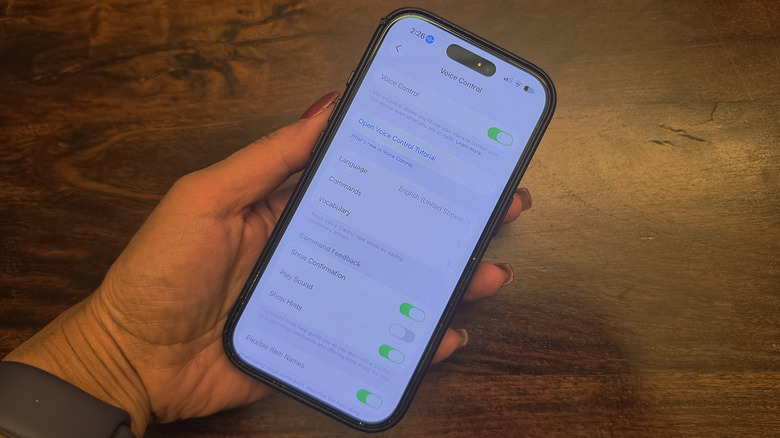
To set up Voice Control, go to Settings, Accessibility, Voice Control and move the slider to the On position. You should see your main language already downloaded under Language, but you can also download other languages from the available list. A circular blue icon with waveguides appears in the status bar to confirm the feature is on.
From here, you can create custom Commands, and teach it new phrases under Vocabulary, including how you pronounce them. With Overlay, numbers, names, or a grid can appear on screen allowing you to indicate where you want to press by stating the proper segment. Just say "Show numbers" and they appear on any screen. As you give commands, a confirmation notification appears at the top of the screen, or the phone can play a sound.
I would recommend running through the tutorial, available in the settings menu, and turning on hints, which will show you the proper prompt as needed. Attention Aware is worth activating too, so an iPhone with Face ID starts listening when you look at the phone and stops when you look away. There are lots of cool new iOS 27 accessibility features coming to iPhone, but Voice Control is already available.
How Voice Control works
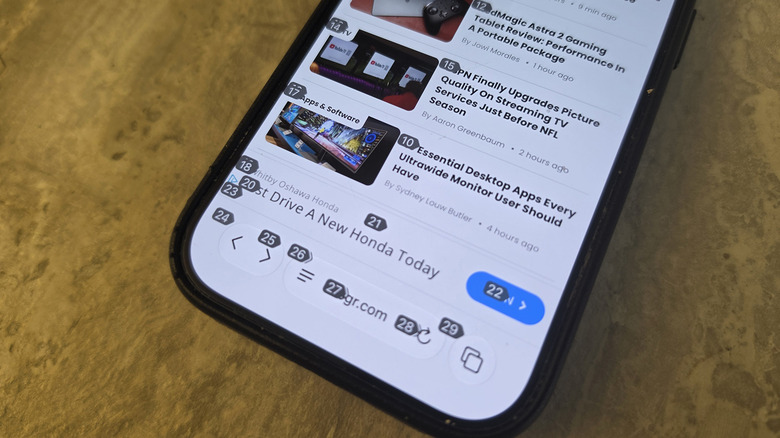
Once Voice Control is set up, say something like "open Control Center," "tap Instagram," or "turn up the volume" to test it. Some of the functions can be done with Siri, but Voice Control can do more. With a number grid overlay, for example, say "number 3" and the phone registers a button-push on the section labeled as such. That could mean opening someone's Instagram Story, a news article on a website, or a specific e-mail. You can also use Voice Control to activate gestures like pinching, swiping, dragging, and long-pressing to zoom in on a photo or swipe up on a social media feed.
It's possible to activate functions that otherwise require physical buttons, including locking your screen. As an accessibility feature, Voice Control is for those with mobility or dexterity issues who have trouble with hand movements, physical touch, or specific gesture motions. But it would also be useful if you have a hand, arm, or finger injury. Multitaskers who are cooking dinner or holding their sleeping baby can use Voice Control to perform iPhone functions that Siri can't handle. Most notably, since it works offline, you can use this feature without an internet connection.