

Never Forget Where You Parked With This Simple Google Maps Solution
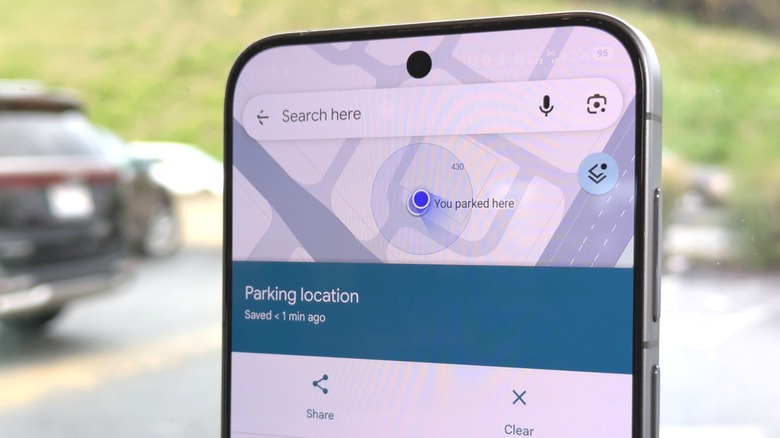
You've circled around the block three times. You're now nearly a mile out from the restaurant that you and, apparently, everyone else has been looking to visit for months. Finally, you've found a place to park. You do the best parallel job since your original driver's exam and cut the engine. The easy part's done. Now, how will you remember where you've parked? Google Maps to the rescue. You know, the app that's been blaring chimes because you left turn-by-turn navigation on while looking for parking.
The app you'll use to post a scathing review after being served cold scrambled eggs. And the app that lets you know where you parked, as long as you have a GPS signal. To mark your parking spot on Google Maps, tap the blue dot indicating your current location (make sure your device is calibrated and that the blue dot isn't too big), scroll through the bar at the top, and select 'Save parking.' You'll see a new pin with a 'P' on it as well as a label that says 'You parked here.'
That pin is searchable, too. When you've finished your business, select the pin, pull up on the listing tab, and tap Clear to remove it. Through the listing tab, you can also change your location, share it, add notes, and set a timer, which is handy if you're leaving your car at an airport lot for a few days. You may need to give Maps permission to set timers and reminders.
iPhone users get automatic parking spot saving on Google Maps
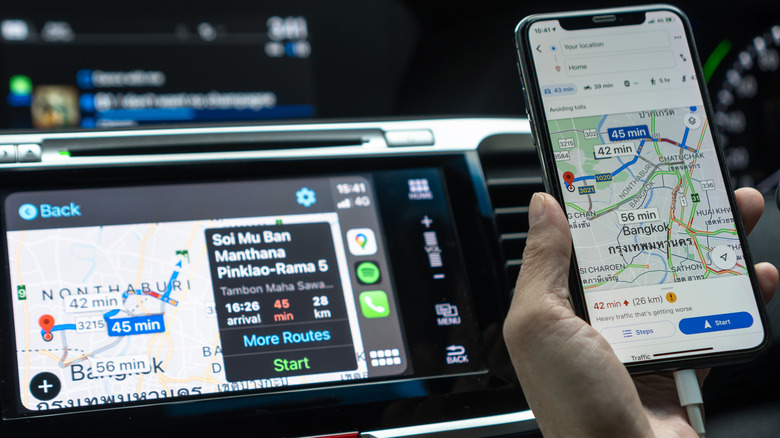
Google has enabled an extra feature exclusive to iPhone and iPad users that automatically marks a parking spot. Connect your device to your car via USB, Bluetooth, or CarPlay, and make sure your iPhone or iPad is set as the audio source. Once you disconnect your device, Maps will automatically save the spot for 48 hours unless you start driving again or manually remove the pin.
In the Google Maps iOS app, you can find special settings for this feature by tapping on your avatar, selecting Settings, then Navigation. If you don't use Bluetooth, you can turn on a toggle 'Let Maps use your motion to save your parking.' Maps may also detect your parking spot if you have Location Services for the app toggled to always on. To check if that's the case, head over to system settings, select Privacy & Security, then scroll to Location Services, and select Google Maps. While you're at it, you might want to check if Apple Maps is tracking you too.