

You've Probably Been Using Your iPhone's Hotspot Wrong - Here's Why

Not so fun story: I once arrived in Las Vegas for the annual CES trade show, prepped to work on my extensive coverage. I spent hours in my hotel room on the phone with the front desk and IT because the internet wasn't working in my room, and they had no fix. I ended up in the lobby where the Wi-Fi signal was stronger just so I could upload videos and get basic work done.
Then I leveraged my iPhone's hotspot for the rest of the trip, and it turned out to be a lifesaver. But there are a few things to note, and settings to adjust — like Maximize Compatibility — for your iPhone's hotspot to successfully connect a second phone, laptop, or tablet (yes, even Android devices) and work reliably. Otherwise, the connection might be slow or lag when you're doing intensive activities, like streaming or gaming.
To use the iPhone's Hotspot, go to Settings, Personal Hotspot and turn on Allow Others to Join. Then go to networks on your other device, find the name of your iPhone, and select it. You will be prompted to enter the Wi-Fi password the first time you pair (noted in Settings) but it should auto-connect each time thereafter. Whether you're using the hotspot in a pinch to meet work deadlines or hoping to entertain your kids on their Wi-Fi-only tablets for a road trip, you want it to work flawlessly.
How to improve iPhone hotspot
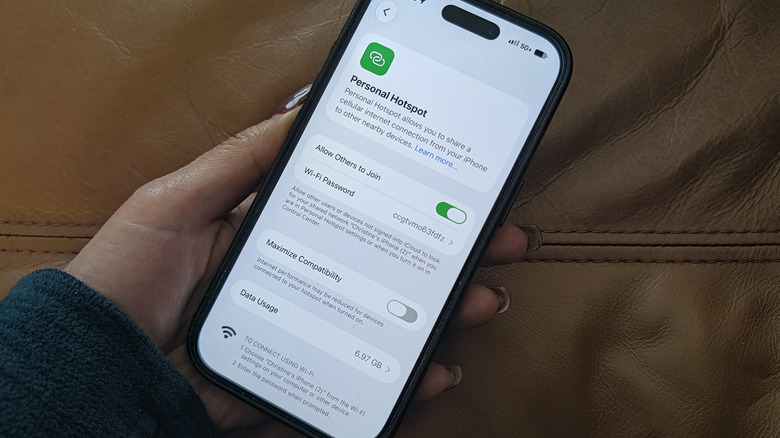
The first feature to look at, Maximize Compatibility, is within the Personal Hotspot settings menu. It is an option for iPhone 12 models and newer that turns off the 5GHz band (and 6GHz if applicable), only allowing connected devices to use 2.4GHz. You won't have as as fast a connection with Maximize Compatibility enabled, but it can be useful for connecting to older devices that don't support 5GHz. If you're using a laptop or device that does work with this band, you can turn the feature off to enjoy faster speeds and a smoother connection.
And if your older device isn't connecting at all, activate Maximize Compatibility so it can find the 2.4GHz band. There are other steps you can take if your iPhone Hotspot isn't working well. First, shut down apps you aren't using then try restarting the phone. Low Power Mode can reduce hotspot performance, as the phone prioritizes other essential functions, so try switching it off. Finally, see how close you are to reaching the data threshold in your mobile plan. Even with an unlimited data plan, some carriers slow your speed during peak hours once you exceed a certain monthly limit.
When to use Personal Hotspot
I have found countless reasons for using Personal Hotspot on my iPhone. I work at a coffee shop a few nights a week, and sometimes, the establishment's Wi-Fi isn't working. In these cases, I use my iPhone hotspot to connect my laptop. You might prefer doing this even if there is a public Wi-Fi network since mobile hotspots are pretty secure compared to open Wi-Fi. This is especially worth considering if you're working with sensitive information.
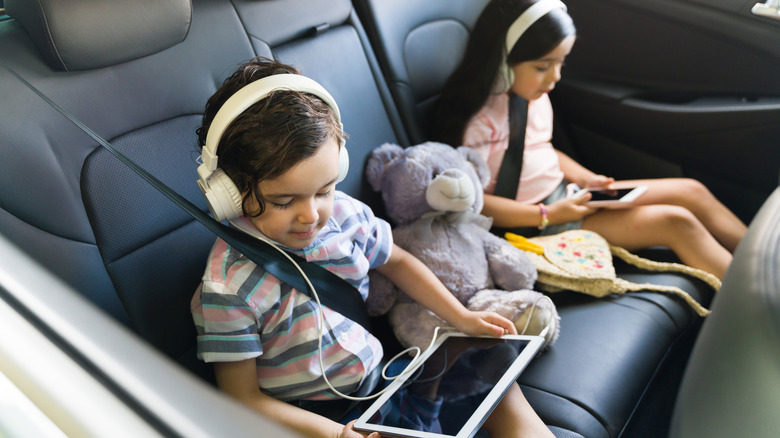
With a Wi-Fi-only device like a tablet, you can use your iPhone to keep it connected. Any time there is a power or internet outage at home, I use Personal Hotspot to keep working uninterrupted, until everything is back up and running. Keep in mind that hotspots use cellular data and will eat into your wireless plan. So, try limiting usage to short periods of time and avoid heavy streaming or downloading big files unless absolutely necessary, especially considering that a single HD video stream, like a movie, uses up to 3GB of data per hour.