

5 Waze Settings Drivers Should Enable
Google Maps may be one of the world's most popular navigation apps, but some drivers may prefer Google's other option, Waze. That's because Waze focuses more on driving efficiency to get you to your destination as fast as possible, while taking into account new real-time information that may impact the estimated time of arrival (ETA). That's Waze incident reporting in a nutshell, a feature made possible by a large community of users who signal traffic disruptions as they happen. Other drivers can react to this continuously updated information, and Waze can reroute them if those incidents are likely to cause significant delays. But there are other Waze features that drivers should enable in addition to incident reporting to improve their navigation experience and safety.
Users should ensure they select the correct car type from the app's settings, which can be relevant for routing and refueling. They can also enable speed indicators to reduce the risk of going over the local speed limit. Additionally, Waze users should consider turning on AI features that let them interact with the app by voice and personalize the ride experience. Finally, they may want to keep the app on display most of the time to have access to the navigation instructions and the road ahead, especially if they don't use in-car infotainment systems.
Customize your vehicle
Downloading and installing Waze on iOS or Android shouldn't be the only thing you do before entering your destination and starting navigation. The drive experience can change significantly based on your vehicle type, so you should select the appropriate car before setting up navigation. Also, you may be using Waze to navigate a city as a taxi driver, which is an important distinction. Separately, you may hold HOV passes that allow you to drive faster on select highways, as well as clean-air permits. All of these should be set up in Waze.
Go to the Settings menu in the app and tap Vehicle Type to select from three options: Private, Taxi, and Motorcycle. Waze will adapt the navigation to your car type. For example, if you select Taxi in the menu, the app will display "routes great for taxis," according to the description. The same Vehicle Details menu lets users enable EV features. Go to the Electric Vehicles section, turn on the feature if you drive an electric car, and then select the plug your vehicle needs and the preferred charging network. Internal combustion car owners may also choose the Preferred Gas Type in the Vehicle Type section. A separate Gas Stations menu in Settings also allows similar customization. These choices will alter future trips, as Waze will offer routes that match your car type and show compatible charging or gas stations.
Go to the Toll and HOV Passes in the Vehicle Details (iPhone) or Settings (Android) menu and select all the passes that apply. This menu will also display clean-air permits that may be relevant to your car and location. These settings will allow Waze to offer routes based on the permits you own, which can improve ETAs for specific trips.
Customize the incident alerts
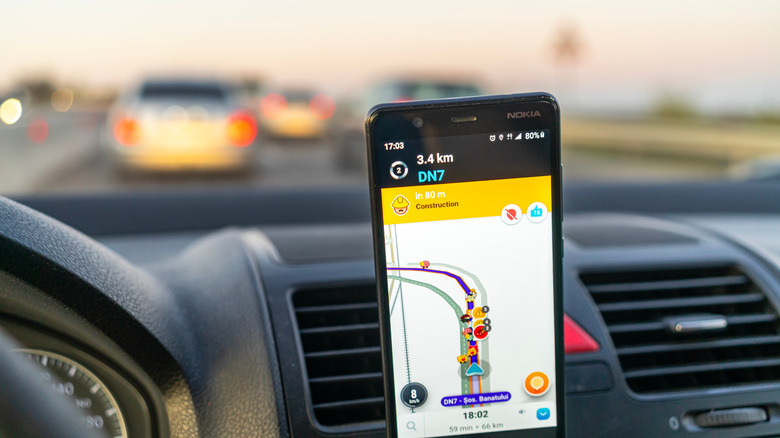
In addition to customizing your vehicle details, you'll want to tailor Waze's incident reporting feature to your needs. The app can display a variety of alerts as produced by the drivers around you, but this can lead to information overload. You may not want to see every possible type of incident the app supports, instead focusing only on key events that can delay your ETA. The immediate benefit is a smoother ride, and more time spent looking at the road instead of interacting with the application.
Go to Settings > Alerts and Reports > Reports to find all the categories the app supports. Cameras, Road Features, Police, Crash, Traffic, Car on Shoulder, Bad Weather, and Construction are some of the categories you may see in this section. Each one may have sub-menus containing additional options. For instance, Road Features includes settings for Railroad Crossing, Traffic Lights, Speed Limit Changes, Complex Intersections, School Zones, and several others. Alerts can include up to two toggles, including Show on Map and Alert While Driving. You should go through this list to disable and enable these toggles for each alert. You can turn off the incident reports you don't want to be notified of while driving, or disable the Show on Map option for the ones that can benefit from an alert only. You can continue tweaking your alert settings based on your driving experience and needs.
Preferences aside, it's important to remember that the Waze incident reports feature may differ depending on your location. For example, Waze users in Switzerland will not be able to report police sightings, as local laws forbid police-control warnings from navigation apps.
Talk to the AI to report incidents
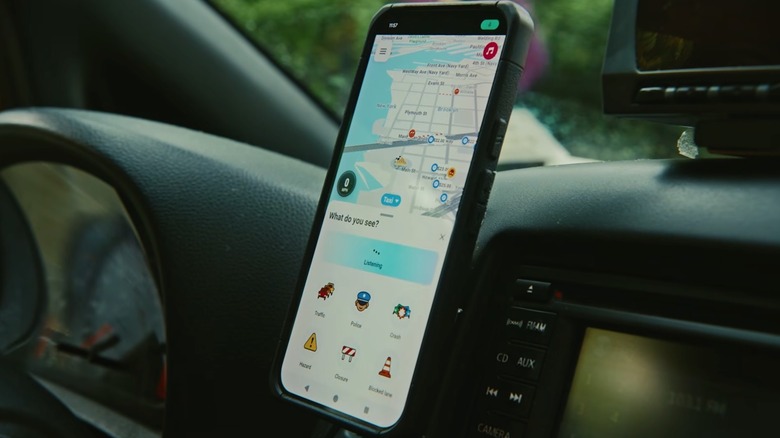
Even after you set up your desired incident reporting structure, you'll still look at the screen for certain alerts. You'll also have to interact with the app if you want to contribute and report incidents while driving. These are all distractions that will have you looking at the screen instead of the road. But you can improve your contributions without adding as much visual distraction by enabling Waze's Conversational Reporting feature, which debuted in late 2024.
Go to Settings > Voice and Sound > Talk to Report to enable the feature. The feature may not be available in all regions. A Voice Reporting option will be available in some locations. After that, you'll be able to use natural language to report incidents along the way. Tap the Talk to Report icon and then speak freely to report incidents, as Gemini-powered models allow Waze to understand what's blocking traffic. The AI can even follow up with questions if it doesn't understand what you initially said. In 2026, Google updated the feature to allow users to report map updates, including address changes and road closures via voice.
The same update brought support for personalized navigation in Waze. When the feature is enabled, the app will offer routes similar to your past travels, which can come in handy for specific trips. Go to Settings > Navigation > Personalization > Personalized Navigation to enable or disable the Get Personalized ETAs and Get Personalized Routes options. The Personalization menu also lets you set up Trip Suggestions and customize your ads experience.
Make sure you don't go over the speed limit
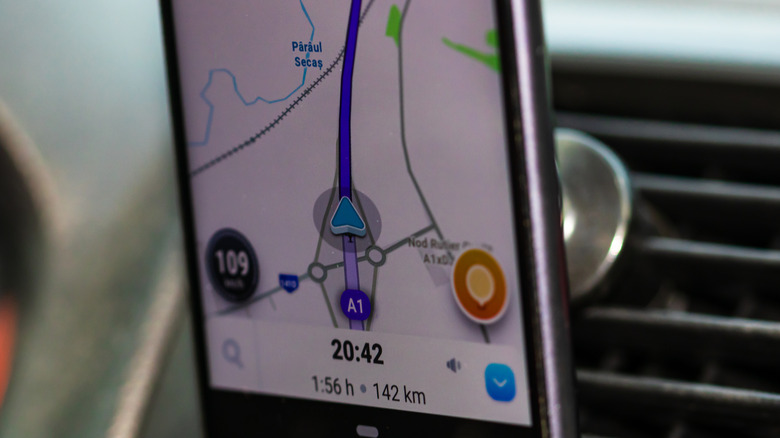
In addition to reducing distractions while driving, you'll also want to keep your speed in check during your drive. Waze has a built-in speedometer and speeding alerts that can be useful in areas you're not familiar with and regions where police reporting and speed cameras may not be available in the app. Go to Settings > Speedometer to enable the Show Speedometer feature if it's not already showing during navigation. Even if the feature is turned on by default, you should visit the menu to set up additional options.
The Show Speed Limit option lets you choose whether to see the local speed limit and whether to see it only when exceeding it. You can also set up a Speeding Threshold in this menu. Choose At Speed Limit, or a different limit from the options, which are based on a specific speed or a percentage above the limit. Enabling the threshold is important if you want to also enable the Alert At Threshold option in the Speedometer menu. This will play a sound when you're driving above the speed limit or the threshold you've selected.
Separately, go to Settings > Alerts and Reports > Reports > Road Features and look for speed-related features, including Speed Bump, Speed Limit Changes, School Zones, and any other options that may impact your speed during your regular drives.
Keep Waze in the foreground
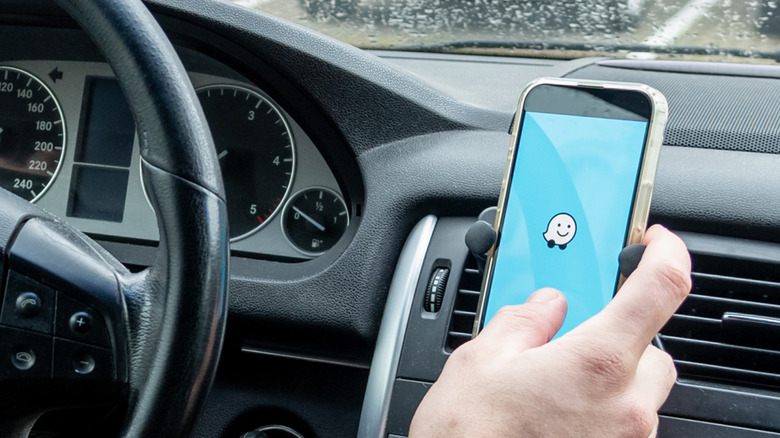
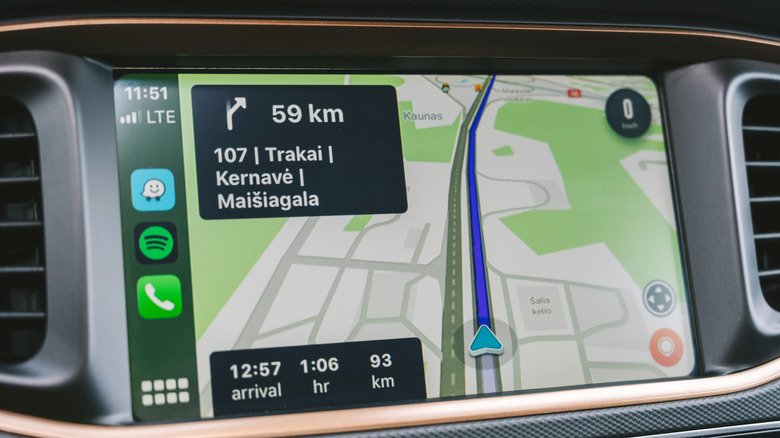
People who spend significant time driving for a living may want to enable additional settings that ensure they have permanent access to Waze navigation. Keep Waze On Top is a feature available on Android devices in the Settings > General menu. You should enable the feature to keep Waze visible on the screen when taking a call, something drivers may do especially during longer trips. This feature can be useful when using the phone for Waze navigation instead of Android Auto or CarPlay, which feature a larger display that can accommodate both navigation and calls.
Waze also has a Prevent Auto-lock feature available in the same Settings > General menu, which should be enabled by default on both iPhone and Android. This ensures the smartphone screen will not turn off while you're using the app to navigate to your destination.
You should also consider customizing Spoken Directions in the Settings > Voice and Sound menu to reduce audio alerts from Waze. Select the Less Chatty mode from the menu if you plan on talking on the phone hands-free or listening to music and audiobooks during the trip. The app will still offer you reminders for incidents and turns, but it won't do it as frequently as the Normal option.