

iOS Has Some Features You Should Try If You Have Trouble Reading Your Screen
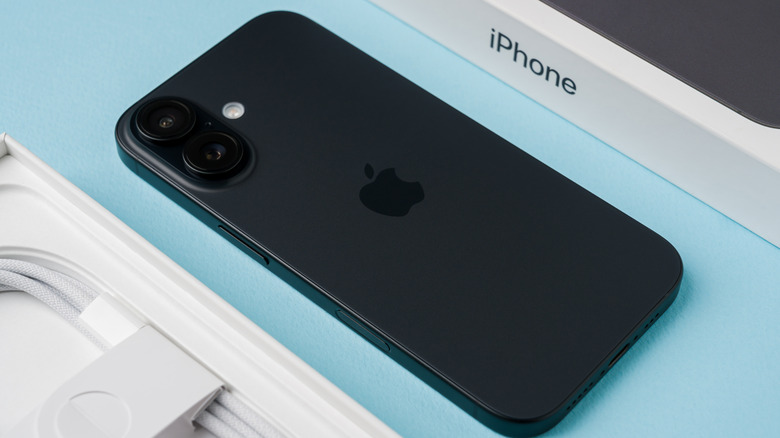
There's a lot to appreciate about Apple products and other smart devices for their wide array of features, and the many tasks and activities that can be accomplished with them, from productivity and communication to entertainment and gaming. However, some iOS device owners may find it harder to see or use their Apple products' displays than the average consumer, and may require some extra help in areas like reading to get the most out of their phones, laptops, and more.
Thankfully, iOS products like the iPhone contain an orchard's worth of accessibility features you should try if you're looking for ways to improve your overall user experience. iOS users who require extra assistance reading on their mobile devices are afforded several handy functions they may access straight from their devices. Apple's accessibility features list includes a diverse group of settings meant to help people of many walks of life and unique scenarios, from a VoiceOver feature meant to describe your screen's contents to an accessibility reader that formats and summarizes or translates text to make reading easier for users.
iOS devices also offer read and speak settings which, as the name suggests, can read aloud on-screen text, even as you're presently typing words and letters. They're also accessible to braille readers, who may use a separate device to open apps, take notes, and access books and other texts by typing in braille. The VoiceOver feature is also capable of conveying what's shown on your screen using braille.
How to change iOS' accessibility features
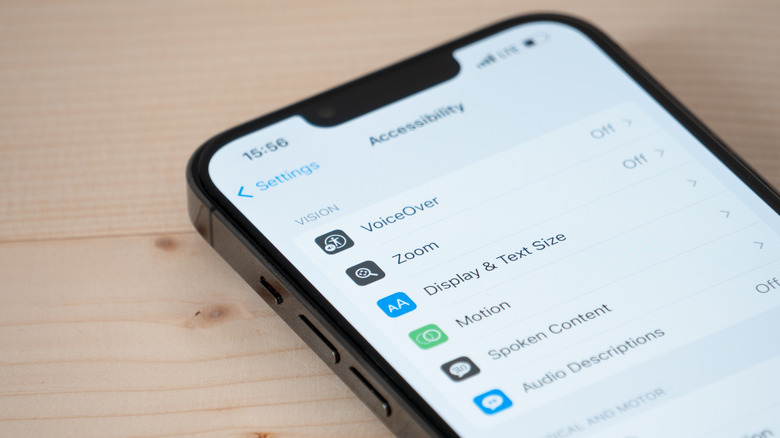
Apple iOS' various reading accessibility features can be accessed as easily as going into your iPhone settings and tapping or clicking on the Accessibility option. There, the Vision category will appear at the top of the menu, thus allowing you to switch on and off helpful functions like VoiceOver, Hover Text, Spoken Content, and more. It's also possible to adjust qualities like text size and display contrast under the Display sub-category. Features like zoom-in and zoom-out may also be toggled without going into your device's settings.
MacBook and iMac users need only press the "command" and "+" or "-" keys to maximize or minimize their screen size, thus allowing them to grow or shrink text based on their specific needs. iPhone and iPad users can accomplish the same task by pinching or double-tapping the screen to expand or contract it. Such features and more show Apple is more than prepared to have its products be accessible and approachable to countless consumers of different backgrounds. The notion that it's unveiling new accessibility features for iPhone, Apple Watch, and more today proves the company is still highly dedicated to its mission of extending its products to as many people as possible via useful iOS settings.