

5 Essential Siri AI Privacy Settings You Need To Change On Your iPhone
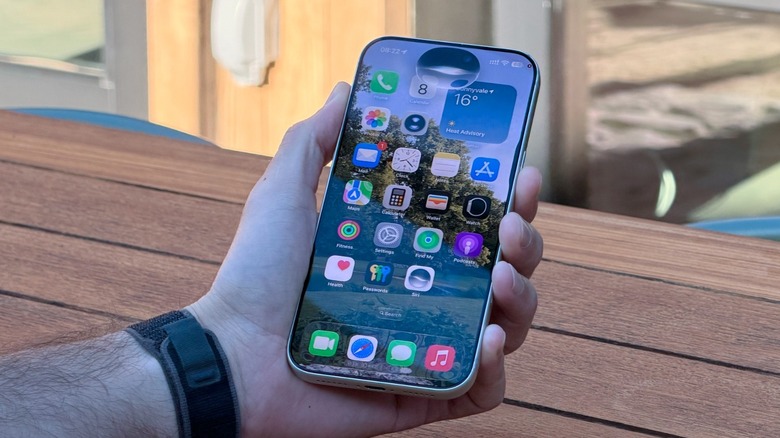
Siri AI is here. After years of an underwhelming experience with Apple's personal assistant, the company merged its models with Google's Gemini algorithm to bring an AI that can tap into users' information, features on-screen awareness, and improved Apple Intelligence features, like adapting the tone of a message based on who you're talking with, understanding what you see through Visual Intelligence, and more. Still, if you think this new Siri knows too much about you, there are a few privacy settings you can change on your iPhone to prevent the personal assistant from having all-free access to your data, such as toggling off the ChatGPT extension, removing access from some sensitive apps, or even preventing Apple from using your chats to train its AI model.
Right now, the Siri AI experience is in beta, so iPhone 15 Pro (or newer) owners can try it in limited languages and regions, as it's still unavailable to European and Chinese users. That said, Apple still has a long way to go before it is confident enough to call this a proper, stable feature. This doesn't mean the company has the right to collect data from users, which it isn't doing without customers' consent, but there are ways to limit the experience and what Siri can see. Still, so far, there's no indication that Apple is selling data to third-party companies or using it without users' consent, and it even offers a bounty program if anyone finds a flaw in the Private Cloud Compute system.
Toggling off ChatGPT extension
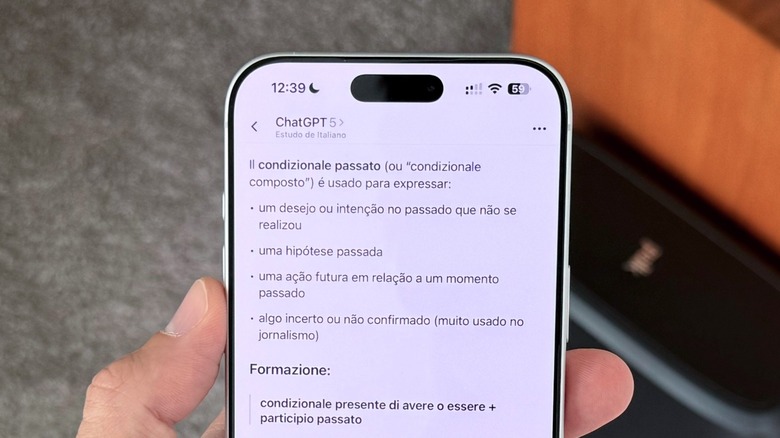
If you're using Apple Intelligence from day one, you probably remember how lackluster the experience was. Siri had no world knowledge, and even basic queries were just hard for the personal assistant. Despite a pretty glowing animation, there was little to no difference from the classic Siri experience. To bridge the gap between what Apple offered and what the company actually wanted users to experience, Apple partnered with OpenAI to offer a built-in ChatGPT integration. With that, users could use Siri as an agent to access ChatGPT for world knowledge, generating images, proofreading text, and much more.
Apple offered this experience in two ways: without users creating a ChatGPT login, or with customers logging in with their credentials, which could also improve ChatGPT's capabilities for users on an OpenAI subscription. Still, while the logged-out experience was much more private, the logged-in one would share everything the user asked Siri for with ChatGPT, since even chats would sync. While reports suggested only a few users took advantage of this feature, now that iOS 27 has been released and Apple has found a better way for users to enjoy Siri AI, there's no need to keep ChatGPT connected to Siri.
That being said, go to Settings > Siri > Tap ChatGPT in the Extensions section, and then toggle it off. This way, you ensure OpenAI can't access your queries whenever you use the new Siri AI experience, keeping your chats, generated images, proofread text, and more private.
Keeping Siri AI off certain apps
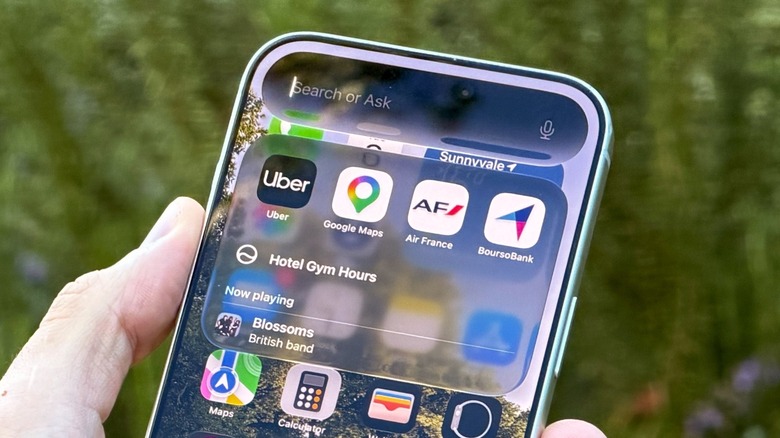
Siri AI has access to everything on your phone. At first, this may sound scary, but Apple says all your data stays private even when it uses the cloud to perform an action or search for something it couldn't know on its own. If that still doesn't convince you, you can limit how much of your personal data Siri can access. In your Apple Intelligence-capable iPhone with the new Siri AI enabled, go to Settings > Siri > App Access > Tap an app > Turn off "Learn from this App." Another possibility, also in Settings, is to go through Apps > Select an App > Turn off "Learn from this App."
In this tab, you can also turn off "Suggest App," which suggests an app inside another, such as when you add a schedule from an email to the calendar. This can be useful for sensitive apps like banking, notes, and work-related apps.
Still, these features use on-device technology, which means the information doesn't leave your phone. In addition, under the previous Siri section, you can turn off "Automatic Visual Look Up," which identifies objects and places in screenshots. By toggling these settings off, you can greatly limit Siri's access to your personal data and apps, restricting the personal assistant to only the applications you feel comfortable with, which can also be good if you have a minor or other people constantly using your phone and asking Siri questions.
Preventing Apple from training Siri AI with your data
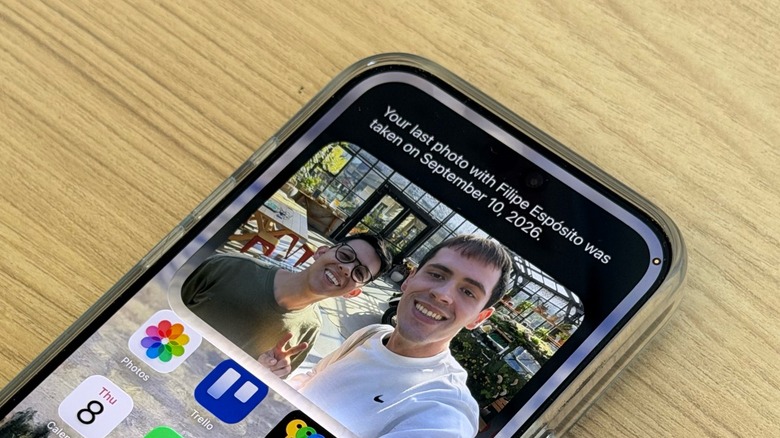
Whether you're setting up your new iPhone for the first time or finally updating to iOS 27, you might have noticed that Apple has a lengthy onboarding process. There, the company asks for permissions to check on apps, whether you want to use the Action Button or not, how the Camera Control feature works, if you want to set up Face ID/Touch ID, and, at a certain moment, if you want to share data and analytics with Apple to improve the company's products and offerings. You can do that by sharing your location, app crash data, and even Siri audio.
If you don't remember allowing all those pieces of information, or you just want to double-check what you're sharing with Apple, especially in times of Siri AI, where the personal assistant can tap into any part of your phone, here's what you can do. If Siri AI isn't turned on yet, you can go to Settings > Siri > Try Siri AI (beta) and tap "Not Now" when it asks for help to Improve Siri & Apple Intelligence. If Siri AI is already on, go to Settings > Privacy & Security > Analytics & Improvements and turn off Improve Siri & Apple Intelligence. In this tab, you'll also realize there are several other ways you could be helping Apple with its own analytics. You can toggle them all off so they won't interfere with your phone experience; instead, you'll use it without sharing your data (even if randomized) with Apple.
Limiting or deleting stored chats
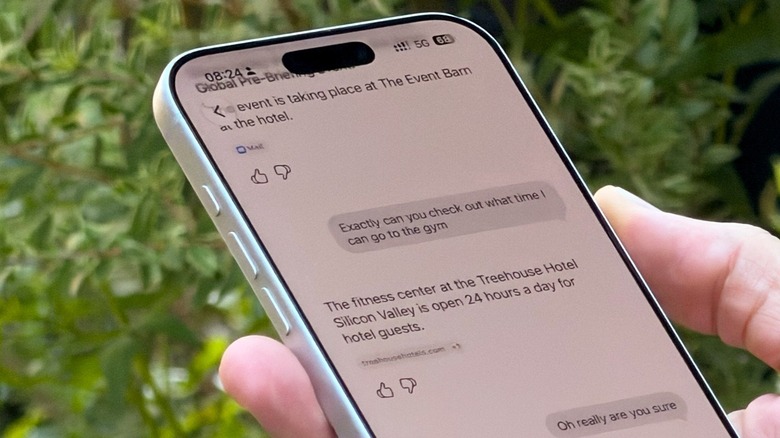
The new Siri AI behaves similarly to OpenAI's ChatGPT and Google's Gemini. Besides being a personal assistant that you can invoke by saying "Hey Siri" or long-pressing the Side Button, Apple added a new Siri app for iPhone, iPad, Mac, Apple Watch, and Apple Vision Pro users. There, they can check their chat history with the personal assistant, from when they asked it to proofread a text, generate an image or even use world knowledge to search something online.
By default, the information stored stays there forever. To change that, you can go to Settings > Siri > Keep Conversation and change the duration from Forever to 1 Year or 30 Days. If you tap 30 Days, Siri deletes any chats older than that limit instantly. If that isn't enough, in Siri's app you can slide your finger from right to left to exclude specific chats. Users can even tap the menu button in the upper right corner, select several messages at once, and delete them.
As a few bonus tips, inside the Siri app, you can also pin some chats by sliding your finger from right to left and change how the chats appear — whether in a list or a grid. If you use a lot of world knowledge or image generation, the grid view might look better. In Settings > Siri > Preview, you can also change how much of the stored chat appears in the preview, from no lines to up to five.
Turn off 'Hey Siri' detection
Last but not least, there's a privacy setting you could've changed for years now, but don't worry, there's still time to change it. As you probably know, iPhones and other Apple devices keep listening for triggering "Hey Siri" and "Siri" commands. While Apple says these are the only voice commands the personal assistant will listen to and react to, several people have already experienced Siri coming up even when no "Hey Siri" or "Siri" commands have been said out loud. To keep the personal assistant from eavesdropping on more private conversations, go to Settings > Siri > Request, and turn off "Siri" or "Siri and Hey Siri" commands.
With that setting off, one of the few ways to activate Siri is to long-press the Side Button, so you have total control over whether the personal assistant is listening. To keep everything more private, you can also open the Siri app and type a message there, or use Spotlight, which is now deeply integrated with Siri AI. By typing instead of using voice commands, you ensure Siri isn't recording or listening to anything you say while still getting the same responses in text.
Still, if you think none of these privacy settings are enough to protect your data, the simplest way to avoid any trouble with Siri is to completely turn it off. Under Settings > Siri > tap Turn Off Siri. Done.