

How To Make Your iPhone Respond Only To 'Hey Siri'
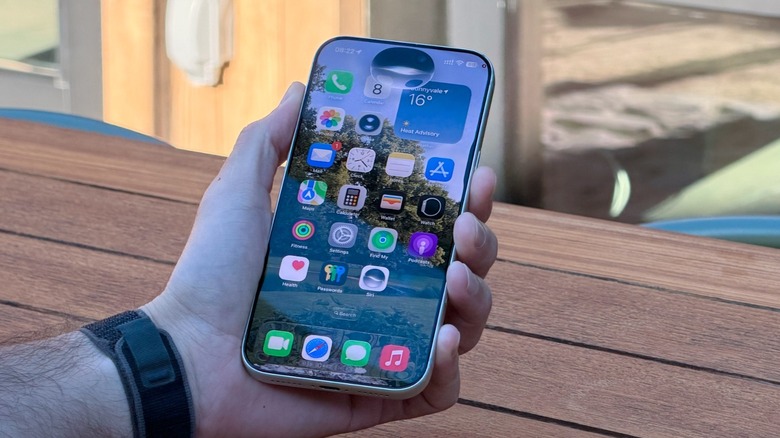
Siri is Apple's long-time personal assistant that was first introduced with the iPhone 4S in 2011 and was seen as a groundbreaking technology when it launched. Since then, however, Apple couldn't make Siri useful enough to meaningfully catch up with competitors from the likes of Amazon and Google, who jumped in with more capabilities and integrations, including most recently with the surge of AI chatbots. Apple made its latest bid to turn the tide in September 2026, with iOS 27 and the all-new Siri, as highlighted by BGR. Still, some people struggle with one feature in particular: The voice control that activates Siri even when you didn't intend it.
This feature to summon Siri with your voice is optional, though. To turn it off, do the following: Open the Settings app > Siri > Requests > "Off." By not opting for the "'Siri' or 'Hey Siri'" option, users can ensure that they're not triggering Siri as often, as the command is a lot broader than just one word.
Another option is to attempt improving Siri's personalized voice recognition, where the attempts to only respond to your voice. In that case, go to Settings > Siri / Apple intelligence & Siri > Talk & Type to Siri > Turn off the command > Turn it on again > Follow the onscreen setup to train Siri with your voice again. By following these steps, you can ensure that Siri works more reliably. Still, BGR has a few more tips and tricks in case you want to make your use of Siri a lot more private and still accurate whenever you want to use the "Hey Siri" tool.
Here's how to make Siri only activate when you ask it
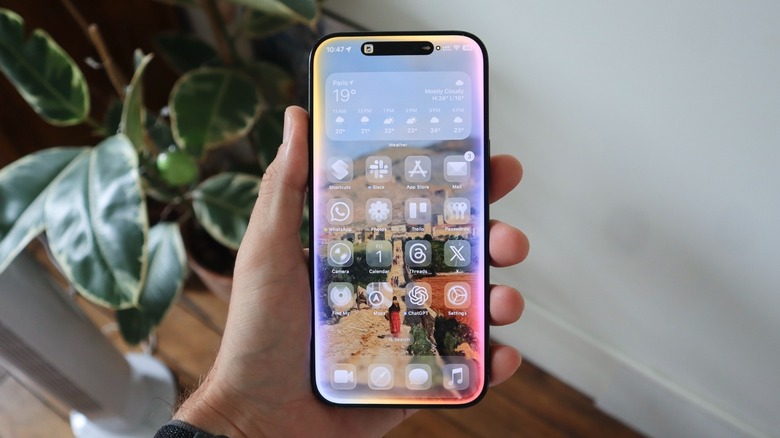
While retraining your voice and using the ”Hey Siri" command instead of just "Siri," there are a few ways to make the experience more secure and stress-free. For example, to avoid Siri from eavesdropping, you can disable the personal assistant when your iPhone is locked. For that, go to Settings > Siri > Allow Siri When Locked > Turn if off. With that, the personal assistant will only take "Hey Siri" commands when you unlock the phone.
If you're running the Siri interface that glows all over your display — iOS 18 or later — you might have realized that sometimes Siri just randomly pops into your display. What's happening is that you might be tapping the Home Bar shortcut, which is the same element that helps you go back to your Home Screen, open multitask, and more. While this shortcut is no longer available for those using the new Siri AI interface, here's how to disable this from ever happening again: On Settings > Apple Intelligence & Siri > Talk & Type to Siri > Turn off Double-Tap Bottom of Screen or Home Bar Shortcut.
By tweaking these additional settings, you have a far more reliable Siri that won't pop when it's not called. Still, there are a few other tweaks you can do if your worry is about privacy, as Siri AI can access a lot more information than previous versions of the personal assistant. And if you want to know what else the Siri AI can do, these are a few ways it has expanded with the new system.