

5 Siri AI Features That Will Change How You Use Your iPhone, iPad, & Mac
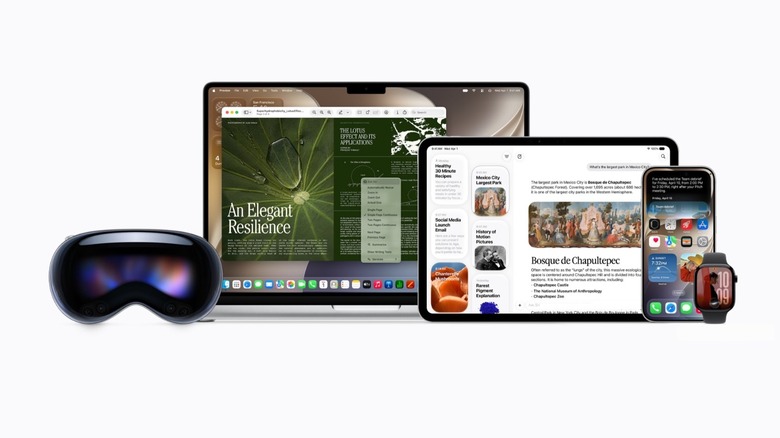
Siri AI is coming to iPhone, iPad, and Mac users this fall with iOS 27, iPadOS 27, and macOS Golden Gate. After years of promises of a new Siri being in the works, or that the current generation would finally get the job done, Apple is finally delivering what users expected from the personal assistant and, to be honest, even a bit more. Over the past month, I've been testing the new Siri as it would tap into my personal information, help me with onscreen tasks, and even create new shortcuts for me; with the public beta now available, you can also take advantage of the new Siri, if you feel like testing the new software before everyone else.
While all those features were long-promised during the WWDC 2024 keynote, the company finally cracked how to get these new functions to work with the help of exclusive Google Gemini models combined with Apple's Foundation Models and Private Cloud Computing. To be fair, I expected that Apple would take even longer to get things right, but the current state of Siri is already impressive.
Among the details I like the most about the assistant is that it doesn't flirt with me, it answers the questions without offering follow-up messages, and it's literally available everywhere. You just invoke it, and it's ready to help you, no matter what you might need. Here's what you need to try.
Tapping personal information
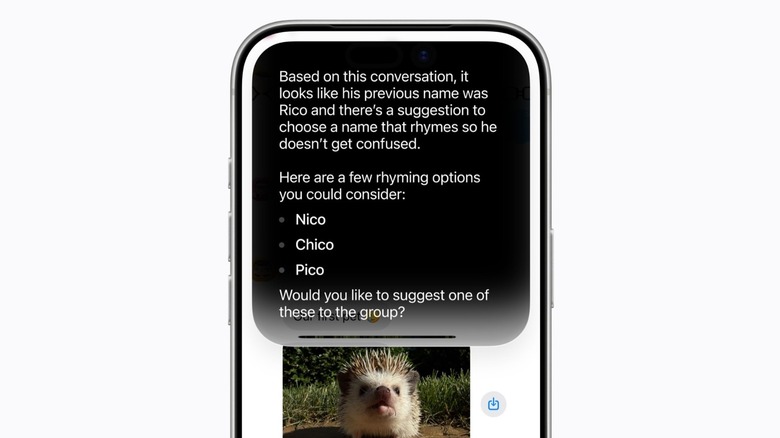
In 2024, Apple's biggest claim was that Siri would be able to tap into personal information. For example, you could ask the personal assistant to get a link for "that podcast that friend X sent you a few weeks ago." While the company couldn't deliver that with iOS 18 nor iOS 26, it's nailing it with iOS 27. Siri has been helping me find messages (through iMessage and Mail), going through reminders, and even tapping links that I completely forgot.
Even though the big trick is that you need to use Apple's stock apps, like iMessage, Mail, Notes, Safari, and Photos, it truly pays off to be that into the company's ecosystem. Siri can also be great to help with gift ideas for a loved one, get your personal information to copy to a document, and so much more.
This is especially useful when navigating through operating systems, as Siri now works the same on the iPhone, iPad, or Mac. It can peek at PDFs on my Desktop to help me answer a question on the iPhone, and it can also lead me the way to a message, photo, or email that I requested but couldn't find myself. Whenever I use the new Siri AI, I keep waiting for the personal assistant to give me wrong information or to not complete the task, and I always get surprised by accurate data regarding what I just asked for.
Help you with onscreen information
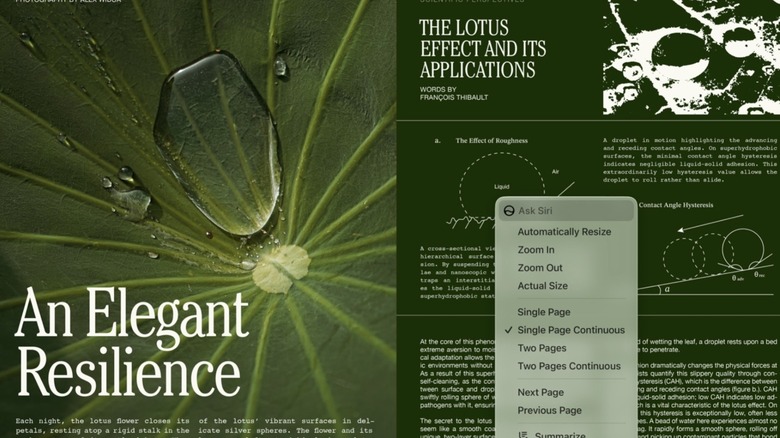
Another Siri AI functionality has been helping me not only while I'm using apps and browsing the web, but with functions on my devices. Siri finally has onscreen awareness, so it can read what's on your display and help you with a task. For example, I wanted to find a very specific section on my Mac and I didn't know how to get there. I asked what I should do and Siri quickly gave me the step-by-step solution. Besides that, if I have any question on how to make something work on my iPhone, iPad, or Mac, or I just ask it why something isn't working as expected, it taps information online from Apple Support and other users on Apple Community Forums and more to give me the troubleshooting, possible solutions, and more.
The onscreen awareness can also help you read the room, like "I didn't understand what this person meant with this message," or "What's something I should really pay attention to in this article?" and the personal assistant will understand the context and offer a proper interpretation.
What's interesting is that if you're trying to make plans with your friends, you can ask Siri to help you plan the party, give ideas on what to bring, and once plans are set, it automatically suggests adding to the Calendar or Reminders based on the messages you sent via iMessage.
Visual Intelligence
Of all the Apple Intelligence features released so far, Visual Intelligence was the one that Apple had been more successful with. Starting with iOS 27, however, the company is taking it to another level, as not only will it come to the iPad, but also the Mac, and Apple Vision Pro. With the iPad, I can now take a screenshot of something on my tablet, and then use some of the already known features of Visual Intelligence, such as adding information to my calendar, saving a business as a contact, or translating text.
On the Mac, Apple added a keyboard shortcut, which lets me select something on the display and type to Siri to get a helpful answer. This has been useful to get more information about a photo, asking about an element on a webpage, and more. Truth be told, the thing I love the most about the new Siri AI on the Mac is that whatever I select, there's an "Ask Siri" button. And, even though at first I thought this could be a bad idea, it's been really useful.
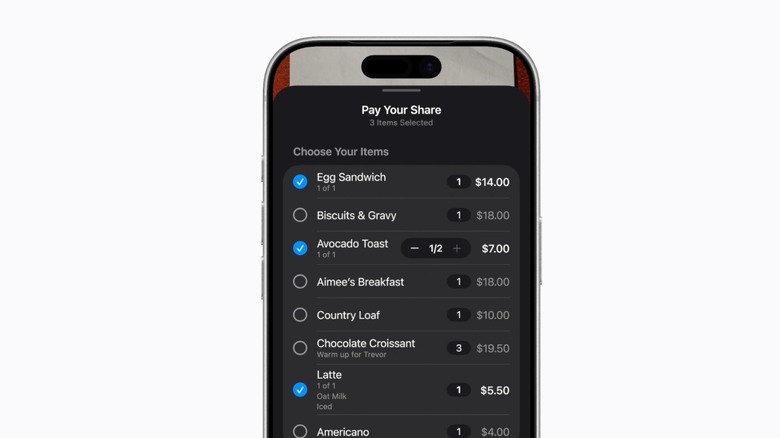
In addition to these changes, Apple is also making Visual Intelligence smarter on the iPhone. So if you take a photo of a festival lineup, Siri can smartly create several calendar events for you, and you can select which ones you want to attend. For bills, Siri can also transform the receipt into an interactive list, so you can select what you ate, and the personal assistant can tell you how much you need to pay.
Proper Writing Tools
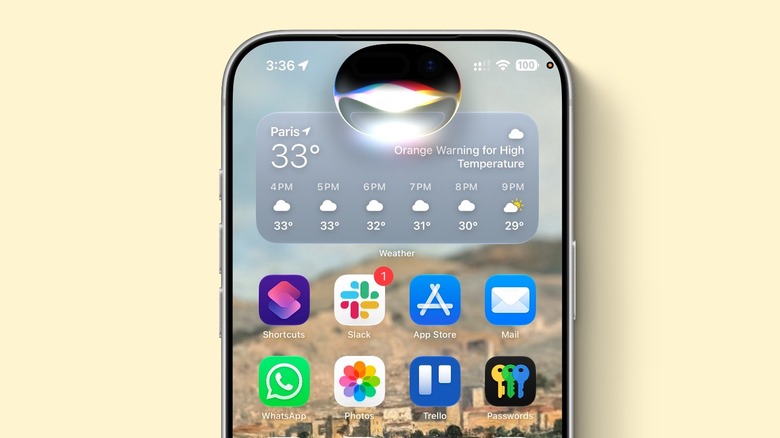
Another OG Apple Intelligence tool is now being revamped under the new Siri AI. Thanks to the new models, Siri goes beyond just creating generic text. It can work by drafting you something, or, more impressively, it understands how you write, and who you're writing for, and offers you smart suggestions.
While Apple says it could even apply to e-mail messages, as it would write a message differently to your boss than it would write to a colleague, I have experienced this feature first-hand on iMessage. Depending on the kind of message I receive, I get such an accurate response that I would actually type that it's just impressive.
For the past couple of years, my ongoing joke with my friends was to screenshot the Apple Intelligence suggestions whenever it popped on my display. Now, for the first time, I'm actually using them because it gets my slang right, the amount of exclamation marks, and so on. For other situations like improving an Italian message to be a lot more formal or just adding my personal information to a message is impressively useful, helpful, and fast. Still, what I like the most about Siri AI is that it goes straight to the point, it doesn't try to talk to me before my request, and it doesn't change what I wrote in a way that just feels artificial.
Shortcuts creation

Last but not least, something I'm enjoying and many other users will enjoy too now that the iOS 27 public beta is out is that you don't need to have any prior knowledge on how to create a shortcut to actually create them. While I always relied on my friends to create my custom shortcuts (yes, I know), now I can do them through Siri AI. On the Shortcuts app, I can tell, in natural language, what I'd like a shortcut to do, and then Siri will intelligently create exactly what I intended.
For example, if I ask something as specific as telling me how hot my iPhone gets, it says it can't provide me the answer, but if I ask it to create a shortcut that every time I use it, it'll start playing all my downloaded Apple Music tunes on shuffle, it does. Users can also ask for more complex tasks, but the real deal here is that you can tell the personal assistant what you want, and it'll come back with a useful shortcut.
This is also useful for Safari, as users can also create extensions by asking Siri what they want to do in a page, or even keep Siri tracking a webpage so whenever an element changes (such as a sold-out concert has new tickets available), you can just go back and do what you wanted to do.