

4 Perks Of Switching To A USB-C Dock
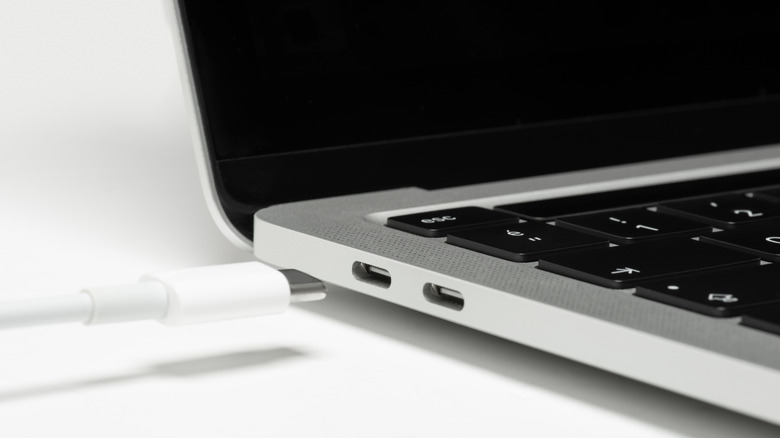
Generally, a capable laptop or desktop PC can handle demanding work, but connecting it to everything you need for a productive desk setup is another challenge. External monitors, keyboards, mice, storage devices, headphones, and network cables can quickly turn your workspace into a cluster of wires. Besides making the desk look untidy, cable clutter can make it harder to keep equipment organized and manage everyday tasks efficiently, while also ruining the aesthetics.
A USB-C dock offers a practical way to bring these devices together, making it easier to switch between working on the go and settling into a fully equipped desk setup. While the USB-C dock does help your desk look tidy, there is more to its functionality. Depending on the dock and your laptop's capabilities, a single USB-C dock can support external displays, peripherals like keyboards, mice, and headphones, data transfer, charging, and wired networking. These capabilities make USB-C docks worth considering for anyone looking to build a flexible and more organized setup.
Connect multiple displays for a more flexible workspace
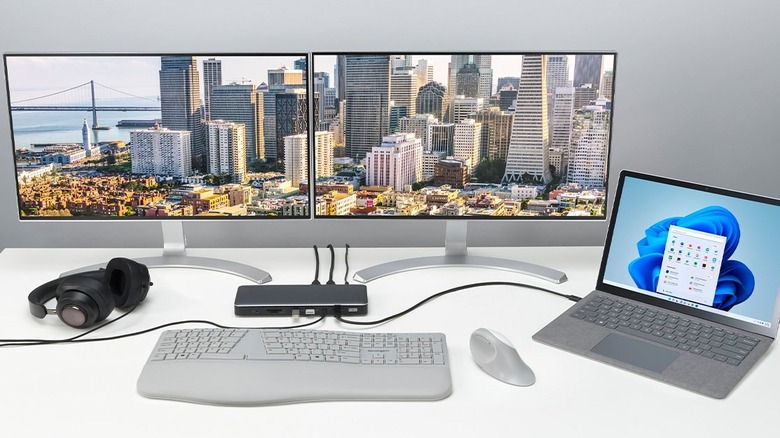
Working across several applications on a single screen includes constant window or tab shifting. Switching between tabs is common, but when done repeatedly, can definitely be annoying — especially for streamers. A USB-C dock with multiple video outputs lets you connect two or more external monitors, giving you more space to arrange documents, spreadsheets, communication tools, and other applications side by side.
For instance, a streamer needs to look at the chat on the streaming platform to keep interacting with their fans. They can't change the window or tab repeatedly while playing the game, making more external monitors essential. Similarly, with a couple of external monitors, you could keep a spreadsheet open on one monitor, a browser or anything else on the second monitor, and your primary work application on the main monitor. Microsoft's docking guidance also identifies monitor outputs (HDMI and DisplayPort included) as key features of the docking stations, allowing compatible PCs to connect to external displays.
Get more ports without constantly swapping cables
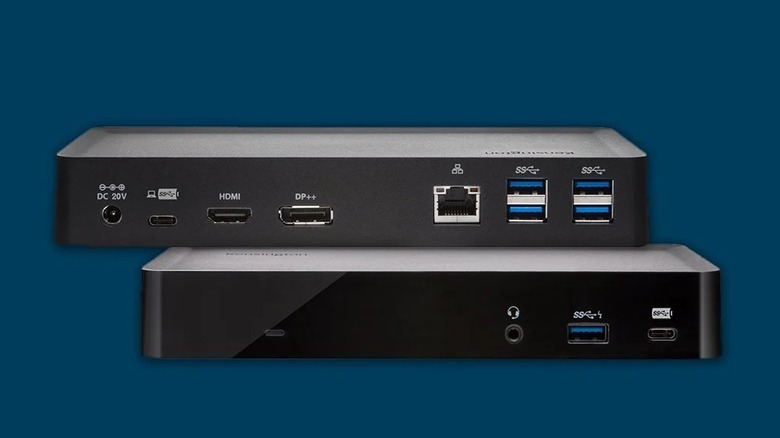
Computers vary in the number and the types of ports they offer. A desktop PC may already have several USB connections, while a laptop may offer fewer options. Modern laptops, to be precise, generally have limited physical ports, especially the thin models. That can become inconvenient when you need to connect multiple accessories at the same time. Even a computer with plenty of ports can still benefit from a USB-C dock if its existing connections do not match the accessories being used.
The dock can add a combination of USB-A, USB-C, HDMI, DisplayPort, Ethernet, audio, memory-card connections, and more depending on the model. This lets users connect multiple peripherals through one central device rather than relying on several adapters. For instance, a workstation may need access to an external storage drive, more monitors, and an Ethernet connection simultaneously, along with a keyboard, mouse, and headphones. The dock can accommodate these devices while keeping the computer's own ports available for other uses.
Keep your desk organized with a single-cable setup
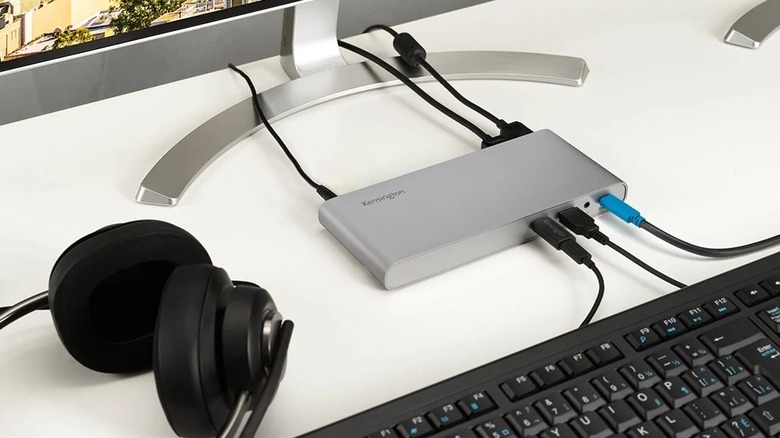
One of the most noticeable advantages of the USB-C dock is that it reduces the number of cables connecting to your laptop or desktop PC. Instead of connecting a few accessories to your PC or laptop at the same time, you can simply plug those devices into the USB-C dock and then connect the dock to your main workstation. If the dock also supports USB Power Delivery, you may be able to charge your laptop through the same USB-C connection used for data and other functions. Depending on the dock's power capacity and port specifications, it may also charge connected devices like smartphones.
The result is a desk with fewer cables connected directly to your computer, a more straightforward setup, and fewer connections to manage when moving your laptop between workspaces. This is useful for hybrid workers who regularly alternate between a home office, a shared desk, and working on the go. That said, this option is also viable for those who simply want fewer wires on their desk.
Get faster data transfers with compatible high-speed connections
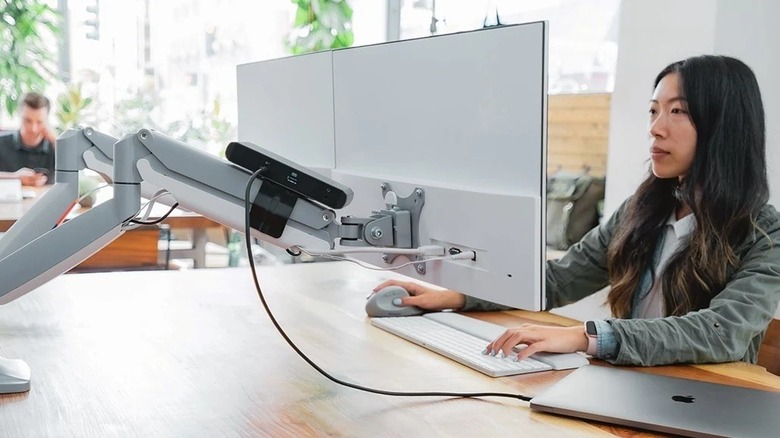
Some USB-C docks support high-speed USB data connections, which can be useful when transferring large files between a computer and compatible external storage devices. For example, video editors, graphic designers, 3D artists, and animation professionals may need to transfer large project files, high-resolution textures, 3D models, and other assets between their computers and external storage devices. A dock with high-speed USB data ports not only makes transfers more efficient but also provides convenient access to external storage without requiring users to connect or disconnect drives directly from their computers.
The USB Implementers Forum specifies different data-transfer capabilities across USB standards, including USB 5 Gbps, USB 10 Gbps, and USB 20 Gbps. USB4 supports higher data rates, including 40 Gbps and up to 80 Gbps with USB4 version 2.0. These figures represent signaling or interface capabilities, not guaranteed real-world file-transfer speeds. Actual performance depends on the dock, computer, cable, and connected storage device.