

4 Ways To Get More Out Of Your Motorola Phone Camera
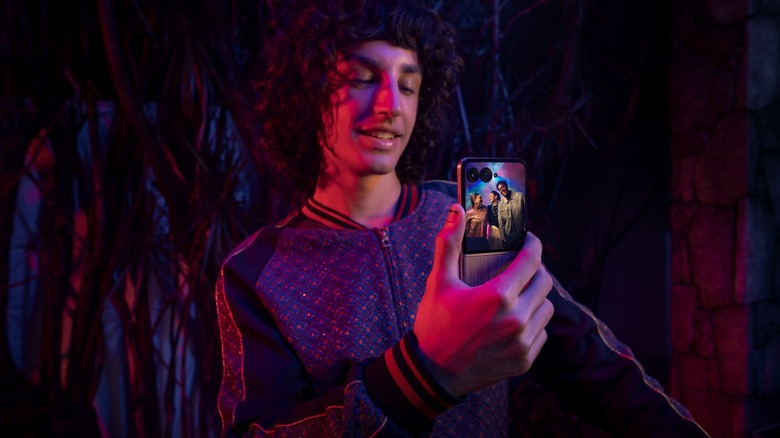
A smartphone camera can do more than just take basic pictures. With the right settings and features, it can help you create portraits with blurred backgrounds, take clearer night shots, photograph moving objects with clarity, make a subject stand out by preserving only its color, record video with a camcorder-like experience, and generally improve the camera experience. From dedicated shooting modes and manual camera control to AI features available on select models, Motorola phones offer a range of tools to make this possible.
Getting better photos doesn't always require a new phone or additional camera equipment. Knowing when to use HDR, how to adjust exposure, and how to tweak different settings can improve your results in different lighting conditions. Motorola's newer devices introduce features such as Moto AI's Group Shot and Signature Shot, which help capture group photos and maintain a consistent look across images. Of course, the available options depend on your Motorola model, so not every phone will include the same modes or AI tools. However, just a few thoughtful adjustments can give you greater control over how your images turn out.
Use Moto AI features to improve photos automatically

Motorola's newer camera systems include AI features designed to reduce the amount of manual work involved in taking and editing pictures. The AI features include Photo Enhancement Engine, Group Shot, Signature Style, Action Shot, Super Zoom, and Adaptive Stabilization.
Photo Enhancement Engine improves dynamic range, reduces image noise, and preserves fine details. This feature is important when photographing scenes with both bright and dark areas or shooting in dim light. Signature Style automatically adjusts image characteristics such as color, lighting, and tone. Group Shot, as the name suggests, is helpful when taking group photos, as it produces group photos in which more people have their eyes open. Action Shot, on the other hand, helps capture moving objects with greater clarity. Super Zoom uses AI processing to help retain detail when zooming in, and Adaptive Stabilization helps adjust stabilization according to movement to help produce smoother photos and videos.
One thing worth noting is that Motorola's announcement discusses the aforementioned features in the context of its newer devices and explicitly notes that the Photo Enhancement Engine is limited to select models. You can also check the camera app and its settings to see whether the AI features are available in your Motorola phone.
Use spot color for creative photographs
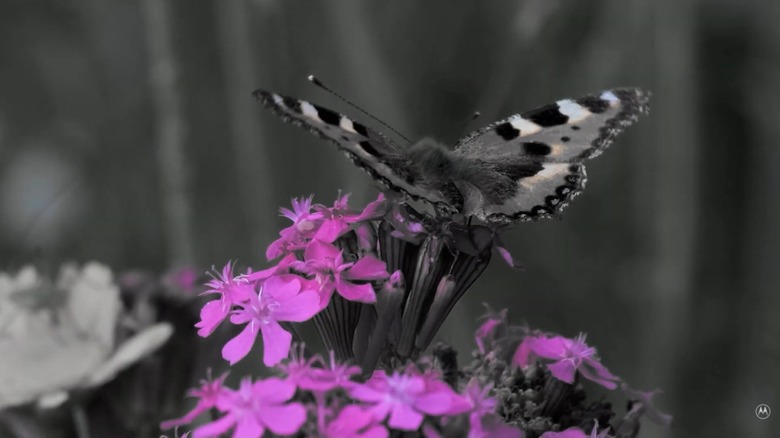
Spot Color is a creative feature and perhaps one of the most interesting bits of camera functionality offered on supported Motorola phones. This feature lets you keep one color in a photo while turning the rest of the image black and white. It is very useful for making a particular subject stand out without needing to edit the photo afterward. For example, if you are photographing a red rose against green leaves and other flowers in the background, you can use the Spot Color feature to retain the rose's color while rendering the rest of the image black and white.
There are, of course, more ways to use this feature other than just capturing a photo of a flower. You can capture a car that is already standing out and make it stand out even more. To use this feature, open the Camera app and swipe through the camera modes to select Spot Color. From there, drag the color picker onto the object or area whose color you want to retain, adjust the color intensity using the slider, and then capture the photo. Taking a photo with a blurred background is also possible. However, the exact controls may vary by phone model and camera app version.
Explore camcorder mode on supported Razr phones
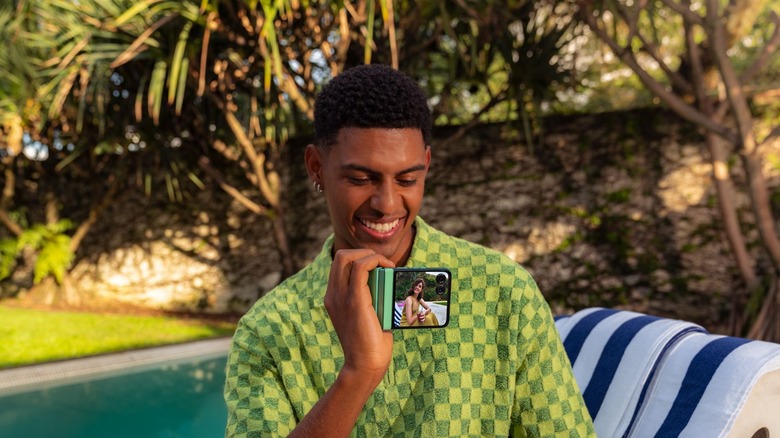
Motorola's newer devices introduce Camcorder Mode, which lets you hold a compatible foldable Motorola phone in a camcorder-like position. Motorola's documentation describes it as a mode that can begin recording when the Motorola Razr phone is folded into the designated position, with options for immediate recording, a short delay, or manual recording on supported software.
The screen displays the video preview on one half and a touchpad on the other. On compatible models, you can even enable the cover screen so your subjects can see themselves while you record. The Camcorder Mode is handy for recording travel clips, family gatherings, casual vlogs, and generally for everyday moments. To use this feature, open the Camera app and enter its settings. Select Camcorder Mode, then choose whether recording starts after a three-second delay, manually, or immediately. Now, hold the phone horizontally and fold it at approximately 90 degrees to activate the mode. After folding your phone into the camcorder position, the recording will begin according to the options selected in the settings.
Capture movement with action shot and adaptive stabilization
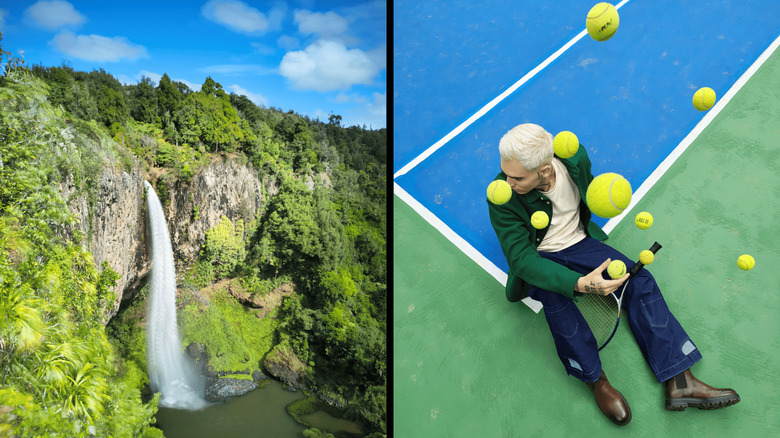
Capturing moving objects can be tricky, especially when recording children playing, sporting events, or pets running. The Motorola Action Shot feature is designed to help freeze movement by adjusting shutter speed according to the lighting conditions. On supported devices, it can even use AI processing to improve detail when light levels are poor. On the other hand, Adaptive Stabilization is designed for smoother video recording. This feature uses AI to detect movement and dynamically adjust stabilization while you film. It's generally useful when recording while walking or running, recording a moving subject, or capturing fast-paced activities where the camera shake can affect the footage.
To get the most out of these tools, use Action Shot mode when you want to capture a particular moment in a still photo, such as a cat sneaking around in stealth mode. Switch to video with Adaptive Stabilization when you want to record the event as it unfolds.