

5 Ways To Train Siri AI For Better Responses

With iOS 18.2, Apple introduced a semi-integrated offering that markedly improved Apple Intelligence, but with iOS 27, Siri was finally going to reach its true potential in assisted automation. If you've installed iOS 27 and have an iPhone 15 Pro, iPhone 15 Pro Max, or later, you'll have access to Siri AI and an exciting list of features you'll want to dig into. Some of the abilities that stand out are asking Siri to send emails, review information onscreen to take action, and perform actions that most AI chatbots are capable of.
To get the most out of Siri AI, you need to dig deeper. There are a few new settings available for Siri AI that you need to look at to make sure that you get it set up in a way that makes the most sense for you. Making sure you tell Siri to remember your preferences (on iOS 27.2) will make responses more relevant, and using new features like Call Context will bring pertinent information right to the surface during a phone conversation.
We're going to dig into some of these tips and tricks to make sure that you get the best out of Siri, showing you what you can get it to do, and just as importantly, what you don't want it to do.
Getting set up
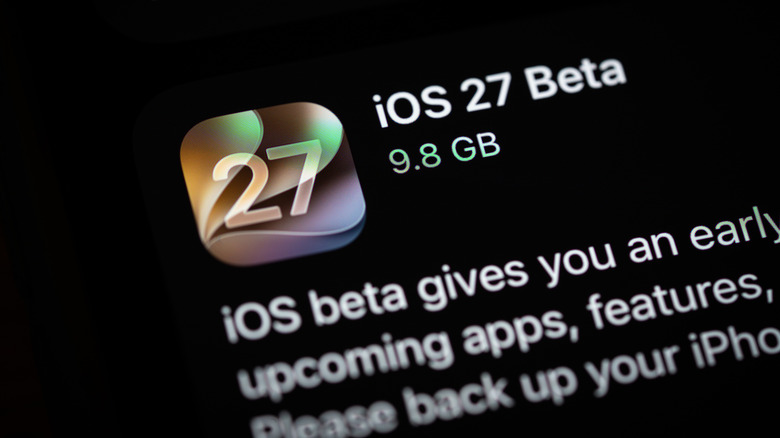
The first thing you need to do after installing iOS 27.2 is head over to Settings > Siri. Under Requests, select how to activate Siri. Your options are: "Siri" or "Hey Siri," just "Hey Siri," or off. You can also toggle whether the side button enables Siri or not here. Next, you can customize Siri's voice and accent by going to Settings > Siri > Voice. Here you have the option to choose from several different accent options, some of which have more than one voice type.
You can customize how Siri responds by going to Settings > Siri > Responses. Your options are "Spoken Response" or "Silent Response." An important setting in this window changes whether you want Siri to respond to text messages automatically or get you to confirm each request before sending. If you're not comfortable yet, run Siri with this option turned off, and if the responses are consistently correct, you can consider switching it on.
Other settings worth looking at are how long you want Siri to retain historical conversations (Settings > Siri > Keep Conversations), and accessibility options (Settings > Siri > Accessibility Settings). The latter is important for choosing how long Siri pauses before replying to you, Siri's speaking pace, whether to use silent responses, and choosing whether or not Siri needs to respond to a prompt even when your phone is facing down.
State your preferences

One of the most important updates that came with iOS 27.2 was the ability for Siri to remember context from older conversations in order to give more personalized responses. In this version of iOS, Siri AI can recall previous conversations and draw context from a wider array of sources like the Messages app or Mail app to make sure that responses are as relevant as possible.
For example, if you ask Siri to find you a restaurant, be sure to mention your dietary preferences. Next time, Siri should offer options relevant to your dietary requirements. If a friend named Alice sent you a recipe several days ago, and you can't recall which app it was sent to, you can simply ask: "Hey Siri, where is the recipe that Alice sent me?", which removes the need to mention specifics.
It's important to note that you have the ability to choose what Siri has access to. If you would prefer that Siri doesn't have access to your personal messages or emails, you can remove Siri's access by going to Settings > Siri > Excluded Apps. Add the apps you don't want Siri to have access to and save. Remember that removing the access also removes Siri's ability to interact with the app.
Cross-app workflows
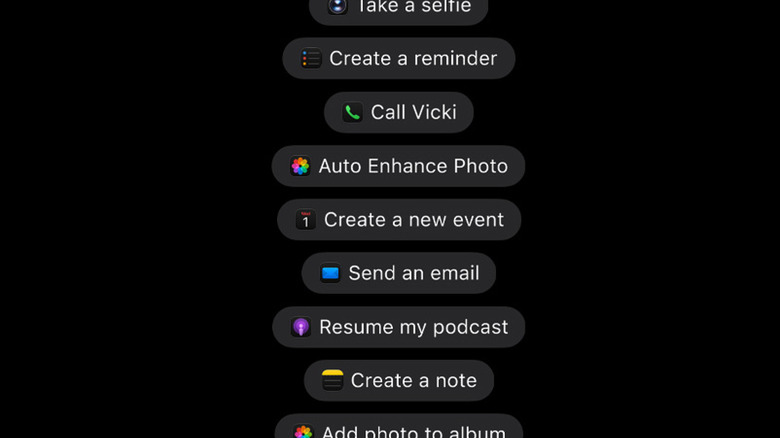
Most of Apple's native iOS apps can support cross-app workflows, allowing you to perform tasks in more than one app to achieve a desired outcome. For example, you can ask Siri to email a specific photo in your Photos app to a contact by describing the photo. Try saying, "Hey Siri, please email the photo I took of the large tree to Alice." This functionality can be extended to much more complex tasks like analyzing document contents and sending summarized versions to various stakeholders.
If you're going to get the most out of this feature, make sure you state which apps you prefer to perform certain tasks with. So let Siri know that you prefer your texts sent via WhatsApp instead of the Messages app. Siri will remember to draft texts only in WhatsApp unless told otherwise. While this is a useful feature, it must be noted that deep support for prompts like these is only available in Apple's native apps and a small selection of third-party apps.
Popular third-party apps like Gmail and Facebook still lack the ability to fully support cross-app workflows. Third-party apps will be able to use Apple's App Intents framework to enable this in the future, but support for these features is likely to take some time to land.
On-screen awareness

Siri AI's on-screen awareness tool is a very useful feature that allows Siri to analyze and act upon what is on a user's screen. This is useful for a number of reasons. You can use it to analyze and extract information directly from a photo, get context, or take actions. For example, you can ask Siri to analyze what's on your screen and get an explanation of what you are looking at. This can also be used to split a bill easily, physically troubleshoot issues like fixing a router, or even do basic nutritional analysis of a plate of food.
To make sure that visual lookup is as readily available as possible, enable the "Automatic Visual Look Up" option under Settings > Siri. If you have a photo that needs a quick edit, you can now do this with a simple natural language prompt without having to do it manually. Simply tell Siri to edit the photo on screen to make it brighter, change the color, or crop it. More advanced edits may still have to be done manually in the Photos app. These are just a few of the best ways you could be using Siri's on-screen awareness tool.
Call Context
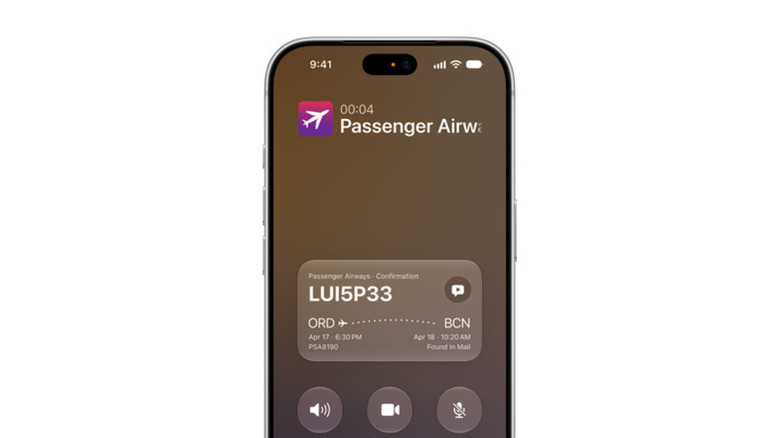
If you've ever been on a call with an airline, mobile company, or bank, you would at one point have needed to minimize the Phone app to locate pertinent information like a flight number, address information, or other verification information. With Siri AI, you can now use a feature called Call Context to have all of this information on screen while you speak without having to go and look for it.
Simply go to Settings > Apps > Phone > Apple Intelligence & Siri, and under Suggestions, enable "Show When Calling." This will allow Siri AI to identify the caller by phone number and gather pertinent information about it that might be residing in your files or inbox. A pop-up screen will have this information ready. If you're considering using this feature, be sure to check out the Hold Assist feature as well if you get put on hold and you want to be notified when the call gets through.
How we chose five ways to improve Siri AI responses
We chose our five best ways to improve Siri AI's responses by focusing on how to extract the most value from it. We wanted to highlight the best approach to setting up this new version of Siri and to be aware of the various settings and options you have access to. In addition to getting set up correctly, we wanted to highlight some of the most common use cases you may have on a day-to-day basis, and highlight what you can do to make responses more personalized to your own habits and preferences. While using Siri AI, be sure to keep verbalizing preferences to get a much more personalized experience.
While Siri AI brings a whole new level of automation to the iPhone, users need to be aware that enabling certain access features on Siri AI means that they could be exposing personal information. Even though the processing of personal data happens locally on the iPhone, you can restrict how much personal information Siri AI has access to.