

5 Ways You Should Be Using Siri's On-Screen Awareness Tool
Apple just gave Siri the upgrade users have been waiting for years. From a basic assistant that you mainly use for timers, Siri AI has evolved into something more versatile — so much so that iPhone owners have been geeking out about its major features since the iOS 27 update.
At the top of that features list is Siri AI's personal context understanding. It can pull up information, including photos, emails, and files, from across your apps. Just say something like "Show me my photos from my trip to Disneyland in 2019," or "Where did Amanda say we should meet?" and it can find what you need. Siri AI also has broad world knowledge. It works like most AI chatbots, so you can ask about practically anything, from when the next public holiday is to how the world came to be.
But arguably the coolest feature Siri AI offers is on-screen awareness. It can essentially see and act upon what's on your screen, all with a simple request. Here are the best ways you can use Siri AI's on-screen awareness tool.
Edit photos hands-free in the Photos app
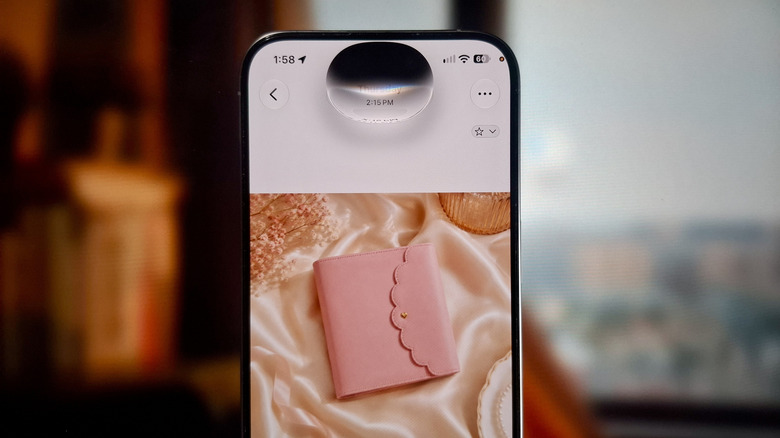
When you want to make some basic edits on your photos, the iPhone Photos app is usually more than capable of getting it done. It just takes some quick taps to apply the changes you like. But you don't always have to do the editing manually. Siri AI can help you with that task — no touches required.
This intelligent assistant's on-screen awareness can recognize when a photo is displayed and automatically open the edit mode for you. The best part is that you can readily use natural language for your request. Here are some commands for editing photos with Siri AI:
- Make this photo black and white.
- Apply the vivid cool filter to this photo.
- Brighten up this photo.
- Clean this photo up.
- Crop this.
Conveniently, these Siri commands work even if the photo is opened elsewhere on your iPhone, like in Google Photos or in Files. Just make sure you can also find it in the Photos library, so Siri AI can edit it. Also note that for some tools, Siri AI will only open the appropriate editing tool and nothing else. You'll have to select the relevant options yourself. For instance, the crop command redirects you to the crop mode, where you need to manually press your preferred cropping method.
Identifying movie/show titles from a short clip on social media
It's pretty common these days for official streaming platforms, content creators, and even regular people to post clips of movies and shows on social media. Unfortunately, they usually leave out the most important detail: the title of the movie/show. So, you'd just hop into the comments section to figure it out yourself. But if that isn't helpful either, Siri AI can step in.
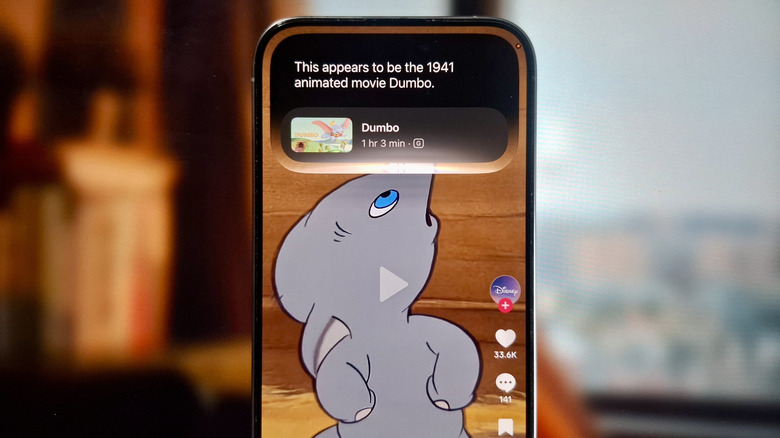
Just ask Siri, "What movie or show is this?" while the clip is playing (works in either landscape or portrait). It will reply with the movie or show title and more details about the scene or the film, including who the characters are in the scene. It sometimes adds direct links to the movie/show on Apple TV as well — handy when you want to save it to your Watchlist. Other than videos, this Siri AI feature can also be used for screenshots and photos of the movie/show.
Keep in mind, though, that Siri AI can give more accurate results if most of the scene is shown on screen. If it's cropped, it might not work as well, unless a prominent character is displayed.
Find locations directly in Apple Maps

The internet is a great place to get recommendations on where to go and what to eat. When you spot a photo or video of a location you'd like to visit, it's very quick and easy to switch to Apple Maps to find it. But there's actually an even more convenient way to find locations in Maps using Siri AI and its on-screen awareness. With the location name shown on the screen, all you have to do is say, "Siri, find this in Maps." It takes Siri just a second or two to pull up the exact location and give you the option to call the establishment or get directions to it. When you tap on Directions, you'll be redirected to the Apple Maps app, with the route already ready.
This Siri command works as long as the location name is clearly visible on the screen, whether it's written in the caption, shown as the storefront sign, or appears as text overlaid on the photo or video. Other than finding restaurants and tourist spots, you can use this nifty trick for a variety of other situations too. For instance, if your boss texts you the location of your next client meeting, you can ask Siri AI to quickly check where it is in Maps. The same goes for when you receive a digital wedding invitation. Rather than manually typing the venue into Maps, Siri AI can look it up for you.
It's important to note, though, that the command only works with Apple Maps. Even if you explicitly mention Google Maps and have it installed on your iPhone, Siri will still give you the Apple Maps result.
Create a reminder about what's on your screen
If there's one essential iPhone app I can't live without, it's Reminders. In fact, it has been so important to my daily routine that I even assigned it to my Action Button for quick access. But the thing is, even with Reminders now just a long-press away, it's still quite inconvenient to create one. I still have to type the name of the reminder myself, set the date and time, and add more information as needed. That means if the reminder is about something I saw on my screen — like a future sale or a local concert — I'll be glancing back and forth between the Reminders panel and my screen just to make it. It's very clunky, to say the least.
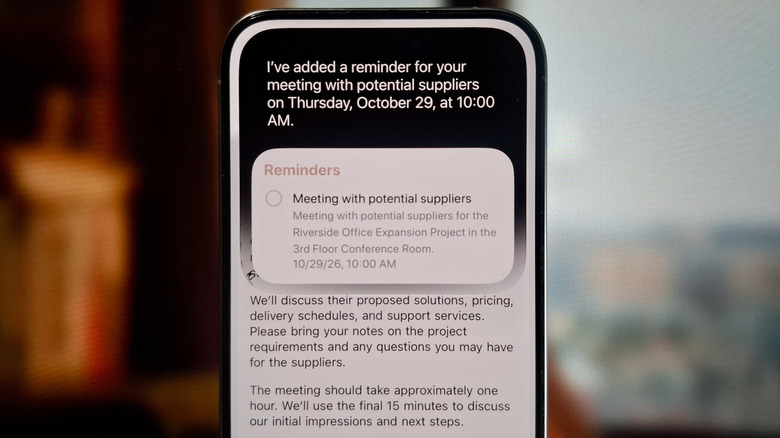
Since iOS 27, though, creating reminders has never been more effortless, thanks to Siri AI. Every time I come across a social media post, email, photo, or webpage that I want to be reminded of later, I ask Siri AI to do it for me. All it takes is a simple command: "Siri, remind me about this." Siri AI will automatically scan the screen for any relevant information. Afterward, it will create the reminder, complete with the correct date and time. It will even include any other useful detail as a note in the reminder to give you additional context. For instance, I opened an email about a scheduled meeting and asked Siri AI to remind me about it. It did so and proceeded to add the meeting's venue in the reminder's note.
Identify shops where you can buy products
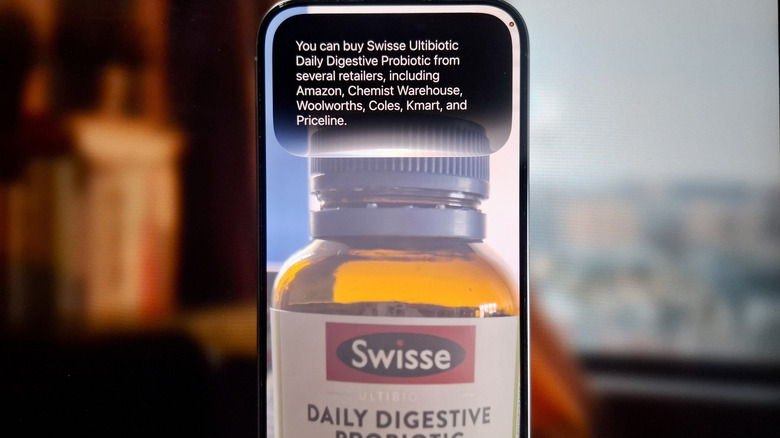
Imagine you saw a cool-looking smart light from a YouTube video and wanted to figure out where you can get one for your living room. Normally, you'd just take a screenshot of the product and run a reverse image search in hopes of finding the shop online. But you don't really have to go through that hassle when you can just let Siri AI do the legwork.
To get Siri AI to identify the retailer of the product in question, you first need to display it on the screen. You don't necessarily have to take a screenshot of the product, though. Just make sure it's visible in its entirety. If possible, show the brand name clearly to get better results. From here, activate Siri AI and ask, "Where can I buy this?" Siri will reply with one or several stores offering the product. You might need to expand the Siri AI panel to view the links to the mentioned stores.
Aside from photos and videos online, this Siri command also applies to photos you previously took. Just open the image in the Photos app and ask Siri AI the same question.