

How To Reduce Unwanted Notifications On Your Galaxy S26
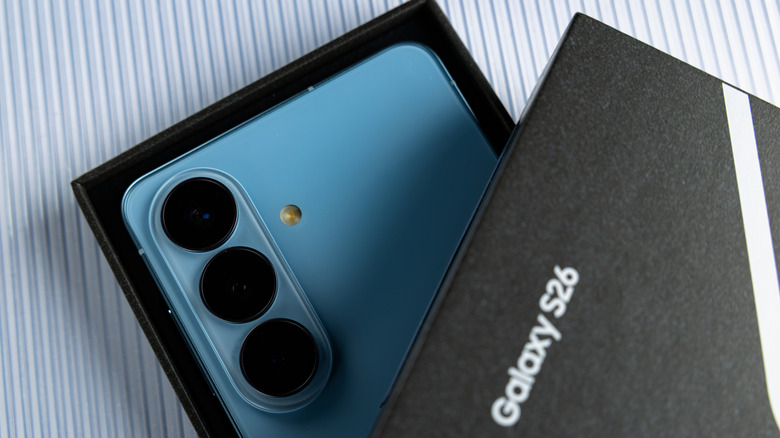
You're busy at work, and your phone keeps sending alerts. You finally cave in, open it, and there's so much to get through — except this isn't the first time — you get so many daily notifications, even after you've silenced and uninstalled a few apps. Fortunately, if you're a lucky owner of the Samsung Galaxy S26, or any entry in Samsung's latest 2026 lineup, there are a few tricks to reduce the number of notifications.
For example, you can use Samsung's "Mode & Routines" for a break, or turn on Android's Do Not Disturb mode to block notifications at set times so you can review them later. This system-wide feature applies to apps, calls, and alerts. Otherwise, you can enable notification snoozing, which hides incoming notifications from popping up for a specified duration — similar to an alarm clock — delaying the notification. This way, you can avoid seeing a busy chat thread at work. Simply tap the "Snooze icon" next to the notification in the notifications panel, if the button is enabled.
The other option is to use Samsung's notification-category controls to reduce clutter, which is easy to set up. You just have to go to "Settings"> "Notifications"> "App notification." If you don't see this option, toggle on "Manage notification categories for each app" through "Advanced settings" inside "Notifications." The categories will vary by app. Each group has its own toggle, letting you enable or disable notifications — essentially giving you more control over which alerts you want to see or block.
Make a few handy changes to filter your notifications

While Samsung's One UI, paired with Android's native features, offers excellent notification management that gives you a break from incoming alerts, you might prefer to reduce the sheer volume you get each day. One way is by manually changing in-app settings to stop certain notifications from coming through. For example, Discord lets you disable push notifications from the app, or you can mute certain servers and channels.
You can also adjust your notifications so that, even if you don't mind receiving them, they don't persist or take up the screen when they're less useful (very helpful for Google Messages). For this, you'll want to customize your notification pop-up style via "Settings"> "Notifications > "Notification pop-up"; setting it to "Brief" as the default keeps the banner more compact, showing less text, along with the app icon and sender/receiver.
Finally, you can make the next change directly with notification filters, which you can access through "Sort and filter notifications" in "Settings"> "Notifications." Your Galaxy S26 should have three toggles: "Old notifications," "Background activities," and "Minimized notifications." These toggles let you hide less important alerts, especially ones you forget to clear, or system-related notifications that alert you to apps running in the background. The idea is to make your view more manageable by hiding them from your immediate view.
Keep important notification visibility up
Balancing dismissing, blocking, and delaying notifications can be tricky. You don't always want to apply system-wide settings to avoid all notifications, and while Do Not Disturb mode can be customized to allow certain alerts through, you don't necessarily want to miss time-sensitive ones you forgot to enable. That's why you might prefer to see all alerts, but still ensure the most important ones are seen or summarized.
So you might want to lean into some Galaxy AI features supported by Galaxy S26 phones. You can find these settings in "Notification highlights" through "Settings"> "Notifications" on your phone. Similarly, make sure "Notification highlights" are turned on. These features use on-device processing to safeguard your privacy, another reason you want a powerful Galaxy phone, like the Galaxy S26, to use them. Prioritized notifications uses AI-powered sorting to place more urgent alerts at the top of the list. It's also more visually distinct since you might see a different shade or a glow.
You can also fine-tune which apps can prioritize notifications by going to "App notifications" and tapping an app in the list; below it, a "Prioritize notifications" toggle lets you turn it on or off for that particular app. Summarize notifications is another useful Galaxy AI-powered notification feature, albeit a bit limited. It focuses mainly on conversational notifications, and only certain languages are supported (it also has to match your device's selected language). Using it provides a recap of what you missed, usually from a series of messages. Since it is AI-powered, it won't be perfect, as it is quite context-sensitive.