

Roku's Beloved Aquatic Life Screensaver Is Disappearing — Here Are 4 Alternatives
Roku streaming devices offer several features and customization options for users who want to personalize their experience, including a Backdrops mode that can turn your TV into an art display, themes, parental controls, and a wide selection of custom screensavers — for those who want a change from the default (but Easter-egg-filled) Roku City one. However, one of Roku's most beloved screensavers is disappearing soon.
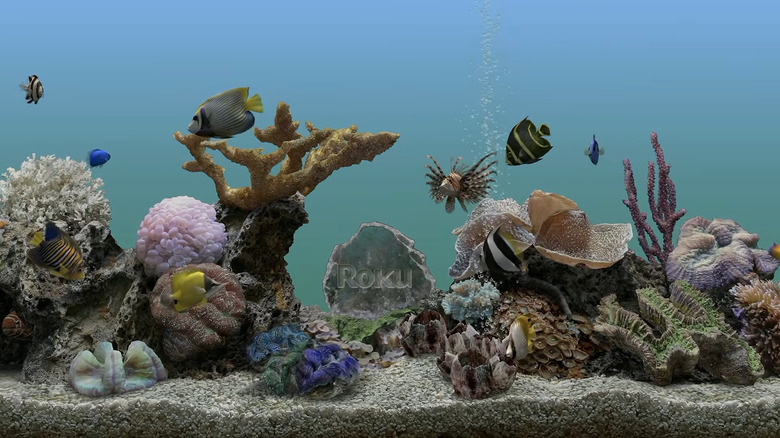
The tranquil Aquatic Life screensaver lets Roku users watch tropical fish as they swim around a fish tank, with a rock decoration displaying the Roku logo visible in the tank. But some fans of the screensaver were disappointed to learn from an on-screen alert that the screensaver will no longer be available as of December 1, 2026. Its removal is reportedly due to the creator (Sachs of Serene Screen) choosing not to renew the copyright licensing agreement for the screensaver with Roku due to Fox's acquisition of the streaming company.
If you're a fan of the Aquatic Life screensaver, you may be looking for an equally relaxing replacement to switch to. Below, we've identified four Roku underwater-themed screensaver alternatives and explained how you can easily change your Roku screensaver.
Roku Aquatic Life screensaver alternatives
Fortunately, the Aquatic Life screensaver hasn't completely disappeared and is still available, as an almost three-minute video of the calming virtual aquarium is available to watch on YouTube. The screensaver can also be bought and downloaded for Windows, Mac, and Android via Serene Screen's website.
While you won't be able to use it as your screensaver for Roku after November 2026, there are several screensaver alternatives available from the Roku Channel Store that capture a similar theme. The most similar to Aquatic Life is the animated Aquarium Screensaver Channel, a channel (Roku-speak for "app" in this instance) offering several screensavers, including marine and freshwater aquarium options, allowing you to watch fish swim casually around in their tank. For a similar exotic fish theme, the animated Tropical Fish screensaver also displays tropical fish swimming in tranquil blue waters, but instead of inside a tank, they're swimming against a coral reef backdrop.
For those who are more focused on the tranquil underwater element than the type of animal, Dolphin Screensaver and Jellyfish Screen Saver could be worth considering for something a bit different. However, unlike Aquatic Life, these screensavers appear to be static slideshows of images rather than animated screensavers.
How to change your Roku screensaver
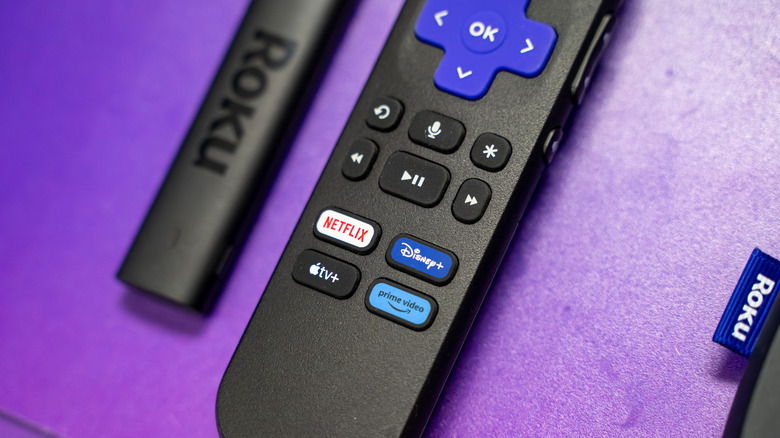
Roku screensavers can be found in the Screensavers category of the Roku Channel Store. To access the store, select the Home button on your Roku remote, navigate to the Roku Channel Store, then select Screensavers from the menu. If you find one you like the look of, you can select Add App to download it to your Roku device. The "Add App" option will appear as long as the screensaver is free to download, with paid screensavers featuring a purchase or subscription option instead.
To access your new screensaver, select the Home button on your Roku remote, go to Settings, and then navigate to Screensaver. Find and select your chosen screensaver from the list, choosing Preview to see what it'll look like in action and using Custom Settings (where applicable) to make desired changes.
When you're happy, select OK on your remote to lock in your choice — a tick will appear in the screensaver option list beside the one you currently have selected. Here, you can also adjust the "Wait Time" settings to increase or decrease how long your Roku device is idle before the screensaver begins or remove the screensaver altogether.