

5 Face ID Issues iPhone Duo Users Have To Deal With
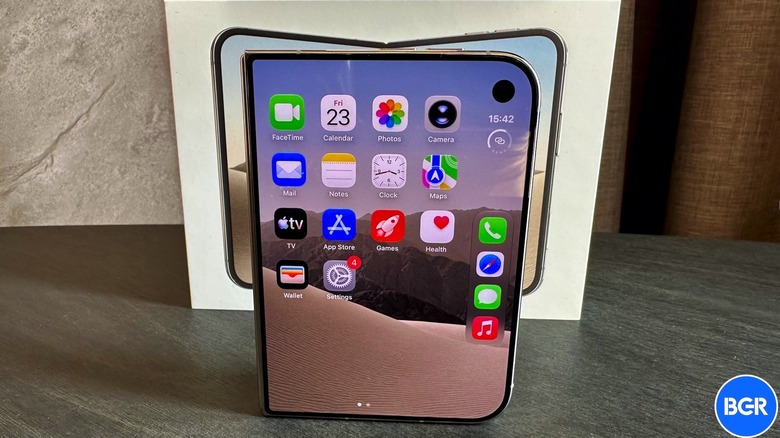
When explaining the iPhone Duo quirks that drive me crazy as a longtime iPhone user, I said the lack of Face ID was the one that annoyed me the most. Long before Apple unveiled the iPhone Duo, I thought that not having Face ID support on the foldable iPhone would be a deal-breaker for me. Instead, I believed Touch ID would not be a good alternative. Now that I've actually used the iPhone Duo, I know I'm not going to switch back to a traditional iPhone anytime soon, and I can get by without the face authentication. However, that means dealing with several Face ID-related issues that go beyond unlocking the handset, which is the main purpose of Face ID. The list includes Screen Distance warnings, the ability to preview notifications on the lock screen and access other hidden content, support for Apple Pay in stores and other digital payments made from the iPhone, and authentication in apps.
The side-mounted Touch ID sensor will replace almost all the lost Face ID features, except for the ones that involve Apple's TrueDepth camera system that tracks a user's gaze. Touch ID is also secure and can be used to lock both the iPhone and other content from prying eyes. But Touch ID requires an active gesture, placing a finger on the power button, while Face ID works passively. You only have to look at the screen to perform the required action.
Also, depending on how you use the iPhone, you may need to register multiple fingers, or finger regions, to make Touch ID work more often. As a left-handed user, it's even more annoying for me, as I find myself using Touch ID in uncomfortable hand positions. Add protective cases, and pressing the fingerprint sensor may be even more inconvenient.
Phone unlock
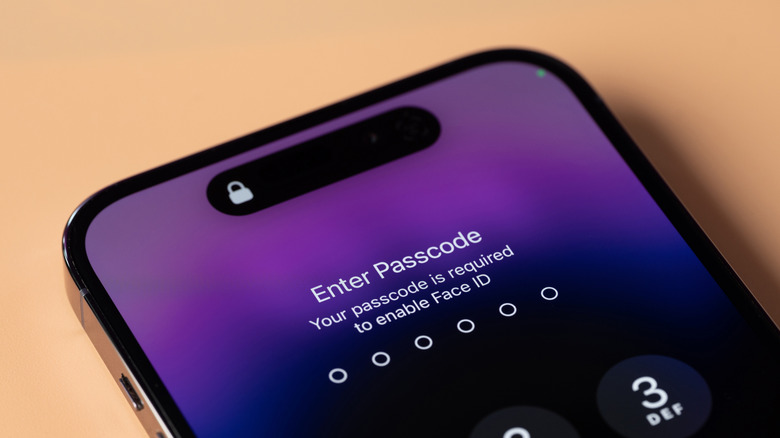
Most iPhone Duo reviews mentioned the lack of Face ID when it comes to unlocking the handset, while also showing that Touch ID can be somewhat slower, depending on how you use it. I've fully embraced Face ID ever since the iPhone X brought us the notch design and the TrueDepth camera system in 2017 and I've long argued that Face ID is the better option no matter how convenient and fast Touch ID might seem. Face ID is fast, and Apple improved its speed over the years. I've been looking forward to Macs with TrueDepth camera systems so I could benefit from the same quick authentication. Instead, the iPhone Duo forced me back to using a fingerprint sensor, which I also find slower most of the time.
I don't use the Duo just at home, where it's comfortable to use Touch ID for unlocking the handset and authenticating in apps and websites. Unlocking it with Touch ID can take longer while outside, especially in winter. I have to take off my gloves every time I want to unlock the handset or use Apple Pay. This is especially annoying if I'm out running in bad weather.
Thankfully, two alternatives exist. One involves employing the Apple Watch to unlock the handset, but the feature is only available to users who also own a compatible device. Go to Settings > Touch ID & Passcode and enable your Apple Watch model under the Unlock with Nearby Devices section.
The second option is available under the same Settings menu: Unlock with Front Camera. Apple added it in the test software, iOS 27.3 beta 2, but this feature should not be confused with actual Face ID functionality. In this version, the handset uses a 2D scan of your face for unlocking purposes.
Screen Distance and other Attention Aware features
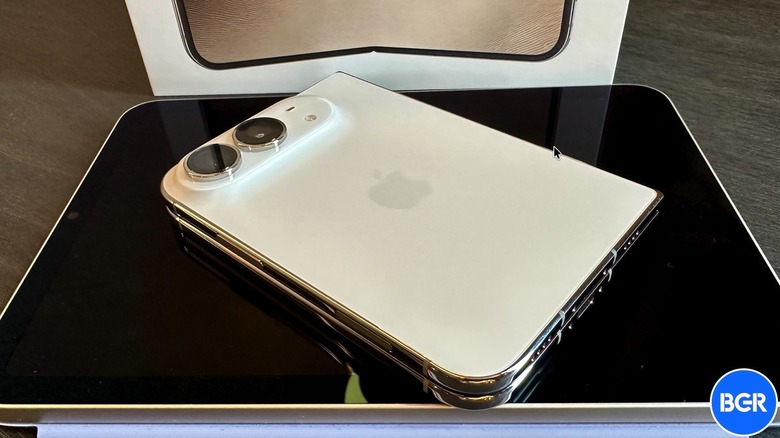
Apple introduced an eye health feature in 2023 called Screen Distance that's been available on all iPhone models with Face ID since iOS 17. Once you enable it in Settings > Screen Time, the feature will warn you when you're holding the iPhone too close to your face for an extended period. Screen Distance is meant to help lower the risk of myopia in children, but can benefit adults as well, according to Apple's documentation. I've been using Screen Distance since its introduction, and the iPhone gave me plenty of notifications to put some distance between my eyes and the screen, especially in the early weeks and months. The iPhone Duo doesn't support the feature. While I might have trained myself to keep the screen at a distance of at least 30 cm, Screen Distance still kept me in check.
The TrueDepth camera system also enables Attention Aware Features on Face ID-equipped iPhones. Go to Accessibility > Face ID & Attention > Attention Aware Features to turn them on. The setting marked Require Attention for Face ID makes sure your eyes are open when unlocking the handset. Attention Aware Features is a separate toggle that you should enable. Face ID will check whether you're looking at the handset before dimming the display, expanding notifications, and lowering the volume for alerts. These features have been available since iOS 11 (2017) when the iPhone X was introduced, but the iPhone Duo can't replicate them. The good news is that iOS 27.3 beta 2 has also brought back the Attention Aware Features toggle, using the front-facing camera on the external display. Still, that's a useful fix, especially for iPhone users like me, who have used these features on Face ID iPhones for years.
Hidden content: Notifications, Control Center, and more
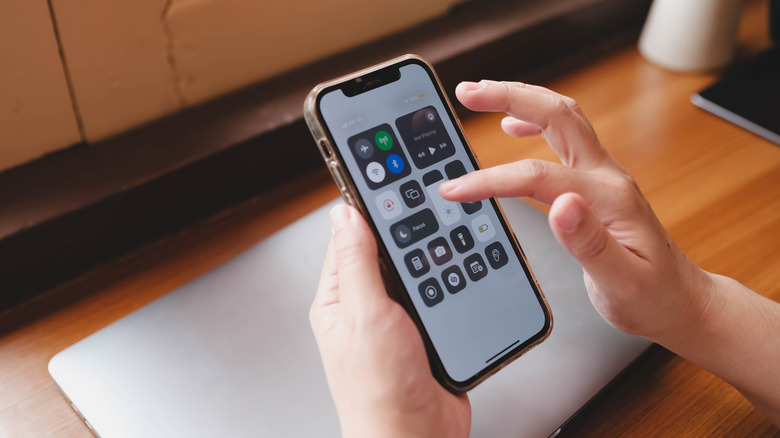
Whether you're using Face ID, Touch ID, or just a PIN/password lock, the iPhone is encrypted when locked. But by default, even a locked iPhone can allow access to some content, including notifications and the Control Center, a feature I've turned off.
With Face ID, it was incredibly fast to see notifications and use Control Center. The TrueDepth system would authenticate me, and I'd just go about my business. On the Duo, you need to use Touch ID. Go to Settings > Notifications > Show Previews and choose the When Unlocked option. This will ensure that others near you can't see incoming notifications on the handset.
There is one hiccup to this feature. If you have the Apple Watch unlock feature enabled, someone in your vicinity may be able to unlock the Duo while you're not looking (or sleeping) as long as you're wearing the smartwatch. Go to Settings > Touch ID & Passcode and disable the Control Center access under the Allow Access When Locked section. This feature will prevent thieves from using Control Center to enable Airplane Mode.
I've been using Face ID to lock or hide content on the iPhone, and I've had to move to Touch ID on the Duo. iOS 16 brought support for locking hidden and recently deleted photos in 2016. A year later, iOS 17 let users lock private Safari tabs. Then, iOS 18 added other privacy features, like locking an app to prevent unauthorized access and hiding apps in a special folder. All these features require your PIN or Face ID/Touch ID. I found that the process of opening hidden content is slower on the Duo compared to a Face ID iPhone.
Apple Pay and the other digital payments
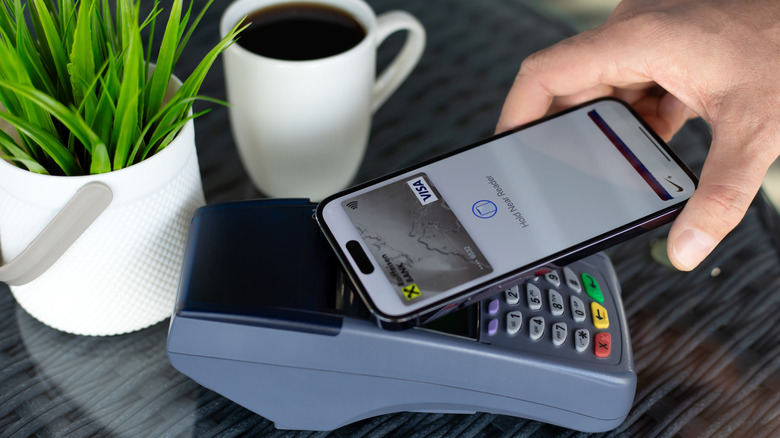
I've been using Apple Pay for years in stores, as that's the fastest way to authenticate contactless payments. The process involved scanning my face with the TrueDepth sensor and holding the iPhone near the payment terminal. On the Duo, I have to use Touch ID instead. Since Apple Pay payments involve invoking the Wallet app by double-pressing the power button, the process may be faster on the Duo, as the power button contains the Touch ID sensor. However, I've found myself fumbling with payments, as Touch ID wouldn't register immediately. I've turned off the handset in the process, which made Apple Pay payments slower than Face ID. Also, using the iPhone in my left hand during Apple Pay authentication is much faster with Face ID than Touch ID.
I fixed the problem by enabling Apple Pay payments on the Apple Watch. In hindsight, this may have been the better option even when using Face ID iPhones. It's quicker than Face ID, as all it takes is a double-click of the Apple Watch's side button to authenticate payments as long as you're wearing the device.
Apple Pay can be used for other digital payments. For example, you may use Apple Pay to install or buy apps from the App Store, for in-app payments, and for e-Book purchases from the Apple Books store. You can also use Apple Pay at checkout on websites and to authorize payments for online purchases made on a Mac. With Face ID enabled, using Apple Pay is a breeze in all these instances. But with Touch ID involved, it's less convenient than Face ID, at least for me.
App authentication
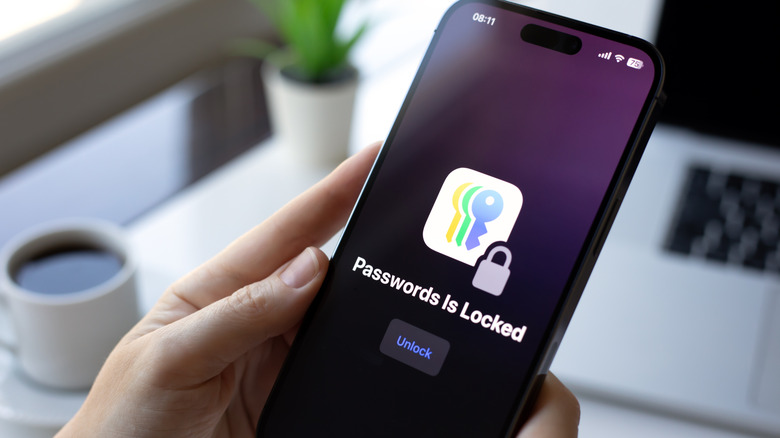
The Face ID feature I miss the most on the iPhone Duo is app authentication. Face ID lets me quickly unlock apps that are protected by logins by default, such as mobile banking apps, and apps I choose to lock myself, like communications apps (email, messages, and social media). Also, Face ID lets me quickly use passwords and passkeys stored in the various password managers I have installed on my phone. It takes longer on the iPhone Duo with Touch ID. I have to touch the power button for the fingerprint scan, which is an extra step. Also, muscle memory makes me wait for a Face ID scan that isn't there, which further delays the Touch ID authentication. I'm in the process of retraining myself, but I doubt that Touch ID will ever be faster than Face ID.
Here's a scenario that may illustrate how fast Face ID can be compared to Touch ID. I find myself traveling during the winter for running half-marathon and marathon races. I always have the iPhone with me for navigating unfamiliar places and using public transport. I also use virtual cards for Apple Pay payments to reduce the risk of hacks. Say that I would have to pay for a train ticket using Apple Pay, but the payment doesn't go through as the virtual card has run out of funds. I would quickly transfer money from one banking app to another, then get back to the transit app to pay for the ticket. It's all quite fast with Face ID, and doesn't require taking off the gloves to use the phone. This entire process takes a little longer on the Duo, and the phone feels slower.