

How To Stop Your Streaming Apps From Automatically Playing Loud Previews
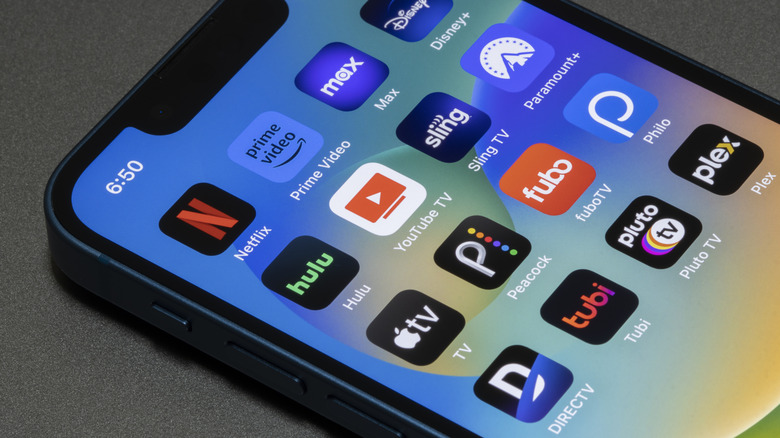
While streaming services' autoplayed previews can be useful, they aren't always the best introduction to new movies and shows. Sometimes it'd be nice to hunt for a fun horror movie to watch without getting startled by a loud trailer before even picking one out. It can be just as aggravating to have a scene from a show spoiled for you before you've even decided if you want to give it a stab, or to have another episode play when you don't plan to watch it. The autoplay feature is an optional function, however, and those who truly hate it can turn it off on popular platforms such as Netflix. But it's not always an easy setting to find.
According to Netflix's help page, users can do away with autoplay previews by choosing a profile when they enter the smartphone or tablet app by going to My Netflix and selecting which profile they intend to edit under Manage Profiles. From there, autoplay previews can be switched on or off. Desktop users need only go into their account settings, choose the right profile, and go to Playback Settings. Autoplay previews may then be switched either on or off.
Disney Plus users can similarly adjust a hidden setting that will rid them of the pesky autoplay feature. Business Insider suggests tapping or clicking on your profile icon, followed by Edit Profiles. Select a profile to alter, press the Autoplay button, and then hit save. The feature will no longer haunt your streaming experience, and can be turned back on in the event you'd prefer to have it back. Hulu, which is also owned by The Walt Disney Company, follows a comparable protocol, sans selecting a profile to edit. Instead, it's only required to go into the account's settings.
More streaming services allow users to disable autoplay

Some cord-cutters are unsurprisingly fronting a decent amount of cash monthly to subscribe to every major streaming service and fill their entertainment appetites. As such, those with a vendetta against streaming platforms' autoplay previews have far more to worry about than just Netflix and Disney Plus' settings. HBO Max makes the process quick and painless by including all of its autoplay options in either the app or general settings menu, regardless if it's being accessed via web, mobile, or TV. Similar to Disney Plus, Prime Video's autoplay settings can also be accessed on a mobile device if the profile and settings icons are tapped on in that order. Desktop users only have to navigate to their account settings, and then the Player menu, where autoplay can be shut off.
Major services such as Peacock and Paramount Plus also feature autoplay nuisances users should disable to improve their overall experience. Per The Streamable, the former app requires that streamers go into their desktop settings to switch it off. Click on the profile icon and select the pencil button under a specific profile. The service's autoplay options are available at the bottom of the screen. Finally, Paramount Plus subscribers can take the simple route of going to your account settings, then the User and Viewing Options menus, and then deselect Paramount Plus in the check box. Regardless of the service, each provides anti-autoplay options, which can spare users' sanity.