

How To Create Custom Widgets For Your Pixel
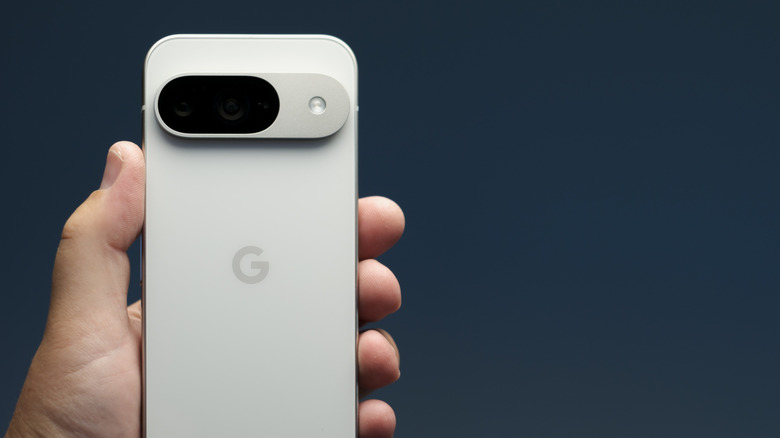
Android users have long enjoyed having plentiful flexibility over how their home screen looks, and a lot of that comes down to how flexible widgets can be. Now, Google is opening up the widget possibilities even further with a new feature called Create My Widget, which came in the November 2026 Pixel Drop. It lets you harness Google's AI to create custom widgets with tons of functionality ranging from weather forecasts to countdowns to an upcoming sports match or vacation.
Before getting started, though, make sure you and your phone qualify. According to Google's official notes, your Pixel phone must be a Pixel 10 or newer; this includes the Pixel 10 Pro, Pixel 10 Pro XL, Pixel 10 Pro Fold, and Pixel 11 lineup but excludes the budget Pixel 10a. You must be over 18 years old and use the tool in English in Australia, Canada, India, the United Kingdom, or the United States. Additionally, you will need to connect your Google account during setup in order for your widgets to be able to display data from that account.
Yes, this is one of the November 2026 Pixel Drop's cool new features, but some folks may not have it yet. If that's your case, but you're just itching to try Create My Widget out, there's still hope — try searching for it in the Google Play Store. Alternatively, visit Google's beta tester opt-in page for the app on your phone, then tap "Become a tester." Once the enrollment registers, return to the app in the Play Store and update it to install the active build.
How to create custom widgets for your Google Pixel's home screen

Once you've got the app in-hand, touch and hold an empty space on your Pixel's home screen, then tap Widgets and select the Create button toward the top of the menu. From there, tap Describe your widget and jot out your custom prompt. You can also work with one of the pre-defined suggestions and categories, like Important dates, Finance, or Sports & fitness.
After you type a description and hit the Send button, Gemini builds out your widget, then shows you a live preview of it before making things official. Depending on what all you're wanting, you may need to grant it device or app data permissions — just tap Allow if requested. Finally, tap + Add to drop the finished widget onto your home screen. Do note that some requests might result in higher Gemini usage, and Google says you might need a paid Gemini subscription in order to build certain widgets. And as always when you're working with AI, double-check it for accuracy.
Best of all, you can tweak a widget later on without having to start over from scratch. From the preview screen, hit Edit and tell it what you want to adjust, then tap Send to refresh the layout before officially placing it again. The new Create My Widget feature makes it easy to personalize your Pixel's home screen even more, and it's a fun plus on top of those essential Android widgets you may already be using.