

You Can Watch Movies Offline On Your Roku TV With This Cheap Accessory
We may receive a commission on purchases made from links.
Like any other streaming device out there, Roku TVs work best when connected to the internet. It's how you can stream the latest season of your favorite show, watch live TV and podcasts, and listen to songs on Spotify or Apple Music. But just because streaming is the primary feature of your Roku TV doesn't necessarily mean it's the only thing it can do. In fact, you can actually use it even without an internet connection and watch movies offline.
The key to doing so is one cheap accessory you probably already have lying around — a USB stick. Any USB drive, like the Amazon Basics 256GB, should work just fine. Simply load it with movies you've ripped from your physical collection or acquired elsewhere, then connect it to your Roku TV. This is one of the best ways to use your TV's USB port to level up your device. Plus, it's easy to do and won't cost you much. We'll walk you through the exact steps on how to watch movies offline on your Roku TV with your cheap USB drive.
Using a USB drive to watch movies offline on your Roku TV
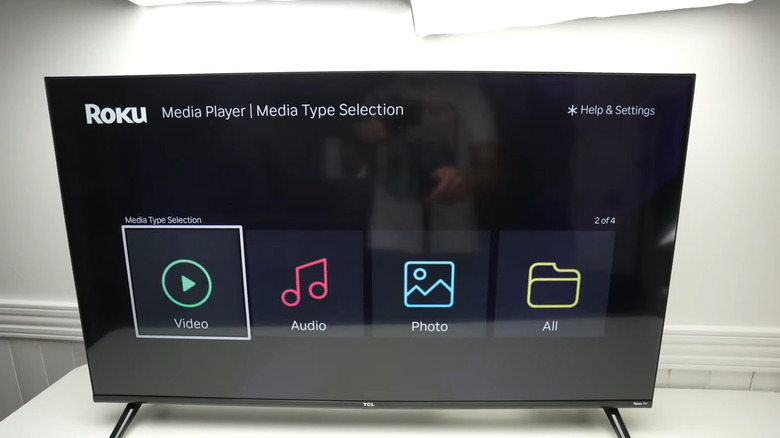
To use your USB stick to watch movies offline on your Roku TV, all you need is one hidden Roku feature: the Roku Media Player. It's a native app that lets you play media files like movies, songs, and photos from an external source like your thumb drive. It's not pre-installed on all Roku devices, so make sure to download it from the Roku Streaming Store before starting. Once that's done, follow the steps below on how to use the Roku Media Player to watch movies from your USB drive:
- Plug your USB stick into the back of the TV.
- Select Allow.
- Choose Launch.
- Run Roku Media Player.
- Go to Video.
- Select your flash drive.
- Find the movie you want to watch.
- Click OK on your Roku remote.
- Select Play, or press the Star button on the remote to view playback options.
While watching your movie, use the Roku remote to control playback as you normally do. Keep in mind that only video files in MP4, MKV, MOV, and WEBM formats are supported. Others won't appear on the list.
You can also add subtitles if you're watching an MKV video file, which is the only format that supports them. Just make sure your USB stick has a folder with both the MKV and the subtitle file in SRT or VTT format. The subtitle file needs to have the same name as the MKV. To turn on subtitles on your Roku, hit the Star button on your remote during video playback. If navigating the menus is too slow, you can change your Roku TV settings to speed it up.
What to do if your Roku TV doesn't recognize your USB stick
If your Roku TV can't detect your USB stick, it's likely using an unsupported file system format. Roku TVs can read external drives in the formats EXT2, EXT3, FAT16, FAT32, HFS+, and NTFS only. If your flash drive is set up with a different file system type like exFAT, your TV won't recognize it. Thankfully, you can easily check your thumb drive's file system format by plugging it into your computer. Here's how:
On Windows:
- Navigate to File Explorer.
- Click on This PC.
- Right-click on your USB.
- Go to Properties.
- In the General tab, read the File system specified.
- If it's unsupported, copy the files from your USB drive to a folder on your PC as a backup.
- Right-click on the thumb drive again.
- Select Format.
- Set the File system to NTFS or FAT32.
- Press Start to start the formatting process. All data on your flash drive will be deleted.
On macOS:
- Open Disk Utility.
- On the left side panel, click on your flash drive under External.
- Press Info at the top.
- Check the file system format.
- If it's anything other than the Roku-supported formats, make a backup of your USB files on your computer.
- Go back to your USB in Disk Utility.
- Click on Erase at the top.
- Type a name for your thumb drive.
- Change the Format to MS-DOS (FAT) or MS-DOS (FAT32).
- Hit Erase.
Once your USB is properly formatted, copy the files back and insert it into your Roku TV. If it still doesn't work, try a different USB port or use a new flash drive.