

I Tested 5 AI-Powered Web Browsers And I Am Shook By The Results
"/Paper dendrite solid state battery."
That was all the text that I entered in the search field of the Comet browser by Perplexity. Within three minutes, the program pulled a list of over two dozen research papers, in chronological order, that discussed the risks and solutions for the lithium plating. A task like that would ordinarily take me about half an hour or so, complete with the regular goose-chase on Google. With a "/combine" command, all the findings from the research papers opened across 20 tabs were collected, summarized, and served as a well-curated list for me in just about two minutes. Needless to say, I am never returning to Chrome, Safari, or any other non-AI browser for that matter.
It would sound out of character, but Safari — a mainstay on my Mac for years — now feels like a relic of the past. Safari's spot has now been taken by Edge, and beyond that, an entirely new crop of "AI browsers." One of the first names to dive deep into the AI-fication of browsers was Dia, and it was soon followed by the likes of Opera and Brave. Lately, the big guns have also entered the fray. OpenAI introduced ChatGPT; Perplexity made early waves with Comet; Microsoft put Copilot in Edge, and Google integrated Gemini within the Chrome browsing experience.
I have used at least five of these AI browsers extensively, and their impact on my productivity has been profound. Yet, at the same time, some of the stunts these browsers pull off in the name of automating and speeding up mundane tasks have spooked me. I'm not alone. Researchers have also warned that as AI browsers start acting more like agents, the risk vectors will go through the roof.
Skills and shortcuts
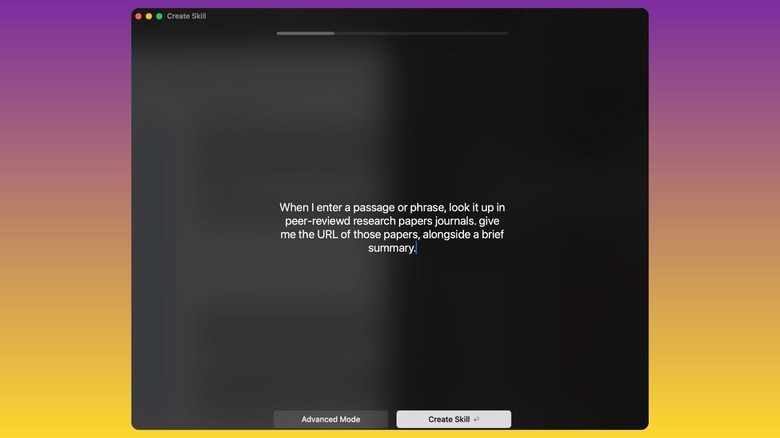
Think of skills and shortcuts in AI browsers in the same vein as a custom Gem you create with Gemini or a custom GPT created using ChatGPT. You just need to train the AI to perform a specific task or a series of steps that would otherwise require a human user to perform way too many clicks and eat up minutes. And here's the best part: You don't need any technical knowledge to create these skills. All you need is the task at hand, and you just have to describe it.
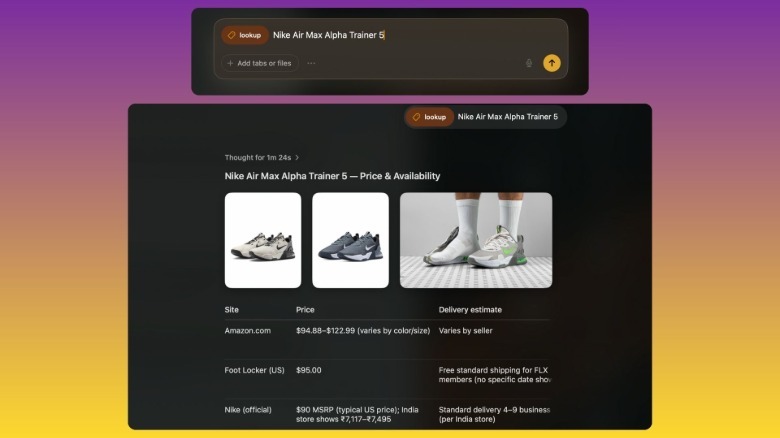
Let's think of shopping. I am on the hunt for distressed gray jeans by Levi's. But the task of opening half a dozen websites, comparing prices, and filling in the size requirements and delivery priorities would be too time-consuming. What you can do is simply describe the task into existence. A natural language description of the purpose does the job, like this: "When I give the URL, model name, or a model number of a product, look it up across all the online stores selling it in the US, and create a table comparing the prices and delivery estimates.
 Nadeem Sarwar / BGR
That's all it takes to create a "Skill" in Dia or a "Shortcut" in Perplexity's Comet. You can give it any name of your choice. I preferred "shopping." And this is how it works. You simply summon the Skill or Shortcut with the backlash operator and custom name in the universal search bar, followed by the name of the item. So, the whole flow should look something like this: "/skill Nike Dunk Low." In the image above, you can see just how the shortcut provided the requisite results with the desired format.
Agent mode
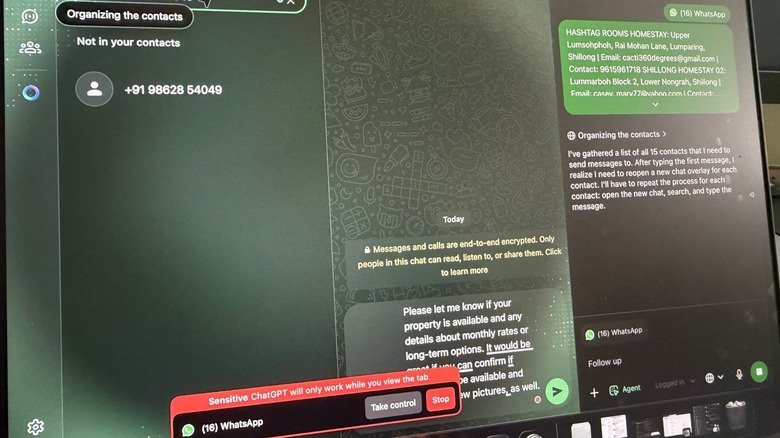
Agent mode is one of the most valuable capabilities that you will find in an AI browser. This feature is designed for repetitive tasks that requires a lot of clicking and typing. Think of tedious and time-consuming chores such as finding items across different websites, researching and finding booking availabilities for a stay, or researching through databases. Just a few days ago, I was looking for a homestay in a scenic hill station. When I went to a state tourism website, I saw a list of 130 options. I wanted to make the booking only in a specific area of the town.
Sifting through such a long list, saving the contact information of each owner, and messaging them with my specific query would have taken me hours of manual work. I simply launched ChatGPT Atlas, opened the WhatsApp tab, enabled "Agent Mode," and gave the following command: "Shortlist all the homestays in the Nungrah region, save their number with the same name as listed on this website (URL), and then message them, asking for a month-long stay for a solo traveler who needs kitchen access and a round-the-clock Wi-Fi network."
 Nadeem Sarwar / BGR
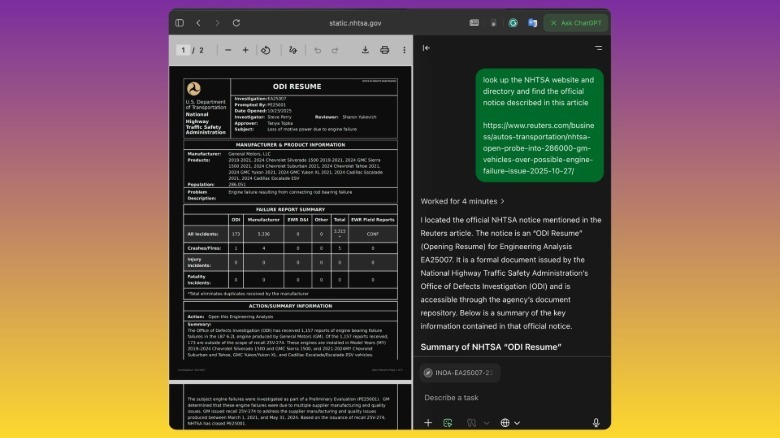
In roughly 11 minutes, the AI agent in ChatGPT saved the contact details of each homestay owner, crafted a message with all my requirements, and then texted them all. I did not even have to touch my phone once. It was almost surreal to witness, and when I told my host that an AI agent had reached out to her, she simply wouldn't believe it. Likewise, I often use the built-in agent in Perplexity's Comet browser. In the image above, you can see just how easily it helped me find a government recall notice by simply describing it.
The mighty side panel
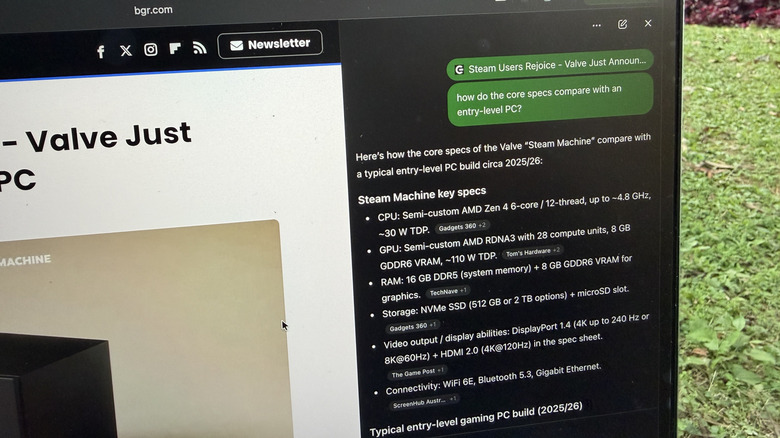
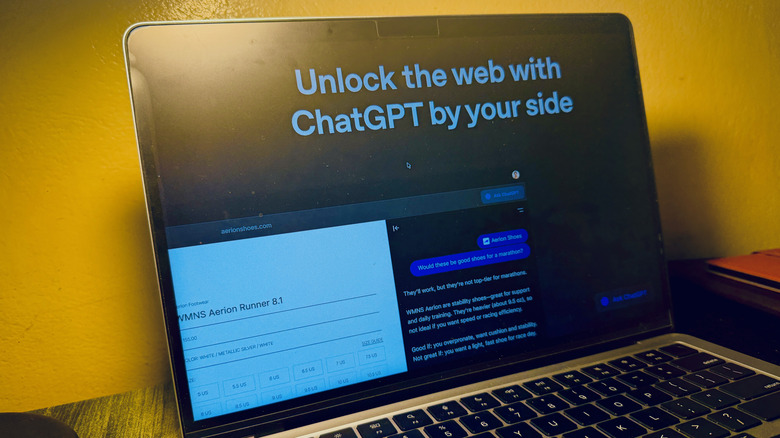
One of the biggest benefits of AI browsers is the integration of side panels for the built-in chatbot. With Atlas, you have access to ChatGPT; Edge browser puts Copilot in the collapsible side panel on the right edge, and you get a similar facility in Dia, Comet, and Opera Neon. This dedicated slot for an AI chatbot doesn't sound like much until you start using it. The biggest use you can get out of the side panel is pushing it as a segment for background research. The core idea is you don't have to open another tab to get work done.
As you can see in the image above, I was reading an article about the new Steam Machine and wanted to check how its internal hardware compares against an entry-level PC. All I had to do was write "compare the specs against an entry-level PC," and ChatGPT handled the rest. It automatically included all the core system requirements, such as CPU, GPU, RAM, storage, connectivity, and port selection. I subsequently tasked ChatGPT with presenting all the information as a table with a natural language statement: "create a table with the comparison." The AI chatbot obliged.
The chatbot made a few small missteps, though. Instead of picking the latest Nvidia GPUs, it used the GeForce RTX 4000 series graphics cards for the comparison. On the positive side, if you specify your needs, the AI living in the side panel does a fine job. The best part is that the AI side panel is aware of page contents whenever you open it in the browser. This means whatever you enter in the text field is processed contextually. Additionally, the side panel always remembers the context of prior conversations, so whenever you return to the chat, you can simply go ahead with the follow-up question.
Tab Intelligence
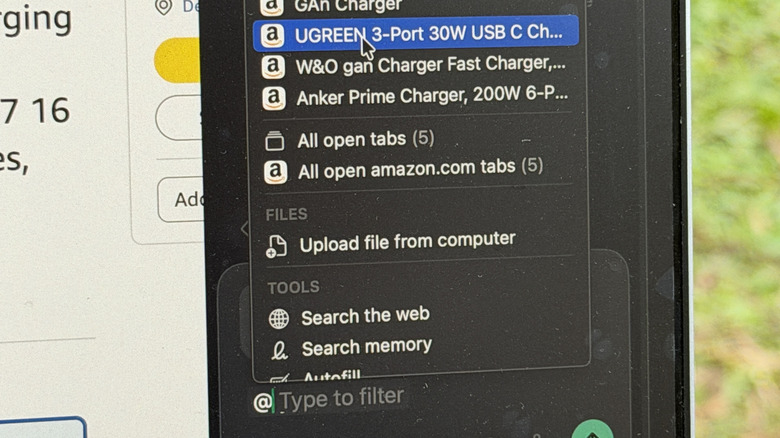
Tab intelligence is another superpower you can access in the likes of Dia and Comet. The whole concept behind tab intelligence is that the built-in AI can take collective action across them. Let's say you have opened listings for a GaN charger across ten different tabs and websites, and now you want to create a clean table where you can compare the prices, specs, and delivery estimates for each one. With a regular browser, you would have to do it manually or feed each URL to an AI chatbot so it could extract all the information and compile it as a table. With tab intelligence, you avoid that time-consuming hassle.
With a simple "@" command in the browser side panel, you can type the title of any open tab (or pull it from the list that opens underneath the text field), and then input your task. So, for the scenario described above, you can use a command like "@amazon @walmart compare the power banks, create a specs sheet table with the price." To get a better idea of how it looks and works, take a look at the image below:
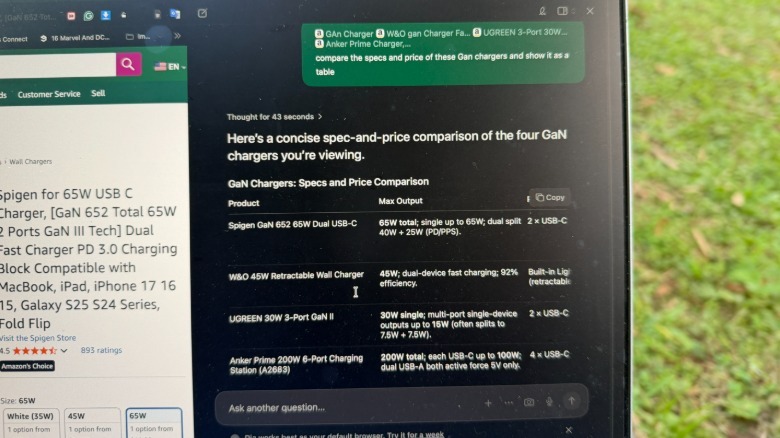 Nadeem Sarwra / BGR
Tab intelligence comes in handy not just with shopping and booking-related tasks but also background research. I often use it for sifting through lengthy government notices, combing through multiple patent papers, and discovering useful data scattered across different tabs. And once the AI has finished the multi-tab action, all the information can be exported into the desired format without tedious back-and-forth clicks, and in one go. It's like deploying an agent across multiple tabs and then talking with the pages to get the desired answers.
Personalized search with memory recall
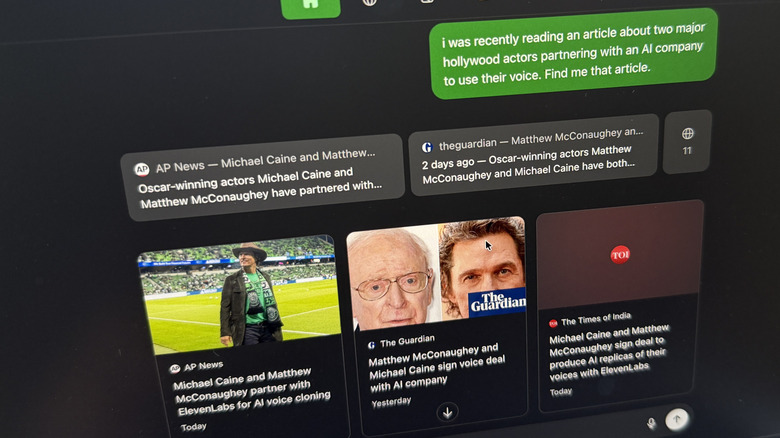
Recovering tabs that have been deleted from the browser memory or wiped from the history section is a hassle. And even if you have those tabs lingering in the history section, finding them can be a drag because the search function often requires an exact keyword match with the URL text or headline. This is where AI browsers come to the rescue. Compared to a regular web browser, next-gen alternatives such as Dia or ChatGPT Atlas work as an AI brain that saves your browsing history with context. Or in technical terms, as a memory.
Let's say I was recently reading an article about how top-tier Hollywood actors like Michael Caine are now lending their voices to AI companies. I couldn't quite recall the website or the headline, so I could have searched on Google. Instead of going on that wild goose chase, I simply pulled up the universal Search bar in ChatGPT Atlas and typed my vague query without any specific names, which went something like: "I recently read an article about famous actors lending their voices to an AI company. Find the story."
 Nadeem Sarwar / BGR
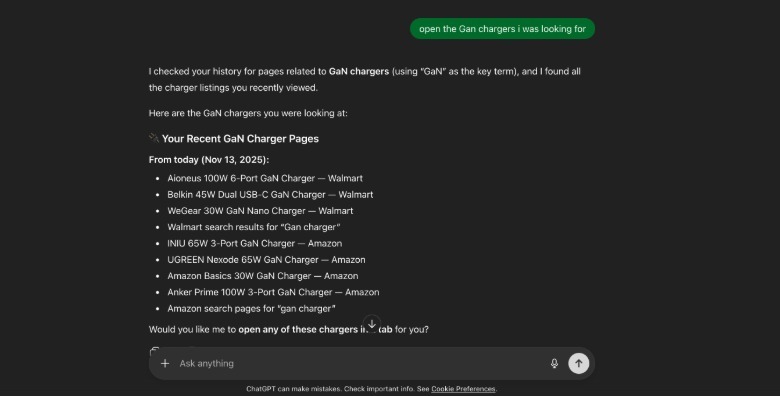
In a few seconds, ChatGPT pulled up the exact story I was looking for, complete with a brief summary and its coverage in a few other publications. Given the right context, ChatGPT can search for information across multiple tabs. Take, for instance, a broad command like: "show me the GaN chargers I was recently looking at." After giving ChatGPT those instructions, the AI pulled up the names of over half a dozen chargers I recently checked out on Amazon and Walmart. And when I asked it to provide the URL of each charger, the AI didn't fail me.
Convenience comes at a serious cost
AI browsers and tools such as agent mode, Skills, custom GPTs, and Shortcuts have made it dramatically easier to get work done. Last night, I asked Perplexity's Comet browser to order high-quality ingredients for chicken fajitas, and it got the job done in roughly four minutes. However, when I got the Amazon notification, I realized the AI had ordered the right items but only enough for one person. The Comet browser didn't even ask about my brand preferences or the quantity. That's a drawback of these AI browser tools, but it's only the surface of the problem; it's the security situation that worries me.
Remember that side-panel in AI browsers, where you can talk with ChatGPT or Copilot about the page contents or do background research without opening another tab? That's an attack vector. A recent research paper published by Cornell University described how agentic browsers are vulnerable to prompt injection attacks. Based on the results obtained with this tool, the current crop of AI browsers that come with an agentic browsing mode are ripe for being exploited by bad actors. The paper also stated that "The 'summarize page' feature is ubiquitous in AI browsers and represents one of the most exploitable attack surfaces."
Likewise, malicious actors can inject a webpage with hidden instructions (that are not visible to the human eye or the rendering engine in the browser) that can prompt an AI agent to spill sensitive information such as login details, personal data, or even banking information. Experts at MalwareBytes Labs noted, "What sets prompt injection apart from old-school hacking is that the weapon here is language, not code. Attackers don't need to break into servers or look for traditional software bugs; they just need to be clever with words."