

The 4 Most Common Roku TV Problems (And How To Fix Them)
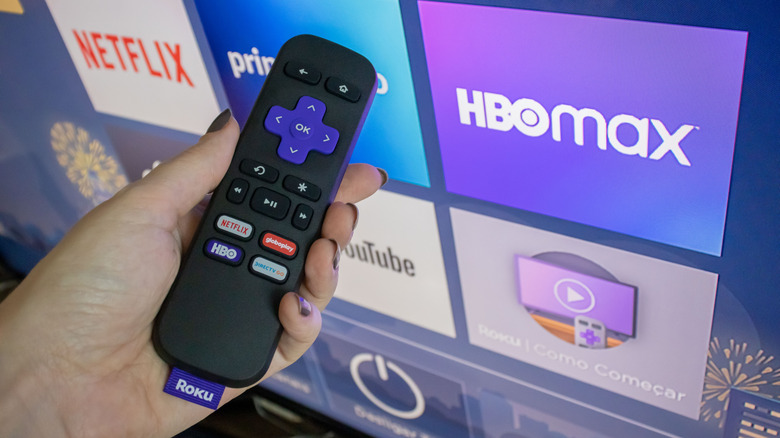
A Roku TV can really be the best of both worlds. Since the Roku operating system (Roku OS) is built directly into the television, there's no need to worry about any additional devices when looking to get access to some of the best TV shows streaming right now. However, if you're having issues with your Roku TV, you're likely not alone, as there are some typical problems that can happen to anyone.
Some of the more common problems for a Roku TV include issues with the remote control, problems with playing content, trouble with Wi-Fi connections, and being unable to perform a software update. Most of the solutions can involve simple things like resetting the TV, but certain solutions may require diving into your settings or checking connections and peripherals. Configuring the right settings can be a great way to speed up a slow Roku TV.
Like being aware of all of the hidden features within a Roku, knowing the ins and outs of your device is one of the best ways to ensure a smooth experience. Be aware that some solutions can help with multiple issues, so take a look at the complete guide before taking any action — it may just help you avoid further issues in the future. Let's take a look at each common issue and see if we can get your Roku TV back to the streaming machine it was meant to be.
Wi-Fi connection issues

Wireless connection issues to the internet are pretty common, and there are several things you can do to fix them. Along with potentially moving your router closer to your Roku TV, be sure to check other devices nearby to ensure they have an active Wi-Fi connection, as this can rule out wider problems with your internet provider.
You also have the option of checking your connection through the Roku TV:
-
Hit the Home button on your Roku remote.
-
Choose Settings.
-
Select Network.
-
Choose Check Connection.
Roku will begin a connection test. If successful, you will see green check marks near each item. Full results are displayed at the end. Should you get a red X next to the wireless connection, try manually reconnecting to your network from the Roku:
-
Navigate to Settings.
-
Choose Network.
-
Select Set up connection.
-
Choose Wireless.
-
Select your Wi-Fi network.
-
Enter the network password.
-
Select Scan again to see all networks if you don't see yours.
-
Choose I am at a hotel or dorm if a network requires a browser to sign in.
You can also try restarting your Roku TV by choosing System Restart via the Settings menu, then going to System and selecting Power. Alternatively, you can reset the Roku TV, router, and modem by unplugging each, waiting 10 seconds, and then plugging them back in. If your Roku supports a cabled Ethernet connection, consider using it, as it will provide better speeds and stability than Wi-Fi. Lastly, you may want to talk with your internet service provider if you continue to experience issues.
Remote not working
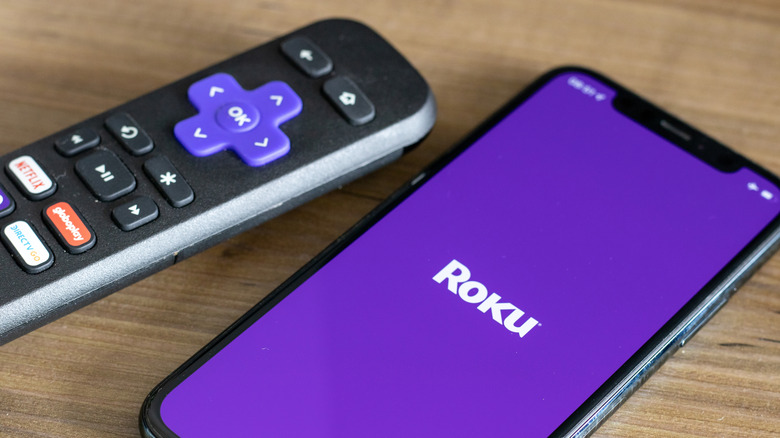
Remote issues can also be common. Before checking solutions, see if your remote is a voice remote or a simple remote. Simple remotes work off infrared (IR) and need to be pointed directly at a Roku TV to function properly. A voice remote — which has a magnifying glass or microphone button — implements wireless signals and doesn't need to be pointed directly at the device. The Roku mobile app has a digital remote on iOS and Android, and replacement remotes are available on Amazon.
If the remote has batteries, reset it while changing them. Remove the batteries, press any two buttons to reset the remote, and insert fresh batteries. Additionally, some remotes may have a pairing button, which is found on the back of the remote or underneath the battery cover. If you can't find it in either place, you will use a specific button combination to reset the controller. Knowing this, follow these steps to reset a rechargeable remote:
-
If the remote has a Pairing button, press it for 20 seconds.
-
If it has no Pairing button, press and hold Back and Home for 20 seconds.
-
Either way, wait for the remote's light to stop flashing.
A rechargeable remote may need to be charged through a power supply or computer for up to five hours. You may need to pair the remote again if it's charged but still doesn't work after resetting:
-
Restart the Roku TV.
-
Wait for the Home screen to appear.
-
Hold the Pairing button for five seconds until you see a flashing light.
-
If the remote has no Pairing button, press and hold Back and Home for five seconds until you get a light.
-
A pairing message will appear on screen. It disappears when the connection completes.
Issues playing content

A Roku TV having issues playing certain content can also be a common issue. If a certain show from a streaming service isn't working, try different content within the app to see if it works, as the app may be experiencing server issues. If it still doesn't work, try a different app to see if the problem is isolated, and make sure you're properly signed in to your accounts that require a subscription.
Uninstalling a problematic app and reinstalling it can also be a viable option. You can do so with the steps below:
-
Press the Home button on your remote.
-
Highlight the app you want to remove.
-
Press the Star button on the remote.
-
Choose Remove app.
-
Confirm your decision.
-
Press the Home button again.
-
Choose Store.
-
Select Apps.
-
Locate the recently uninstalled app.
-
Choose OK on the remote to select the app.
-
Choose Add app or OK.
Your download will start, and the app will show up again on your TV. Another option is to check if an app needs an update. This essentially follows similar steps: Press the Home button, highlight the app you want to update, press the Star button on your remote, and select Check for Updates.
If you continue to have issues, many of the solutions above may solve your problem, such as checking your Wi-Fi connection, restarting your Roku, and resetting your Wi-Fi and router. Considering all the essential apps for Roku TV you should use, you don't want to miss out on content just because an app isn't working.
Issues with software updates
Another common problem Roku TV users can experience is issues with software updates. Updates should happen automatically, and having the latest software can provide additional security features and improve the usability of the device. It's also a great trick to speed up a slow Roku TV. Just like you would do if you had issues with Wi-Fi, be sure to check that you have a proper internet connection and that your modem and router are working correctly. Additionally, try restarting your TV.
If an automatic update fails, try manually checking it. This can be especially useful if the device has been disconnected from power or the internet for a considerable amount of time, or if any apps were recently installed. Here are the steps:
-
Press the Home button on the remote.
-
Select Settings.
-
Tap System.
-
Choose Software update.
-
Select Check Now.
Should an update be available, your Roku will download and install it automatically. Once finished, the device will restart. If manual or automatic updates continue to fail and you've exhausted all the options in this article, it may be time to perform a factory reset on the Roku TV. This is a last resort that will erase virtually everything on your device, including personal preferences and settings. It will also remove all installed apps and unlink your device from your Roku account. It's essentially a last resort, so only utilize it if you've run out of options. Here's how to do it:
-
Press Home on your Roku remote.
-
Select Settings.
-
Choose System.
-
Select Advanced System Settings.
-
Select Factory reset.
-
Choose Factory reset everything.
-
Your Roku will guide you through the fresh setup process.