

5 Ways You Can Speed Up Your Old Computer's Storage
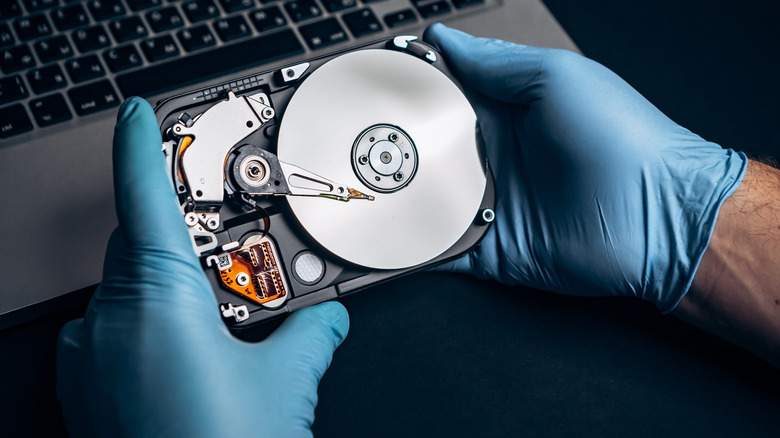
Don't you hate it when you're in a hurry and you have to wait ages for Windows to start up? Or maybe you have to print a file quickly, you open it, and nothing happens? Your old computer's storage is likely struggling, and it may feel like it no longer meets your needs, as a sluggish storage drive can significantly hinder performance. You can blame your old hard drive or your first-generation solid-state drive (SSD), but the truth is, there are ways to improve its performance. Did you know that speeding up your hard drive not only makes your system feel snappier, but it also prolongs its life?
Although modern SSDs deliver mind-blowing speeds, outpacing traditional hard disk drives (HDDs) by a considerable margin, they still age and suffer from performance slowdowns. Here are some simple maintenance tasks you can perform to bump up the speed of your drives and help them operate more efficiently, allowing you to stave off the need to tear down and repurpose your old PC tower for a bit longer. Speeding up your drive leads to faster file transfers, and your games won't take forever to load. The result will be a computer that feels revitalized.
Update firmware and drivers
One of the simplest ways to improve your computer's performance is by updating its firmware and drivers. You've heard this advice a thousand times when it comes to computers. Still, firmware updates typically contain fixes that address slow read or write speeds, compatibility issues, or power management problems. Installing updates can help your drive run more smoothly and reduce the chance of stuttering or delayed file access.
Driver updates offer similar effects because they improve the link between your operating system (Windows, macOS, or whichever one you prefer) and your hardware. Outdated drivers may cause your computer to misinterpret the drive's capability or fail to use its full bandwidth. Once updated, your storage device can operate not only faster, but also with fewer errors.
Even small gains in how your computer responds to your commands can be noticeable if you're trying to run demanding programs and games. Keeping the drivers and firmware updated is a common maintenance step, but many people overlook it. Nonetheless, this is the foundation for the rest of your performance upgrades.
Perform disc cleanup and defragmentation
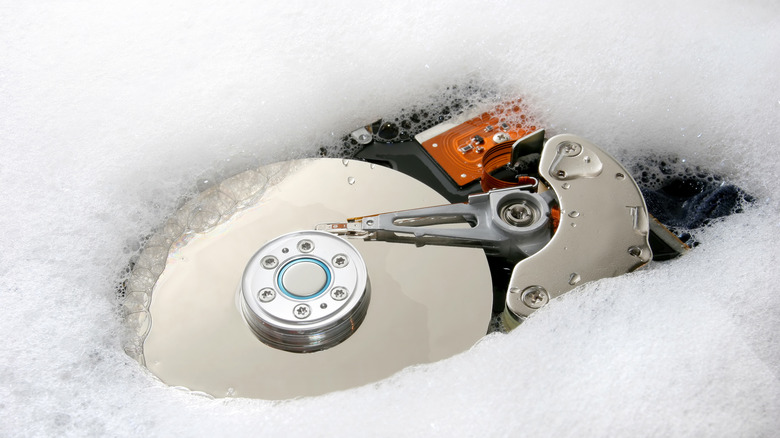
Don't stick your hard drive in the trash just yet. If done properly, clearing your PC's cache and defragmenting can seriously boost system performance and prolong the life of your storage drives. You can simply use the built-in cleanup tool to get rid of old temporary files, cached installs, system logs, and other junk. These types of files tend to accumulate over time and slow things down. Removing them will free up the space and help your old drive organize new data more efficiently.
Fragmentation is a real issue with spinning hard drives in particular. As your computer creates new files or deletes the old ones, their pieces (or fragments) end up scattered across the magnetic platters. The head has to hop around to find and access these fragments, thus wasting time. Defragmentation reorganizes the fragmented files. As a result, the time your HDD needs to find and access these files will be reduced.
However, if you're using an SSD, defragmentation won't help improve its speed. SSDs have near-instant access to all memory cells. That means that it can read fragmented files as quickly as normal files. In fact, defragmenting an SSD can be harmful. It'll add extra write operations that wear out its limited write life — although an SSD will still be more reliable than a hard drive over the long term. Instead, you should run what's called TRIM SSD optimization. This will help your SSD decide which file fragments are no longer in use, so it can clean them up.
Prevent HDD and SSD idling

When your computer goes into sleep mode, the SSD and HDD may also "sleep" or reduce their clock rate. That will hurt your computer's performance once you wake it up. You can avoid the issue entirely if you prevent the drive from clocking down. If you're using Windows, you can tweak the power plan in the Control Panel. In the Control Panel, go to Power Options > select Change plan settings > Go to Change advanced power settings > expand the Hard Disk option. From there, find Turn off hard disk after and set it to "Never". That'll keep the computer's hard drives spinning even when idle. Once you need to access files again, you'll experience less lag when your machine wakes up.
It works almost the same with the SSD. You'll have to find PCI Express power settings and disable Aggressive Link State Power Management. This power-saving feature lowers your SSD's performance by reducing its PCIe bus speed. Another useful tweak is defining a "burst ignore time." This is how long the system waits while the drive is idle before it decides to clock it down. This grace period can keep the performance of your machine snappy if you need to access certain files while it's idle.
Improve cooling
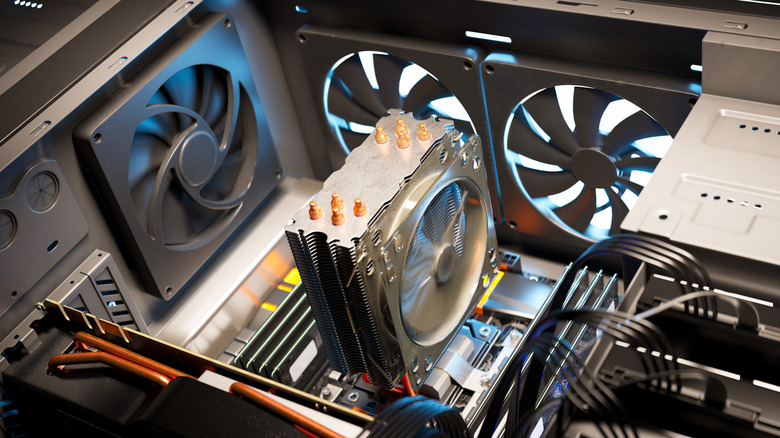
You may already know that keeping your computer cool helps your CPU and GPU performance. But did you know it also helps your storage drives, too? If the drives are running hot, they can easily throttle their speed or become less reliable. New, high-speed NVMe models are very sensitive as high temperatures can trigger thermal throttling. This process then cuts the performance of your SSD to reduce the temperature. You can avoid triggering thermal throttling by adding a heatsink to your SSD or by simply improving the airflow in your computer's casing.
Traditional HDDs also suffer when temperatures get high. Overheating can lead to mechanical wear, head misalignment, or data errors. Cooling helps your hard drive deal with these risks. Keeping the thermal window optimal will ensure the speed of your HDD. Cooler temperatures won't only help your HDD and SSD run faster, but they'll also extend their life span. Simply put, improving your machine's cooling is one of the most important computer maintenance steps you should take.
Use an SSD optimizer
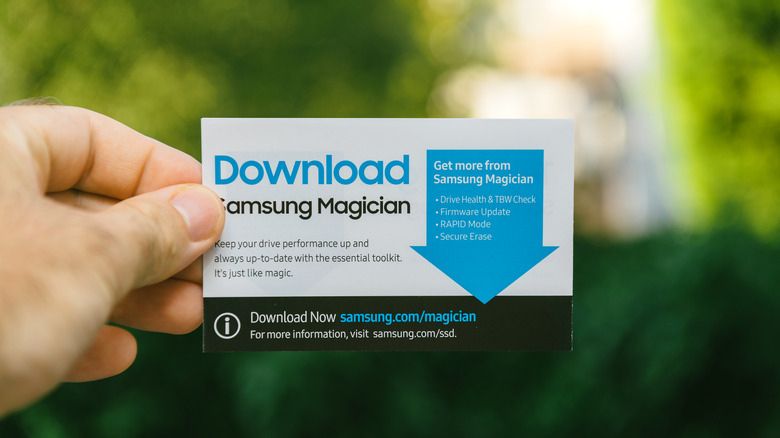
SSD optimizers are specialized tools that'll help your SSD run efficiently. These tools often combine several processes that will influence the performance of your SSD. The optimizers trigger TRIM, perform smart space consolidation (garbage collection), and reduce unnecessary writes.
One excellent optimizer is Samsung Magician. It's designed for Samsung SSDs and gives real-time insight into the drive's health, temperature, and optimization status. It also offers various modes that allow you to adjust your computer to improve your SSD's performance. For example, RAPID mode uses a portion of a system's RAM to accelerate I/O operations, boosting SSD performance.
Aside from brand-specific tools, there are also third-party optimizers such as the Auslogics SSD Optimizer. It's designed to reduce write operations, schedule automatic optimizations, and clean up junk files before consolidating free space. By using an SSD optimizer, you're helping your drive manage its own tasks more efficiently. The results are faster access, steadier performance, and improved longevity.