

Should You Use USB Port Wi-Fi Adapters?
We may receive a commission on purchases made from links.
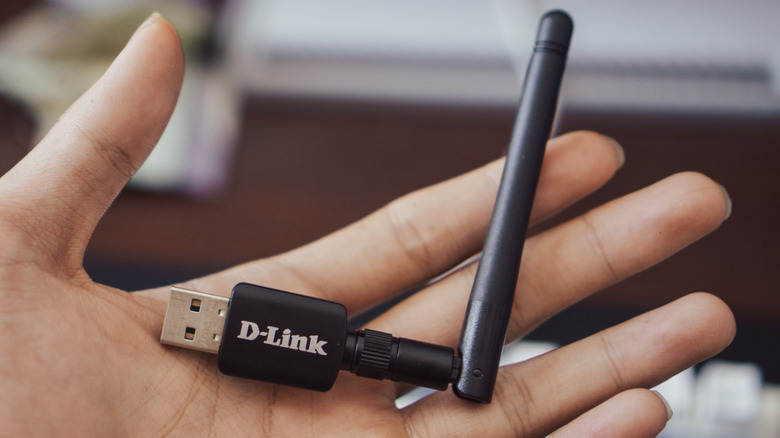
A USB Wi-Fi adapter doesn't sound like such a bad idea. These adapters are tiny enough to fit in your hand, and installing them is as easy as using a USB drive. More importantly, for those who are budget-conscious, USB Wi-Fi adapters are an inexpensive PC component, which you can't say about most PC parts. If you have a desktop PC with no built-in wireless connectivity, a USB Wi-Fi adapter is likely the cheapest option. It's also a viable option if you're not comfortable installing a PCIe Wi-Fi card, which does require some knowledge of computer motherboards. It can also be the only option you have if your motherboard lacks sufficient PCIe slots, or if they're currently used up by your GPU and video capture card, for example. But, if you do have a choice and the budget, why wouldn't you pick the better option?
Although USB Wi-Fi adapters work fine enough, especially Wi-Fi 6 and newer dongles, they can't compete with the performance of a PCIe Wi-Fi card. There are many reasons why that's true, but it boils down to a few important ones, such as thermal throttling and USB bottlenecking, which PCIe Wi-Fi cards simply don't have to deal with. Additionally, many PCIe Wi-FI cards have adjustable antennas connected via cables, which can be positioned further away from the computer to prevent wireless interference. So, even if USB Wi-Fi adapters have their place, they're not a serious option for power users.
USB port Wi-Fi adapters are too flawed for power users
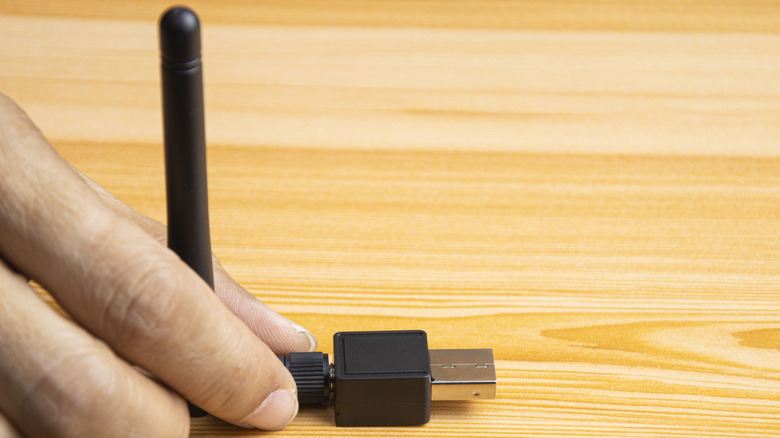
What makes USB Wi-Fi adapters compact and affordable also limits their performance. Compact, antenna-free USB Wi-Fi adapters, which are also known as nano dongles, have internal antennas that keep the design small and the manufacturing costs low. However, these nano dongles are extremely prone to interference from metal and concrete, which could be blocking your home Wi-Fi signal. Placing a Wi-Fi adapter like this next to other devices or near metal, such as the aluminum legs of your desk, is asking for trouble, with the interference causing speeds to drop, though you may be able to mitigate it with these ways to improve Wi-Fi speeds.
The small size of USB Wi-Fi adapters also affects the cooling of the device. During peak usage, such as when playing online video games or downloading large files, these tiny dongles can overheat, since they lack any active or passive cooling. When the dongle overheats, it can cease to function. This can be made worse if your computer itself is hot, or if you're using the dongle in a warm environment. But overheating is the least of your concerns if your computer's USB ports are not up to snuff.
USB ports are the middleman between your Wi-Fi adapter and your computer. An older, slower USB 2.0 port causes a bottleneck between the adapter and your device. With USB 2.0 ports rated for transfer speeds up to 480 Mbps, it won't matter if your Wi-Fi adapter can reach speeds above 1 Gbps or more. When a USB port is black, it means it's an old 2.0 port. For the best results, a USB 3.2 port is best. This port has a max transfer speed of 5 Gbps.
They might be useful for laptop users
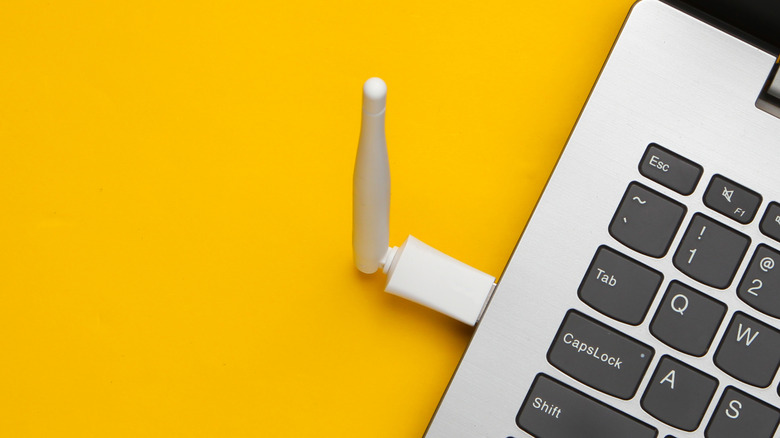
USB Wi-Fi adapters have their issues, but they also have their uses. If you have an older laptop with an outdated Wi-Fi chip, there's not much you can do about replacing it with a newer one, unless you have something like a Framework laptop, which makes it easy to swap out the Wi-Fi module. But that doesn't mean you're out of options. What you can do instead is use a USB Wi-Fi adapter. Adapters that run on the newest Wi-Fi standard, like this Netgear Nighthawk Wi-Fi 7 dongle, are the perfect wireless upgrades for your older laptop. This particular dongle can be plugged directly into your laptop's USB port, or you can use the dock to place it further away, which can help with interference.
Using a USB Wi-Fi adapter on your laptop may require disabling the built-in wireless module. This can be done through the BIOS. Going through the BIOS is recommended for advanced users, but there are other options. You can disable the adapter via the Control Panel, Device Manager, Command Prompt, or PowerShell. The Device Manager route is the quickest. To do this, simply open the Device Manager, click on the Network Adapters dropdown menu, find your Wi-Fi adapter, right-click on it, and select Disable Device. You can follow the same steps to enable the device in the future.