

HDMI Vs. USB-C - Which Display Port Should You Use?
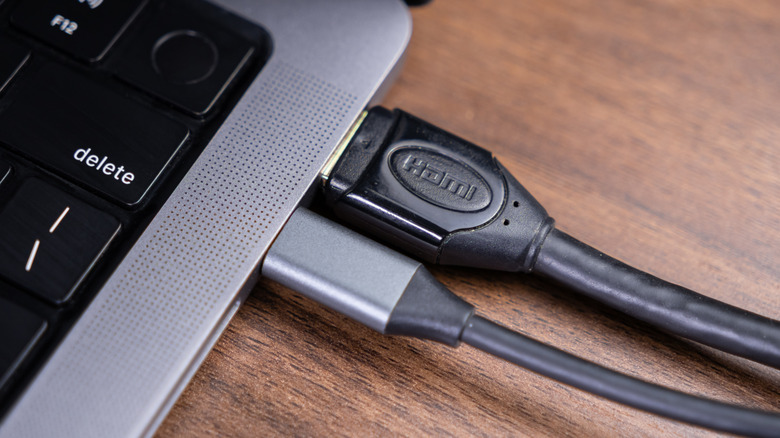
Connecting a display to a computer or media device seems like a simple thing, but the considerations are a little more complicated than you might think. In the TV world, the gold standard in 2025 is the HDMI connection, which offers universal compatibility and carries both audio and video. When you add that to eARC and ARC port capabilities and convenient single-port connections, you can see why it's a favorite. On the computer side of things, there are more options including DisplayPort, the dated VGA connector, and even USB-C.
When it comes to PC connection, which one is best for your monitor? The honest answer is probably USB-C, but the current device landscape makes that complicated. Many computers and docks still offer HDMI as the primary display connector, and most modern monitors carry that through with HDMI inputs as the primary source. However, there's been an uptick in USB-C and Thunderbolt monitors that may offer more advantages — so long as you've got a compatible device and it suits your needs.
Transfer speeds and media
At their core, cables are meant to transfer data or power, so it makes sense to compare transfer speeds. HDMI is all about version numbers. The oldest you're likely to find is 1.3, which supports 10.2 gigabit-per-second supporting 1080p content at 60 hertz. HDMI 1.4 has the same peak transfer rate, but boasts certifications that offer 4K support up to 60 hertz. Finally, HDMI 2.0 and 2.1 (the latest versions) deliver 18 gigabit-per-second and support 4K 60-hertz and upward.
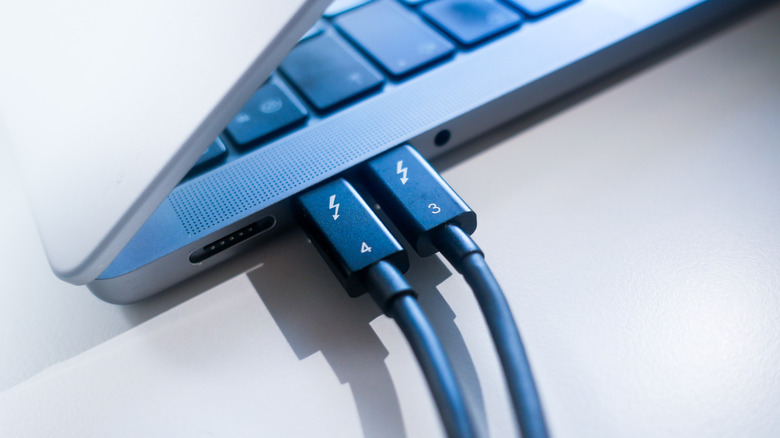
USB-C is a little more complicated. The port itself can support standard USB 3.1 speeds up to 10 gigabits per second. However, using Thunderbolt 3 technology (delivered through that same USB-C port), pushes it up to 40 gigabits per second. This is why Thunderbolt is the protocol adopted for high-end docks or premium computers.
Deciding which transfer speed is right for you depends on the type of media or actions you'd like to take. If your main TV only offers 1080p at 30 hertz of refresh rate, then HDMI 1.4 will be more than enough. To stream high-resolution games at high refresh rates, 2.1 is your best bet. For a desk setup, USB-C and Thunderbolt are better options given how many mobile and PC devices use that port. If you go for a thunderbolt dock, this allows for multiple transfers over the same cable (i.e. display outputs, data transfers from external hard drives, and more).
HDMI vs. USB-C monitors: A story of compatibility
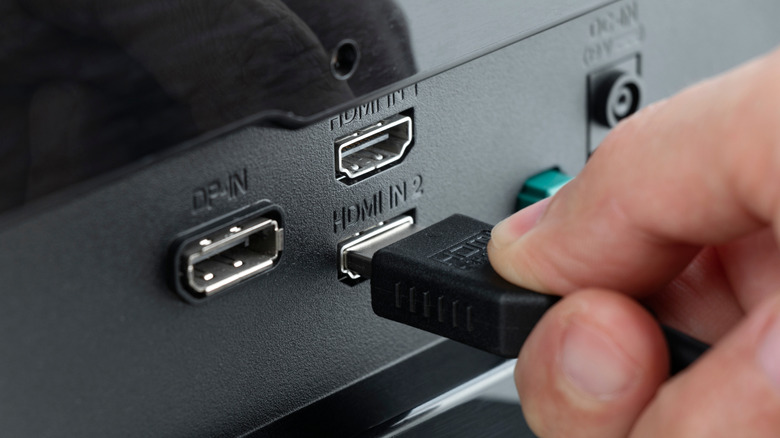
So should you go for a USB-C or HDMI-ported monitor? Unfortunately, while Thunderbolt provides maximum bandwidth, there just aren't that many monitor choices in this category in the current market. Dedicated USB-C/Thunderbolt connected monitors also tend to be more expensive because the protocol is more specialized. Therefore, if there's a monitor you like (for a price that works for you) that only has HDMI 1.4, it could be a great choice, so long as you already have a good dock and don't need fast refresh rates.
When would you want a USB-C-centered monitor? If you don't want a dock on your desk and are seeking a single-cable solution for your monitor, then consider this route. Many also feature other USB ports and act as their own "hub," so you can double up your monitor and docking device into a single unit.
At the end of the day, it's important to be clear on what your computer supports. Many budget-friendly devices may come equipped with several USB-C ports, but may not support Thunderbolt. So double check your specs, and go with the port that best fits your setup and budget.