

Why There's A Black Dot On Your iPhone's Screen (And How To Turn It Off)
We may receive a commission on purchases made from links.
Keeping up with your phone's software updates is one of the best ways to ensure your device is operating at peak performance. Sometimes an update can introduce features and settings you've never seen before, just as those introduced on iPhones when iOS 18.4 hit the market earlier this year. In addition to the usual bug fixes and system improvements, the iOS build also introduced a new UI element: a black dot placed to the right of the Dynamic Island.
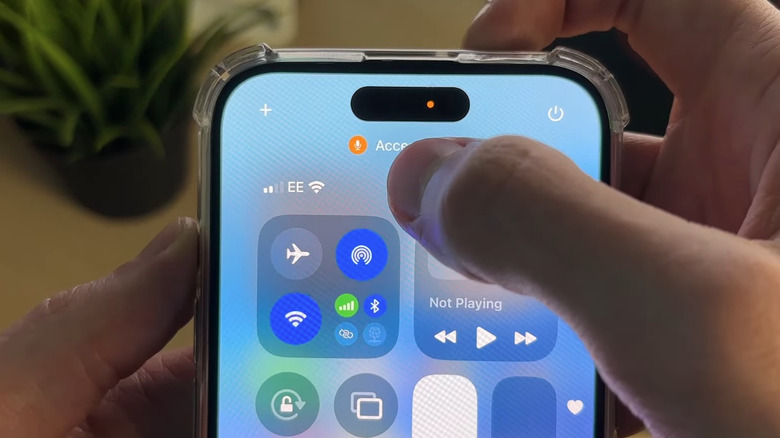
Believe it or not, the black dot is merely a cosmetic enhancement for two privacy indicators introduced with iOS 14, the orange and green dots. Green means that an iPhone app is using your camera, and orange means an app is using your phone's built-in microphone. For iOS 18.4, developers simply moved the indicators out of the Dynamic Island and added a black background to both, making them easier to see.
To get rid of the green or orange dots with a black background, all you need to do is close the app that's using your iPhone's camera or microphone. If you're not sure what software is causing these indicators to pop up, just pull down from the top-right of the screen to open Control Center. You should see usage information for active apps, including what software is using the camera or microphone.
You can't disable the dots, but you can control your privacy
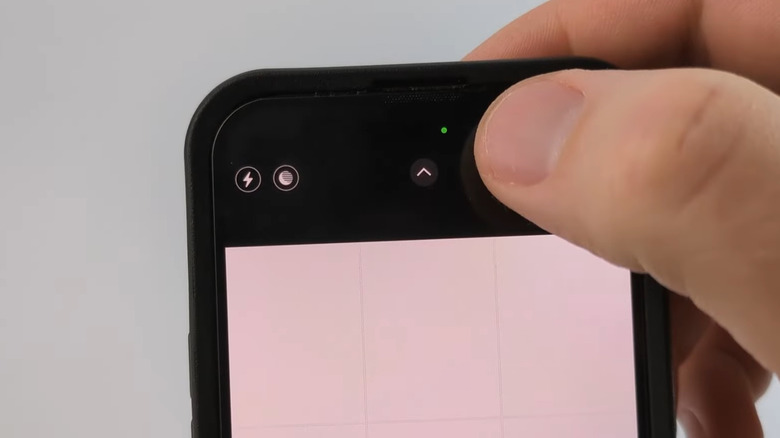
When checking for privacy indicators on phones, like the green dot on Android phone screens, it's also good to pay attention to which apps your phone is running. Whether you're using an iPhone or Android device, a privacy indicator might be your only tip that there's malware running behind the scenes if you're sure your apps aren't triggering it.
How could it have gotten there in the first place? A myriad of methods, with one of the causes being a juice-jacked connection. This is why you should avoid using public USB charging ports, or at least start using a protective accessory like JSAUX's USB Data Blocker if you desperately need to charge your phone and don't have your own power bank.
Unfortunately, if the green or orange dot is a nuisance to your iOS experience, you won't find a master kill switch for the indicators. That said, you can individually grant and revoke camera and microphone permissions. To do so, open Settings, then tap Privacy & Security, and select Camera or Microphone. Once you revoke an app's camera or mic usage from the list, the indicator dots should no longer appear when you run this software, and they will stay off for apps you've never granted authorization.