

Can You Use A Roku Without Internet?
We may receive a commission on purchases made from links.
Using a Roku streaming device to watch movies and TV shows doesn't require much more than an internet connection. You won't need to pay for cable, and you won't be charged for having a Roku account. But does this mean that when your Wi-Fi network is down, your Roku device is completely useless?
Similar to a smart TV without internet, a Roku device will literally work when it's not connected to your Wi-Fi. That said, you'll be pretty limited in what you can actually do without web access. None of your Roku's streaming apps (e.g., Netflix, Hulu, Disney+, etc.) will actually function, and even the clock in the top-right corner of Roku OS won't display. However, not all Roku users will be totally out of luck.
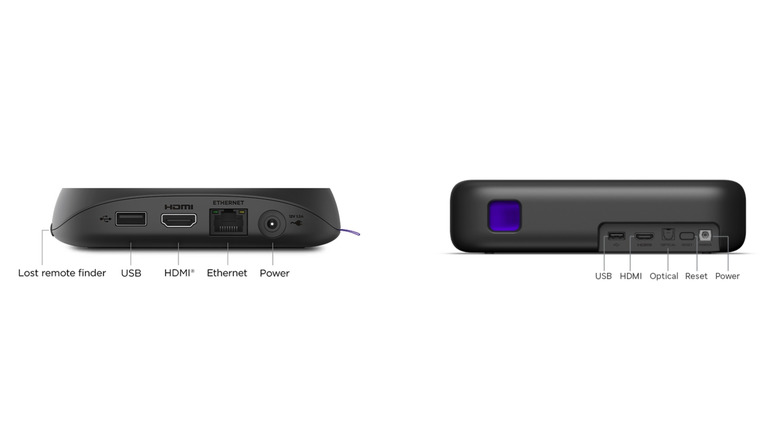
If you happen to own the Roku Ultra, Roku Streambar SE, or any older Roku device with a USB input, you should still be able to use the Roku Media Player app to watch, view, or listen to files you have loaded on a USB flash drive or other type of external storage.
The latest version of the Roku Ultra has a USB 3.0 connection and supports numerous video, audio, and image formats, including MKV, MP4, MOV, FLAC, AAC, JPG, and PNG. The Roku Streambar SE offers similar file support but uses a USB 2.0 connection.
Using Roku's Media Player when the Wi-Fi's out
The Roku Media Player app is free, though it will require an internet connection to download it. If you don't have access to Wi-Fi, head to a friend or family member's house and use theirs. Once the Roku Media Player is added to your Roku account, you should be able to use the app offline. Technically, you can also use your buddy's Wi-Fi to download other essential Roku TV apps, but remember: once you disconnect from the internet, these streaming apps won't function.
The Media Player app supports external drives that use the FAT16, FAT32, NTFS, EXT2, EXT3, exFAT, and HFS+ file systems. Conveniently, you'll also be able to connect a USB hub to your Roku's USB port if you want to plug in more than one external drive at a time.
Selecting content is as simple as choosing the USB drive you want to use from the Media Type selection screen. Then, use your device remote to search for the media you'd like to play, then press OK or play-pause to load the content.
There are several tips and tricks to making the most of your Roku, and the Media Player app can be a true ace in the hole when your network goes down.