

Samsung Phone Owners Can Use This Secret Setting For Faster Internet On Android
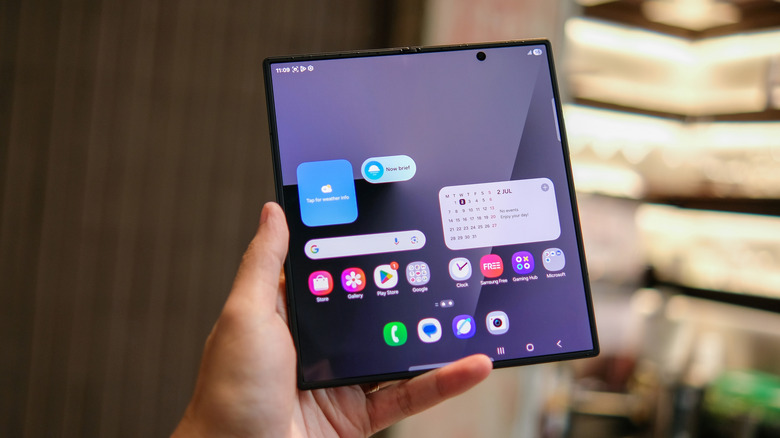
Nothing can ruin your day faster than slow internet speeds. It's particularly frustrating when you're in the middle of a video conference or trying to upload an important file. But as long as the problem doesn't stem from your provider or a faulty router, one fix may be to switch from wireless to an Ethernet connection. But what if you're on your Samsung phone, instead? You can't connect an Ethernet cable to your device just as easily as you would on a computer. You have to buy an adaptor to do so.
To get faster internet speeds on your Android phone, what you'll often do is turn on your mobile data or use a more stable Wi-Fi network. Performing either operation can easily disrupt your workflow, especially if you have to make the switch multiple times a day. Thankfully, Samsung offers a secret setting you can use to help get faster internet without much manual input: Intelligent Wi-Fi.
What is Intelligent Wi-Fi and what can it do?
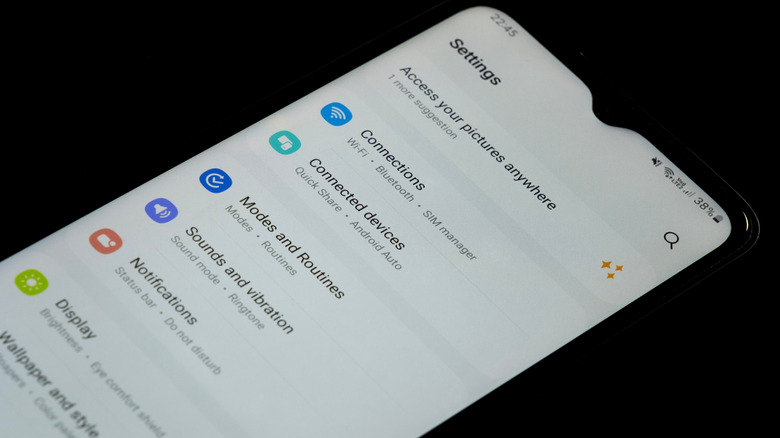
Intelligent Wi-Fi on your Samsung phone is a suite of advanced Wi-Fi settings that are powered by AI. These settings are designed to help your device stay connected to the internet in the best way possible. But among the host of settings surrounding Intelligent Wi-Fi, you'll want to look at two particular options if you want to get faster internet access on your Android phone.
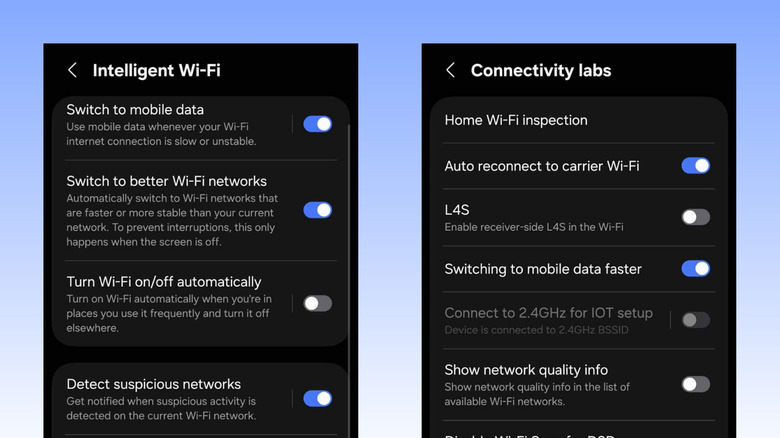
One is Switch to mobile data, which you can find in your Settings app under Connections. Just click on Wi-Fi, select the three dots at the top, and go to Intelligent Wi-Fi. This detects when you're connected to a slow or unstable Wi-Fi network, and automatically switches over to mobile data. This way, your internet stays up and running. Once your Wi-Fi connection stabilizes and achieves the desired speed again, you'll switch back from mobile data to a Wi-Fi connection.
The second setting to consider is Switch to better Wi-Fi networks, also on the same page as Switch to mobile data. Say you're within range of two different Wi-Fi networks that are either open to the public or that you've connected to before (so you already have passwords stored). If your device detects that the other network is faster than your current connection, it will switch to the faster network when you turn off your screen. It won't, however, connect to password-protected Wi-Fi networks that are not saved to your device. Additionally, Connectivity Labs inside Intelligent Wi-Fi is similar to Developer Options, allowing you to adjust advanced Wi-Fi settings that can improve speed.
How to set up Intelligent Wi-Fi on your Samsung phone to get faster internet
Samsung's Intelligent Wi-Fi is readily accessible right from the Settings app. Here's how to configure it:
- Launch the Settings app.
- Select Connections.
- Tap on Wi-Fi.
- Press the More icon (three dots) in the top-right corner.
- Choose Intelligent Wi-Fi.
- Make sure "Switch to mobile data" and "Switch to better Wi-Fi networks" are turned on.
- Tap seven times on the Intelligent Wi-Fi version. This will enable a new Connectivity Labs option.
- Go to Connectivity Labs.
From here, you can try the experimental features for boosting Wi-Fi. For instance, to know what areas in your home have weak signals, select Home Wi-Fi inspection and follow the on-screen prompts. A graph will show up with the weak signal areas marked with a red background. If you're seeing problem regions, one solution may be to add a reliable Wi-Fi extender.
You can also toggle on "Switching to mobile data faster" on the Connectivity Labs home page to make the transfer from Wi-Fi to cellular data connection even faster. Then, to find the fastest available Wi-Fi network near you, navigate to Wi-Fi developer options and click Nearby Wi-Fi information. Select one network, and check its rating in the purple graph at the top. You'll want one that falls within a Best or Good rating.
It's important to note, though, that the tools in Connectivity Labs are still in the testing phase. That means they might not be as stable as features integrated into the system out of the box. If you want to disable Connectivity Labs on your Samsung device, open Connectivity Labs and tap on Reset all Labs settings. It should then disappear from your Intelligent Wi-Fi menu.