

4 Clever Uses For Your Old Apple TV
We may receive a commission on purchases made from links.
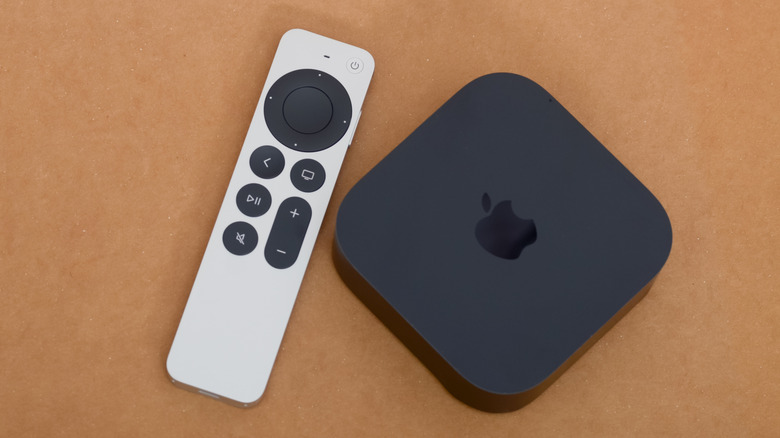
There are a lot of reasons to love an Apple TV. From navigating hidden Apple TV features to accessing popular channels for free, there's a lot you can do with the company's digital media player. However, if you have an older model sitting around, there's something you can do with the device other than have it collect dust.
For example, you can use your device to transform your TV into a giant monitor or use it as a music player. Each of the solutions listed here is pretty straightforward to execute, meaning repurposing your old device can be rather easy.
Like repurposing old CD and DVD players, finding a new use for your old Apple TV will give it some additional mileage, and it can be a great way to avoid sending your old device to a destructive landfill. So rather than letting your old Apple TV sit around in an unmarked box for who knows how long, take a look at these ideas below to get it going again.
Use it for a spare bedroom
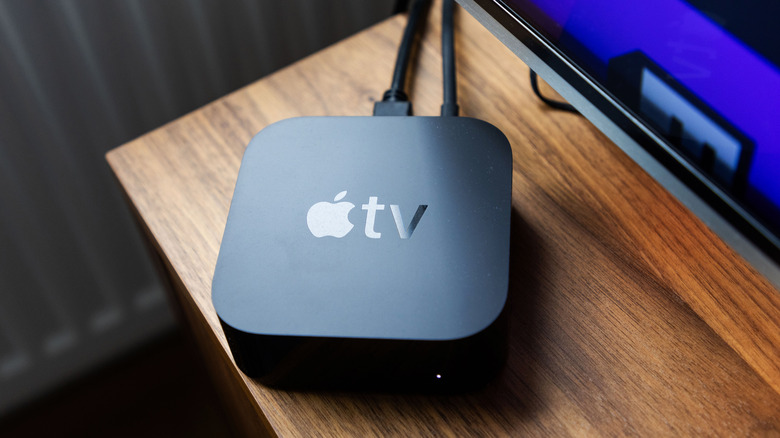
So long as the Apple TV device still functions, it can make a great accessory for a secondary bedroom. This can be useful for guests who are staying at your place for an extended period of time, or it can just be good for some entertainment in an extra room. Even better, you won't need to do any modifications to it if your spare TV supports high-definition images and has an HDMI port. But there are still some stipulations depending on the Apple TV model.
You will have to make sure that the Apple TV device is still mostly compatible with the apps you or your house guests may want to use, so you may need to do some testing on your end to ensure a decent experience. For example, Netflix dropped support for second- and third-generation Apple TV models back in July 2024.
Here's how to quickly check your Apple TV model when it's connected to the TV:
-
Navigate to the Home screen on your Apple TV.
-
Select Settings.
-
Choose General.
-
Select About.
-
Take note of the Model code under your device name.
Don't worry, because even if you find that some of your favorite apps are no longer supported, the next idea can give your device a new purpose. However, should you find that the Apple TV still works pretty well, setting it up in a spare bedroom is a great use for it. This can be especially true if you rent out a particular room on Airbnb or something similar.
Make your TV a giant monitor
If the Apple TV is second-generation or newer, you can take advantage of its AirPlay features to stream your Mac directly to your television. If you have a particularly large TV, this can be a great way to get all of the essential MacBook apps you should be using in a giant resolution. To get things started, simply make sure both the Mac and your Apple TV are on the same network. Ideally, you want them both signed in to the same Apple Account as well.
Then make sure AirPlay is enabled, do the following on your Mac:
-
Go to System Settings.
-
Select General.
-
Choose AirDrop & Handoff.
-
Look for AirPlay Receiver and turn it on if it's disabled.
You can also control who connects to AirPlay with the Allow AirPlay for dropdown menu. You can choose between Current User, Anyone on the Same Network, or Everyone. After you open your Mac's Control Center, which you can do by clicking the icon with the two sliders in the top-right corner of your screen, you can follow these steps to stream to your TV using AirPlay:
-
Choose the icon with two rectangles on top of each other to open Screen Mirroring.
-
Select your Apple TV.
-
Enter a four-digit code on your Mac if prompted.
-
Follow the instructions on-screen on your Mac.
The device may give you options to share just a window, mirror the entire screen, or even simply extend it. You can then save your options by choosing Set as Default. If you need to stop AirDrop mirroring, just click the Stop button under the Screen Mirroring option within Control Center.
Turn it into a music player
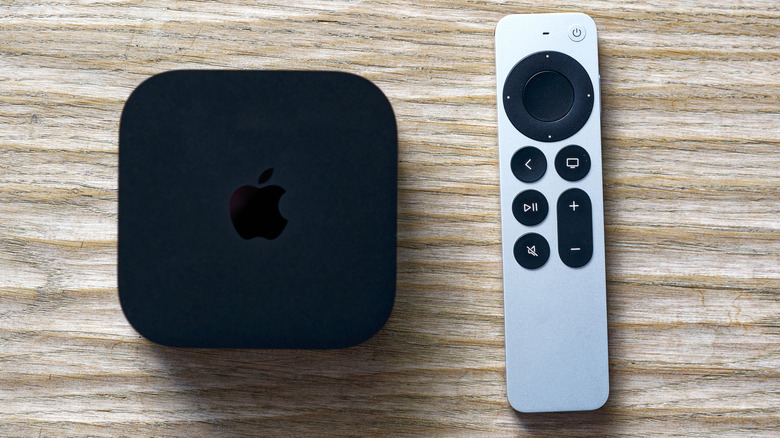
One cool thing about really old Apple TV devices is that they include optical audio ports, meaning you can connect them to a stereo setup with no wireless functionality. This solution is going to work best on the first, second, and third generations of Apple TVs, released before 2013, as they include these necessary optical ports. You can also do this with a newer Apple TV HD or 4K device, but you may want an appropriate HDMI-to-audio converter to connect it directly to a stereo rather than going through a TV. Fortunately, there is an Amazon Basics 4K HDMI to Audio Converter for $24.79 that has a 4.1-star rating and over 5,500 reviews.
To get music going, plug your Apple TV into your stereo via an optical cable and into a TV using HDMI. From the Apple TV home screen, go to Settings, choose Audio & Video, and change the Audio Output to match your optical connection. After doing so, you can disconnect the HDMI and simply rely on AirPlay once again to push the media from the device to the audio setup. Just play the music on your iPhone or iPad, tap the AirPlay button, and select your Apple TV to begin streaming. Select AirPlay and tap your device again to stop streaming. For Mac, follow the steps in the monitor section above.
Just like using your Apple TV to make your television a giant monitor, this can also be a good idea for devices that no longer receive support from Apple, which includes the second- and third-generation models. Give this one a try if you have a killer old-school audio setup that could use a splash of modern-day tech to really push its limits, or you're waiting for Apple to develop its ultimate home entertainment bundle.
Donate it
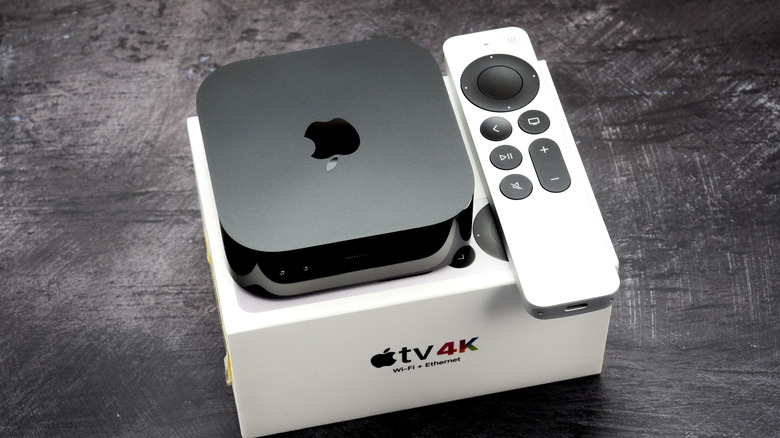
Should you feel you no longer want your Apple TV, there's still the potential for it to do some good in someone else's hands. Donating an old Apple TV can give the device a second life, and you don't have to worry about properly recycling it –- though Apple's trade-in website has options if you're interested.
While you may need to do a bit of sleuthing to find somewhere local to your area that will accept your donation, Digitunity can help make the process easy. This 501(c)3 public charity nonprofit organization helps connect potential donors with reputable nonprofits that help put old tech in the hands of those who need it. Digitunity's website makes it easy to locate an organization by your zip code, meaning you just need to find and choose an organization, tap Donate Now, complete a short form, and wait to coordinate a pick-up or delivery with the organization.