

Say Goodbye To Spotty Wi-Fi With This DIY Fix That Uses Your Old Smartphone
So, you're happily streaming a TV show on your phone, but when you move to a different room, your Wi-Fi suddenly cuts out. This has been an age-old problem, especially in homes with a single router. Some rooms inherently get weaker Wi-Fi signals due to factors such as distance from the router and physical obstacles, including walls and pieces of large furniture.
Normally, you can improve the Wi-Fi speed by setting up a mesh Wi-Fi system in your home. This increases the coverage, even to the second-floor rooms, and lets you connect more devices without worrying about performance drops (often being compared to a Wi-Fi range extender). But what if you only want to extend your Wi-Fi coverage to the next room? In such cases, mesh systems may be overkill, costing more than necessary. A more suitable alternative would be a Wi-Fi repeater. Not only is this cheaper, but you can actually make one yourself out of an old smartphone. We'll walk you through how to do so.
Option 1: Use your phone's built-in Wi-Fi sharing feature
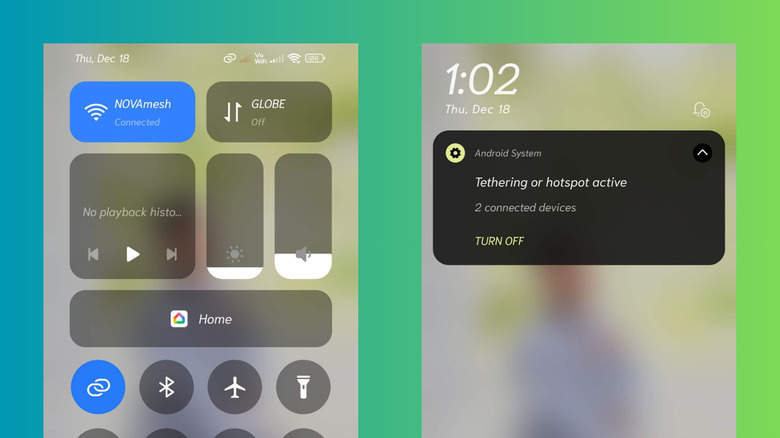
One of the quickest and easiest ways to convert your old smartphone into a Wi-Fi repeater is by turning on its built-in Wi-Fi sharing feature. This allows the device to redistribute the Wi-Fi connection it's currently on. Unfortunately, it isn't a standard functionality across all mobile devices. iPhones don't offer Wi-Fi sharing, and not every Android phone is shipped with this function. Some Android models, like the Samsung Galaxy Fold 6 and Google Pixel 10, do support Wi-Fi sharing, though.
To see if your device has Wi-Fi sharing built in, all you have to do is turn on Wi-Fi first, followed by the hotspot. If you get a message saying Wi-Fi needs to be turned off to use the hotspot, that means you don't have Wi-Fi sharing and can only share your cellular connection. If you're able to activate both Wi-Fi and hotspot at the same time, then your phone is Wi-Fi sharing-capable, and you can proceed with these steps:
- Connect your smartphone to your home Wi-Fi network.
- Enable the hotspot function on your smartphone.
- If you haven't configured your hotspot yet, or forgot its password:
- Open the Settings app.
- Find the hotspot setup option, typically under Network or Connections.
- Edit the hotspot name and password to your liking.
From here, you're ready to use your old smartphone as a Wi-Fi repeater. Find a spot where it can still connect to your home router but is close enough to reach the dead zone you're looking to provide Wi-Fi coverage to. Then, using another phone or your laptop, connect to the hotspot provided by your old smartphone. You should be able to browse the web right away.
Option 2: Install a third-party app
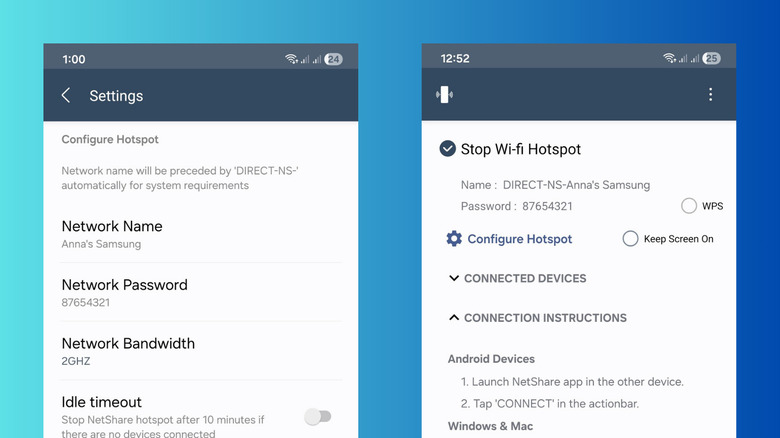
You can still repurpose your old Android phone as a Wi-Fi repeater even without native Wi-Fi sharing capabilities. To do so, you'll need a third-party app like NetShare. NetShare serves as your phone's hotspot app and shares your Wi-Fi connection to other devices. It requires at least Android 6.0, so you can use it on older devices. To set up NetShare, here's what you need to do:
- Connect to your home router.
- Download NetShare from the Play Store.
- Launch NetShare.
- On the home screen, press Configure Hotspot.
- Edit the Network Name to your preferred name. Keep in mind, though, that it will automatically start with "DIRECT-NS-", so a Network Name of Anna's Samsung will show up on other devices as DIRECT-NS-Anna's Samsung.
- Change the Network Password.
- Go back to the home page.
- Press Start Wi-Fi Hotspot.
- When prompted, select Allow to give NetShare the necessary permissions.
- Wait for the hotspot to establish itself.
Once the hotspot is established, you should see a new Connected Devices section on the home page. The hotspot's name should also appear on the available networks list on your other devices. However, connecting to NetShare's hotspot isn't as straightforward as joining a standard Wi-Fi network. Different devices have different ways to connect to NetShare's hotspot. For instance, for Android and iOS devices, here's what you need to do:
- Connect to NetShare's hotspot.
- Navigate to Settings, then Wi-Fi, then [NetShare's hotspot].
- Look for the option to edit the proxy settings.
- Set the proxy to Manual.
- Use 192.168.49.1 for the Proxy host name (for Android) or Server (for iPhone).
- Type 8282 as the port.
For Windows and Mac computers, simply connect to the hotspot as usual. Then, to gain access to the internet, copy the Windows code from the NetShare tutorial and paste it into the Command Prompt. Similarly, copy the Mac code and run it on the Terminal app. Afterwards, you should be connected.