

How Do You Tell What Type Of USB Ports You Have?
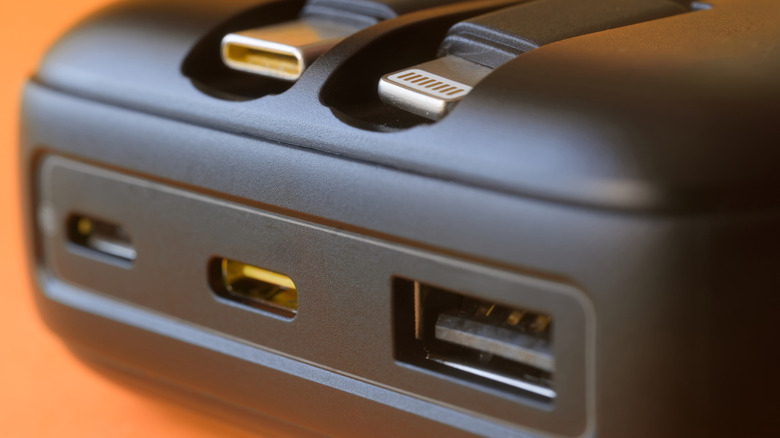
Probably among the most widely used hardware interfaces seen in consumer electronics these days is the USB. Short for Universal Serial Bus, the USB first emerged in the 1990s when a group of engineers came together to design a connector that's compatible with multiple devices and can deliver both power and fast data. This versatility and convenience quickly convinced many companies to adopt the USB until it became an industry-standard connection.
Thanks to this popularity, development on the USB continues to today. In fact, it has come a long way from the USB-A connector and USB 1.0 standard that first came out. You'll now see different types of USB, with different shapes and different standards. So, how can you tell which is which? If you need to identify the specific USB ports and connectors on your devices, you can simply look at their shape and color, or check their symbols and markings.
By the USB port's shape and color
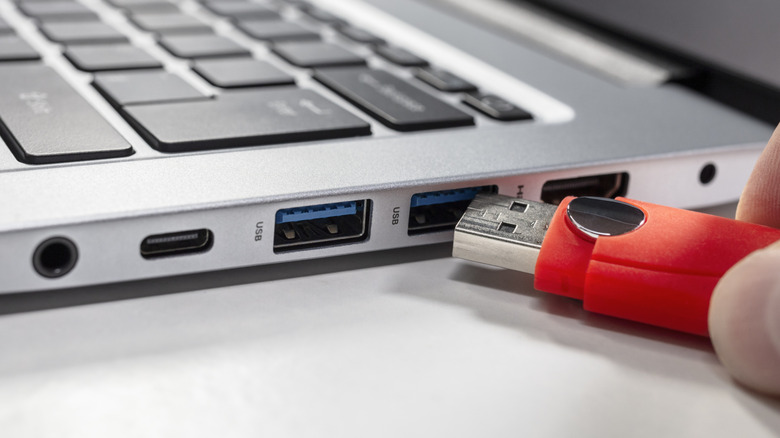
The shape and color of your USB port are clear clues of what type of port it is. Based on adoption, there are six main shapes to look out for.
The easiest to pinpoint is the rectangular USB-A. It's a common port in a slew of devices, including computers, TVs, flash drives, and even power strips. It's important to note, though, that not all USB-A are created equal. These USB ports can come in different colors: white for USB 1.0 and USB 1.1, black for USB 2.0, blue for USB 3.0 or 3.1, and other colors that indicate special functions like "Always On."
Another type of USB port you'll usually see in your devices is USB-C. It's small and oval-shaped, but it shouldn't be confused with the older Apple models' Lightning port. While the USB-C port includes a central piece, the Lighting port doesn't. It's typical to find USB-C ports in modern phones, laptops, and other rechargeable electronics like fans and portable speakers. Besides the common USB-A and USB-C, you also have USB-B. It has a boxy shape with angled corners and is the usual port for printers and scanners.
Lastly, there's the mini-USB, micro-USB, and micro-USB 3.0 Super Speed. Both the mini-USB and micro-USB look like a small trapezoid, but the micro-USB is slim like the USB-C, while the mini-USB is a bit thicker. The micro-USB 3.0, on the other hand, is a fusion between a small trapezoid and a rectangle next to each other. These three USB ports used to be prominent in older devices — the mini in cameras and MP3 player, the micro in Android phones/tablets, and the micro-USB 3.0 in external drives. Since the introduction of USB-C, many brands dropped these USB types to switch over to the new connector.
By the USB port's symbols
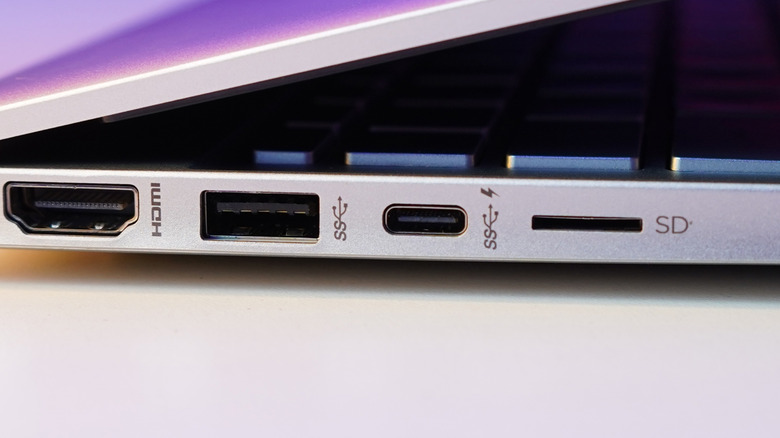
Other than the shape and color of the USB port, you can also check the port's symbols and markings to identify its type, specifically its USB standard. These symbols are usually printed near the port, so they should be hard to miss. The most basic USB symbol — and probably the one you're most familiar with — is the bare sideways trident whose base is a circle on the left. It represents USB 2.0, and you can find it on most of the main USB port shapes.
If the trident begins with an SS mark, with or without a number on the right, then it's a USB 3.2. This same logo stays consistent for the rest of the USB 3.2 versions, with the number changing depending on the generation. USB 3.2 Gen 1 with or without a 5, means it features at most 5 Gbps speeds; USB 3.2 Gen 2 has a 10 for 10 Gbps; and USB 3.2 Gen 2x2 has a 20 for 20 Gbps. The SS trident appears on USB Type A, B, C, and micro B, but the USB 3.2 Gen 2x2 is an exception as it's exclusive to USB-C.
For the USB 4 standard, the trident remains but the SS mark is replaced by either 20 or 40. The number indicates the version and maximum data transfer speed: 20 for USB 4 Gen 2x2 which has 20 Gbps, and 40 for USB 4 Gen 3x2 with 40 Gbps. Both USB 4 logos can only be seen on USB-C ports.
On top of these symbols representing the USB standards, you might also notice other markings on the USB ports. For instance, sometimes, there's a lightning bolt on the USB port of computers, which means it can charge your devices even when the computer is off. If it's a lightning bolt ending in an arrow, though, that's the icon for Thunderbolt, a powerful multi-purpose USB-C port.