

7 Of The Best Free Android Apps For Automating Your Routine
You don't want to waste any time when completing tasks during your day. There are a lot of small, routine things you have to remember throughout your day, and many of them involve your smartphone, such as switching to mobile data when you leave your house or silencing it before an important meeting. A good way to make sure these minor tasks happen is by having an automation app take care of these tasks for you and keep track of everything. There are several you can download from the Play Store that can help you handle these practices, but knowing the correct app that you should get for an Android phone can be difficult.
We've gone through several automation apps available for free for all Android smartphones and tracked down the best apps that you can use (these also work on many Android tablets). Although each of the ones we mention in our list below is free, they also come with a premium paid option if you'd like to go with those, potentially unlocking additional features. You'll want to add these apps to your must-have list, along with other free Android apps you should install on your phone. These are the seven best free Android apps that you can get to automate your routine.
Action Blocks
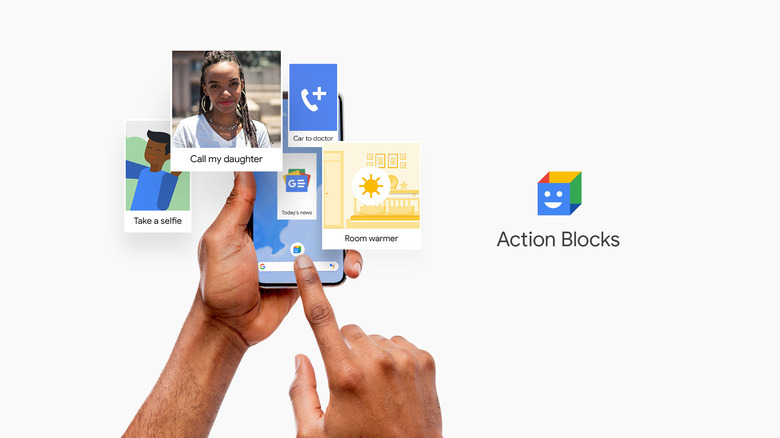
A helpful automation app you can use to help perform daily tasks from your smartphone with a simple click of a button is Action Blocks from Google. It directly ties into the Google Assistant app for Android smartphones, but it doesn't require you to memorize specific commands or gestures. Instead, it allows you to perform particular actions through a single button press that you can place anywhere on your home screen or in any convenient location. These commands can vary from activating the smartphone's flashlight to pulling up an app, like one for your music, and automatically starting your favorite playlist. Once the command is set up, the user chooses an icon for the button that reflects the action.
Beyond the smartphone commands and applications you can set up in Action Blocks, there are also ways to create voice commands that a smartphone says aloud. These can be as simple as having a command for your smartphone to say your name, ask for help, or make a simple "yes" or "no" response to a question. The phrases you can devise through Action Blocks can be more customized based on your needs. These are especially useful for anyone who may need assistance speaking and relies on their smartphone or another electronic device. Although Action Blocks leans toward a more basic approach, it's great for those who want to save time performing daily actions through a simple button press.
Samsung Modes and Routines
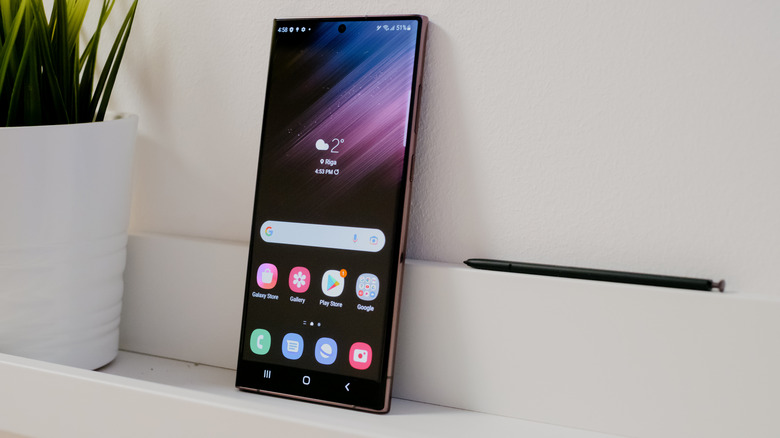
A built-in automation program available on Samsung Android smartphones is called Modes and Routines, including devices like the Samsung Galaxy S23 Ultra. You can find it under the settings menu of your device's general options. There, you can set up automations that run constantly in the background while your smartphone is on, or you can have them trigger automatically when you tap a button. Because this feature is built into supported Samsung devices, there's no download or update required.
The way you set up an automated command in Modes and Routines is directly through the settings menu, where you create an "If" and "Then" scenario. For example, you may have a routine that monitors your location and, when you leave home and move away from Wi-Fi, your smartphone turns off Wi-Fi and switches to mobile data. You can also set routines so you're not disturbed during a specific time or while you're in a certain location, which can boost productivity at work or help students stick to a study schedule. You can even silence notifications or make them unavailable for you to view while you're driving. These commands can be fairly advanced depending on how you want to use them, offering a reasonable degree of control and automation.
Automate
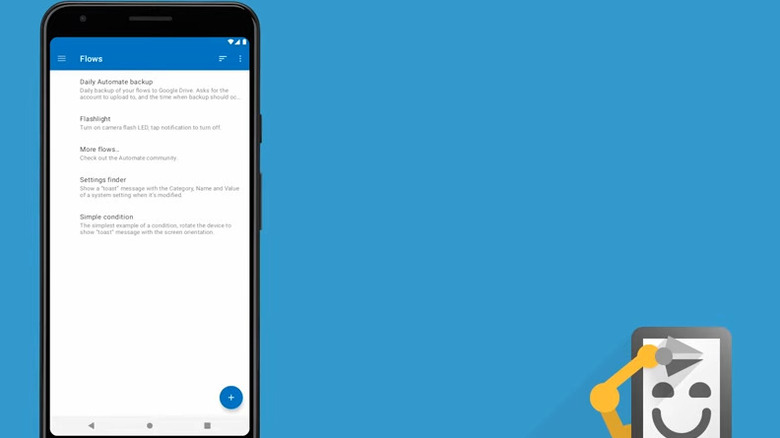
For those who have some coding experience and want to perform advanced automated tasks on a smartphone, the Automate app may be an option that suits your needs. With Automate, the commands you create appear in a vertical flowchart, allowing you to develop a complex sequence of connected actions. This method allows you to generate more specific commands with multiple conditions and scenarios. However, the downside is that the visual layout of these command structures can be overwhelming, especially for those new to coding. If you're new to automation, it's best to start with simple flows before progressing to more complex setups.
These advanced automation commands can range from launching an app on your smartphone when it detects a specific location to backing up email attachments at scheduled times and sending them to your Google Drive when connected to your home Wi-Fi. You can even set specific settings on your smartphone to be turned down or turned off if your battery reaches a certain threshold. Because of the complex nature of Automate, it might be better to try simpler automation apps first before diving into this one.
Microsoft Power Automate
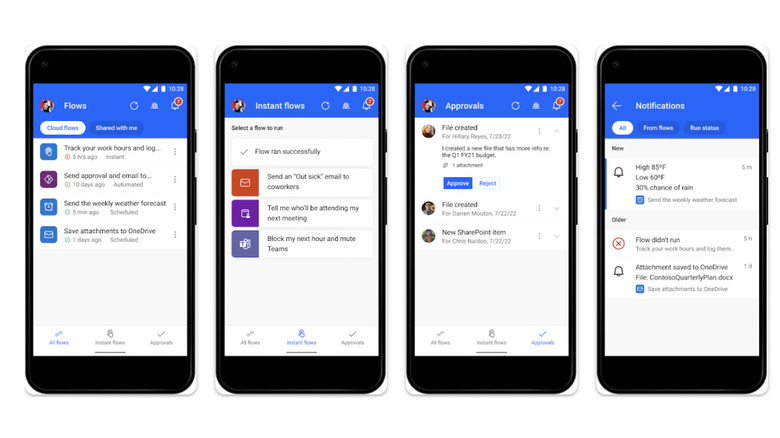
When you want to use both your smartphone and desktop for automated commands, the Microsoft Power Automate app serves as a way for the two to operate side by side. Previously known as Microsoft Flow, Microsoft Power Automate is designed to make it easier to complete time-consuming tasks by automating them on a cloud network. You'll want to use this app to handle repetitive duties or send notifications to other teammates when specific actions happen in different apps you're collaborating on, such as a Microsoft Word document, Excel spreadsheet, or a shared OneDrive folder. When something happens, a message can automatically go out to a Teams channel, notifying everyone of the change. You can also sync the two together so you can control your Android smartphone from your PC.
What makes Microsoft Power Automate appealing for multiple users is the way you develop these tasks. You devise them through a drag-and-drop method, making it straightforward to see how everything works without requiring someone to have software or coding knowledge. Additionally, the interface displays all the flows in a single place, with various symbols and icons, plus custom text labels you can add to describe each flow. You can start the process from your Android smartphone and then complete it or pick up where you left off when you return to your desktop.
aProfiles
When you want to focus primarily on automating your smartphone's functions, the aProfiles app is a good choice that provides a simple, clean interface for those who don't have experience with coding. As someone who does not have an extensive background in coding, I found this app easy to use. I created multiple actions where my alarm clock would go off at different times during the week and have a different set for the weekend without having to switch between them manually. I was able to set everything up so that whenever I left my building, my smartphone's Wi-Fi turned off and switched to mobile data. I also added a task where my Spotify playlist would start automatically when it detected a connection to my wireless earbuds. You can also set unique commands to modify your smartphone's settings to ensure it's always working at peak performance, especially if you're using any of the eight settings we recommend to optimize your Samsung phone.
The interface is simple to use, with a clear dropdown menu for every app and task you can create on your smartphone. Each setup starts with a trigger, and then you create a structured line of what you want to happen after the trigger. I did not make them too complicated when trying out aProfiles, and there are several pre-set tasks provided by the developer that you can use as a springboard when learning what you'd like to automate with this app.
MacroDroid
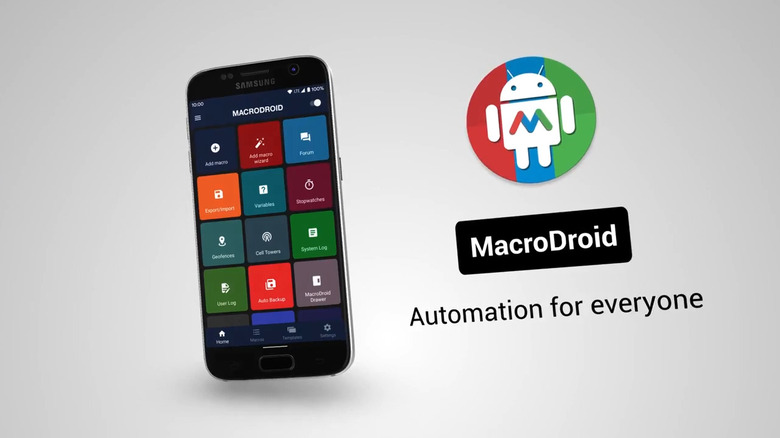
When you want to use the more advanced features of an automation app without a complicated user interface, MacroDroid could be the one you're looking to try. It features a clean interface for your tasks, where you have a trigger, an action, and an optional constraint for each task. The trigger determines how the task is activated, and this can vary from a gesture you make while holding your smartphone, an action that occurs daily at a particular time, or when it's in proximity to a sensor. After this trigger occurs, you choose what actions you want to happen, breaking down everything you want to do and how it works. Finally, you can add optional constraints so the action occurs only under certain conditions: for example, on specific days, when your smartphone battery is low, or when synced with your Google TV app so you never miss your favorite program.
The user interface in MacroDroid provides a simple approach to linking these commands together. The app breaks down the actions and overall setup in a way that makes it accessible to anyone who wants to use automation. There's a good amount of customization you can apply to these tasks, making it efficient for someone to tailor functions to their routine and make things much easier. You'll be able to control your music volume when listening to your favorite playlist on your smartphone or have a text message sent automatically via SMS when you receive one from a specific number.
IFTTT
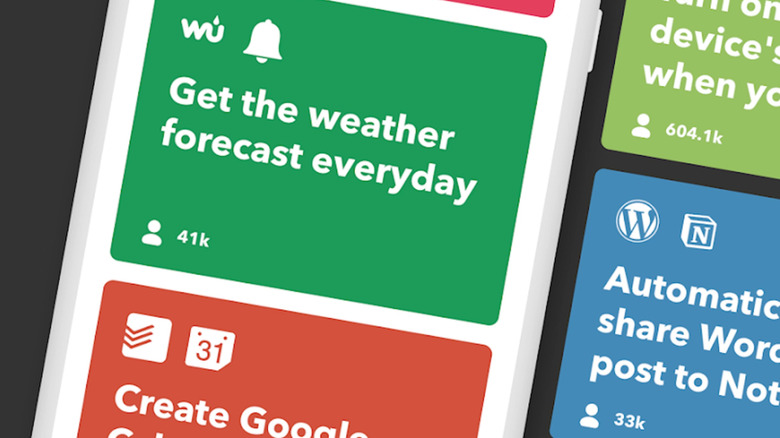
If you're looking for automation that syncs with your social media pages and posts, IFTTT is an automation app that lets you save your text and images whenever you share them online. You can create a social media post with a unique image and caption and have that information automatically saved to your Google Drive. The same goes for your email; if you want to keep track of messages you receive from a specific recipient or with a particular subject line. You can also set this up with a specific RSS feed that updates when a new blog or article is published, and you'll immediately get a notification on your smartphone, either as a text message or through another app like Slack. IFTTT also works with smart devices. When connected to your smartphone, you can control how your smart devices work, when they turn on or off, and what actions they perform under specific scenarios.
The IFTTT interface is straightforward, with a general task at the start, followed by several blocks that define what happens next. It lets users create both simple commands and more complicated ones that connect across multiple networks. It all comes down to how involved you want to be in this type of automation. For those who want guidance while creating these tasks, there's also a built-in AI assistant that provides information and tips on how to make them.